

Typeform is a form and survey builder used for lead capture, customer feedback, NPS surveys, job applications, and event registration. Connecting Typeform to Parabola lets ops, marketing, and CX teams pull responses into the same flows used for CRM enrichment, support routing, and analytics, without manual CSV exports or a custom integration.Documentation Index
Fetch the complete documentation index at: https://parabola.io/docs/llms.txt
Use this file to discover all available pages before exploring further.
Pull from Typeform
The Pull from Typeform step retrieves response data from a Typeform form. One row per response, one column per question, with optional metadata (timestamps, referrer, device, hidden fields).How to authenticate
Click Authorize and log in with your Typeform credentials. Parabola handles the OAuth handshake, so there’s no API key to manage manually.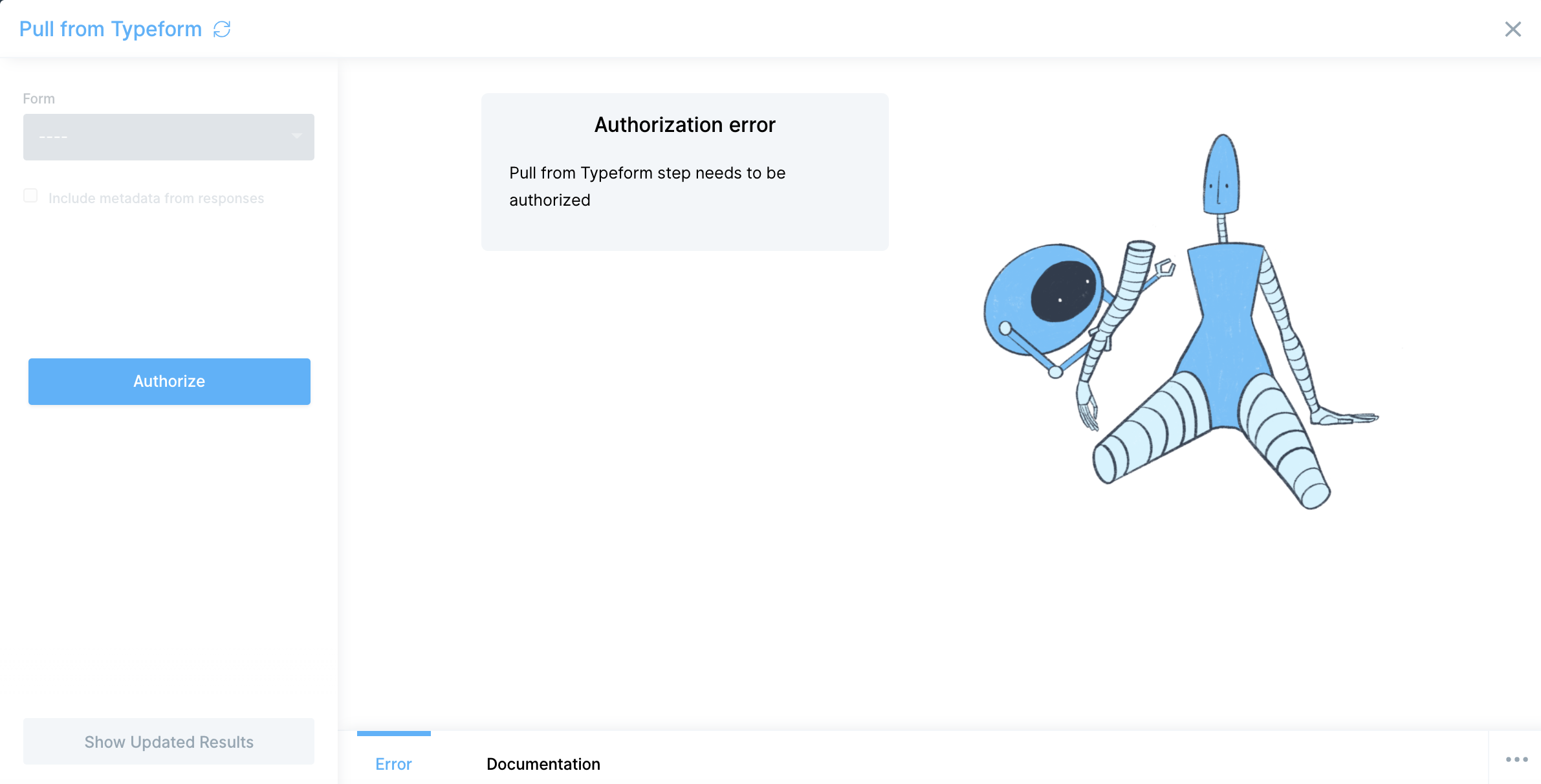
Configure your settings
- Form — pick the Typeform form you want to pull responses from. Each Pull from Typeform step maps to one form, so add a separate step (or duplicate this one) for each form you need.
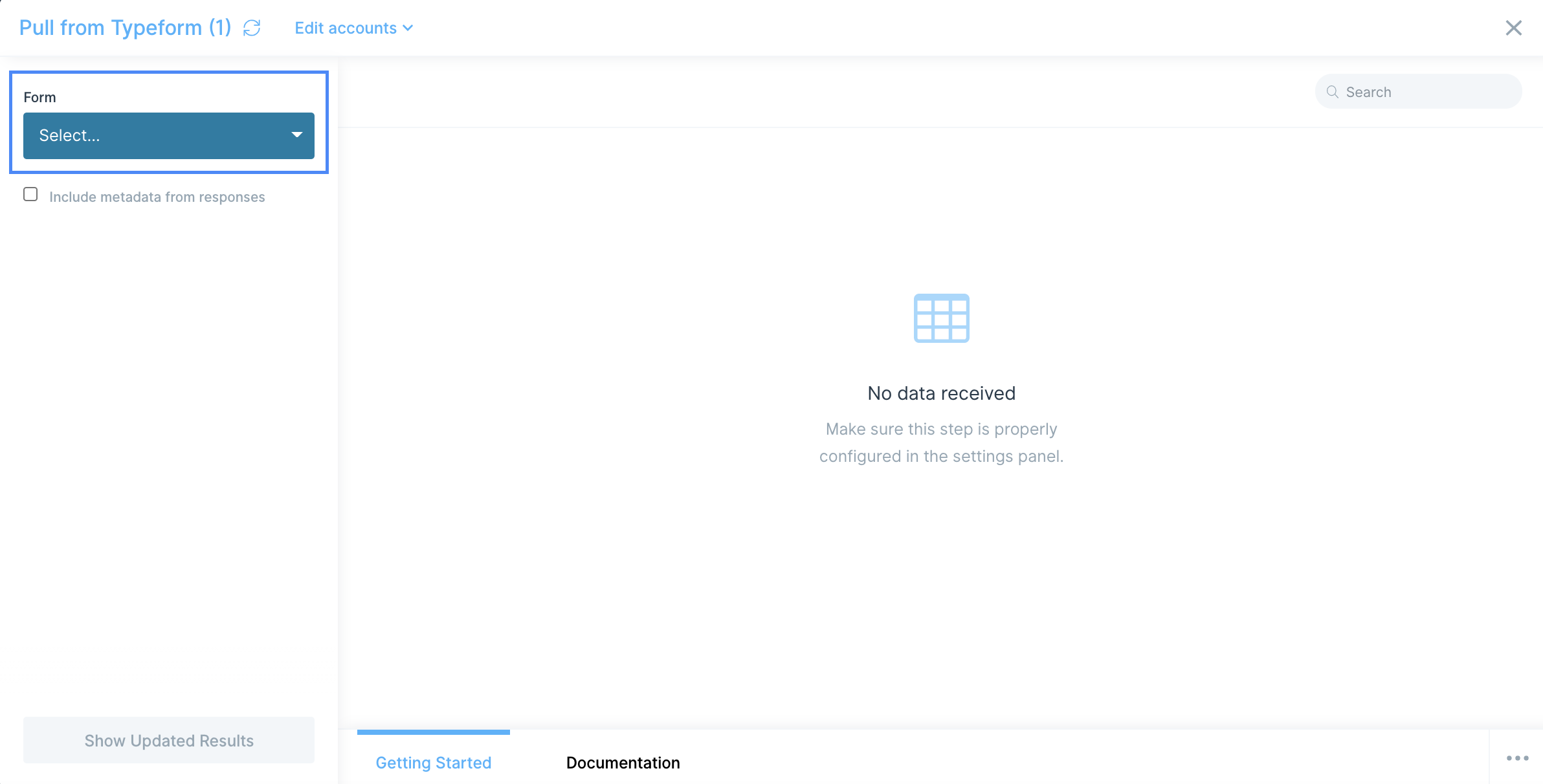
- Include metadata from responses — off by default. When enabled, Parabola adds these columns alongside the question answers:
landing_idtokenresponse_idlanded_atsubmitted_athiddencalculateduser_agentplatformreferrernetwork_idbrowser
Available data
The Pull from Typeform step pulls the Responses endpoint of Typeform’s Responses API. For each form you connect, you get:- Answers — one column per form question, one row per response. Multi-select questions arrive as a single column with the selected options.
- Hidden fields — values you pass into the form via URL parameters (
utm_source,email,account_id) come back when metadata is enabled. - Calculated fields — score or variable fields computed by Typeform’s logic show up in the
calculatedcolumn. - Submission metadata —
submitted_at,landed_at,referrer,platform,browser, anduser_agentfor funnel analysis and source attribution.
Common use cases
- Route new leads to your CRM: Pull Typeform lead-capture responses, enrich them, and push them into HubSpot or Salesforce so sales sees new leads without copying rows from a spreadsheet.
- Sync survey signups to email: Push new newsletter or waitlist signups from Typeform into Mailchimp, Klaviyo, or Drip audiences so marketing can follow up automatically.
- Tie responses to orders: Join Typeform post-purchase or NPS responses with order data from Shopify, Squarespace, or Amazon Seller Central to see which products drive the highest scores.
- Build a survey reporting dashboard: Roll up CSAT or NPS responses on a schedule and drop the result into Google Drive, Smartsheet, or a Slack message for the team.
- Send raw responses to your warehouse: Push response history into Snowflake, BigQuery, or Redshift for long-term cohort and conversion analysis.
- Trigger ops alerts on flagged responses: Send a Slack message when a low NPS score, support escalation, or refund request comes through so someone owns the follow-up that day.
Tips for using Parabola with Typeform
- Use one step per form. Each Pull from Typeform step pulls a single form. For multi-form flows, drag in additional steps and union the results downstream.
- Turn on metadata when you need source attribution.
submitted_atis essential for date filtering, andreferrerplushiddenUTM fields let you trace responses back to a campaign. - Filter to recent responses for big forms. Typeform stores every response, so a high-volume form returns a lot of rows. Add a Filter rows step on
submitted_atto limit each run to the last 7 days. - Normalize multi-select answers. Multi-select questions come back as comma-separated text in a single column. Use Stack columns or Split columns before grouping or filtering on individual options.
- Convert timestamps to your reporting timezone. Typeform returns timestamps in UTC. Use Parabola’s date steps before any “today” or SLA logic.
- Match cadence to use case. Hourly for lead routing, daily for survey reporting, weekly for cohort and trend analysis. For sub-minute response handoff, use a Typeform webhook into a Parabola webhook flow instead.
FAQ
Can I push data back into Typeform?
The Pull from Typeform step is read-only. To create or update Typeform forms, responses, or workspaces, use a Send to an API step pointed at Typeform’s Create API with a personal access token.Does Parabola support Typeform webhooks?
Yes, indirectly. Configure a Typeform webhook to send response payloads to a Parabola webhook trigger on a separate flow. That flow runs as soon as the response comes in, instead of on a schedule.How do I pull only recent responses?
Pull the full set, then add a Filter rows step onsubmitted_at. For very high-volume forms, schedule the flow more frequently (every 30–60 minutes) and filter to the last 24 hours so each run stays fast.
Can I pull from multiple Typeform accounts in one flow?
Yes. Add multiple Pull from Typeform steps, click Edit accounts on each, and authorize a different Typeform login. Then union the results downstream.Why are my hidden fields blank?
Hidden fields only populate when the form was opened with the matching URL parameter (for example,?utm_source=newsletter). If your form was opened directly without parameters, the hidden field columns return empty.
With Typeform and Parabola connected, the responses your team used to copy out of Typeform every Monday flow into your CRM, dashboards, and warehouse on a schedule.