

Twilio is a cloud communications platform for SMS, voice, WhatsApp, and email. Connecting Twilio to Parabola lets ops, support, and marketing teams send dynamic SMS notifications and pull message history into the same flows used for orders, support tickets, and customer data, without writing code.Documentation Index
Fetch the complete documentation index at: https://parabola.io/docs/llms.txt
Use this file to discover all available pages before exploring further.
Pull from Twilio
The Pull from Twilio step retrieves message logs and phone-number records from your Twilio account. Use it to audit messaging volume, build delivery reports, or feed message history into a warehouse.How to authenticate
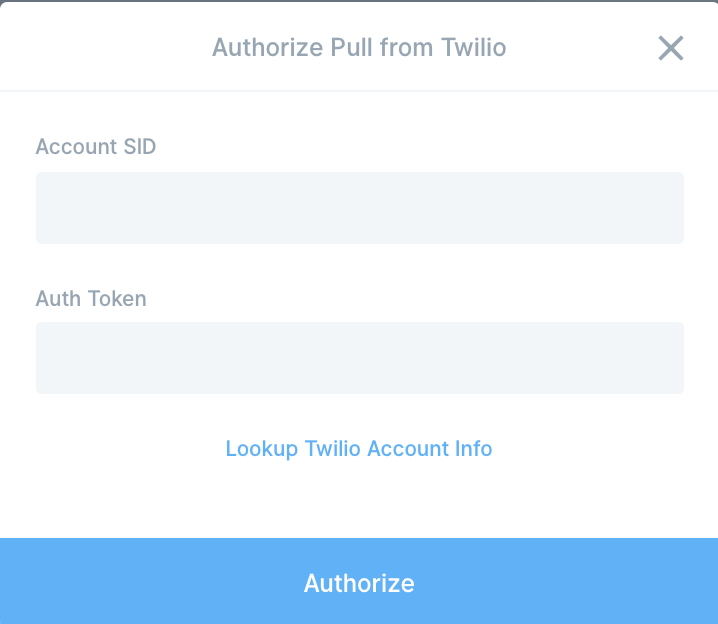
To find these credentials, click the Lookup Twilio Account Info link in the auth window or open the Twilio Console. Copy both values and paste them into Parabola.
Configure your settings
Pick a Data type:- Outbound Messages — log of all messages sent from your Twilio account. Returns: To, From, Status, Price, Date Sent, Body. Optional date filters; leaving them blank pulls the most recent 100,000 messages.
- Inbound Messages — log of replies and messages received on Twilio numbers in your account. Returns: To, From, Status, Price, Date Sent, Body. Same filter behavior as Outbound.
- Phone Numbers — phone numbers owned by your account. Returns: Number ID, Phone Number, Friendly Name, SMS Enabled, MMS Enabled, Voice Enabled, Date Created, Date Updated.
Send to Twilio
The Send to Twilio step sends dynamic SMS messages via Twilio using data from your flow. Each row becomes one outbound SMS, so a 50-row dataset sends 50 messages.How to authenticate
Enter your Account SID and Auth Token from the Twilio Console.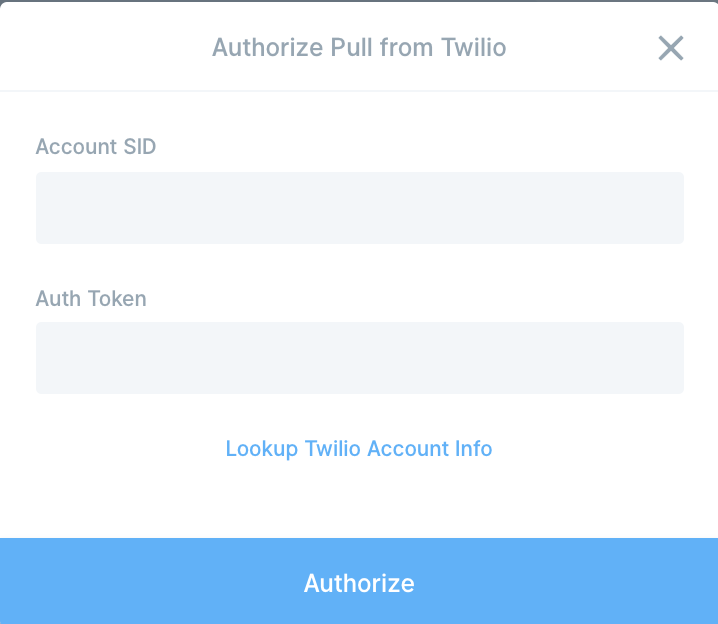
Configure your settings
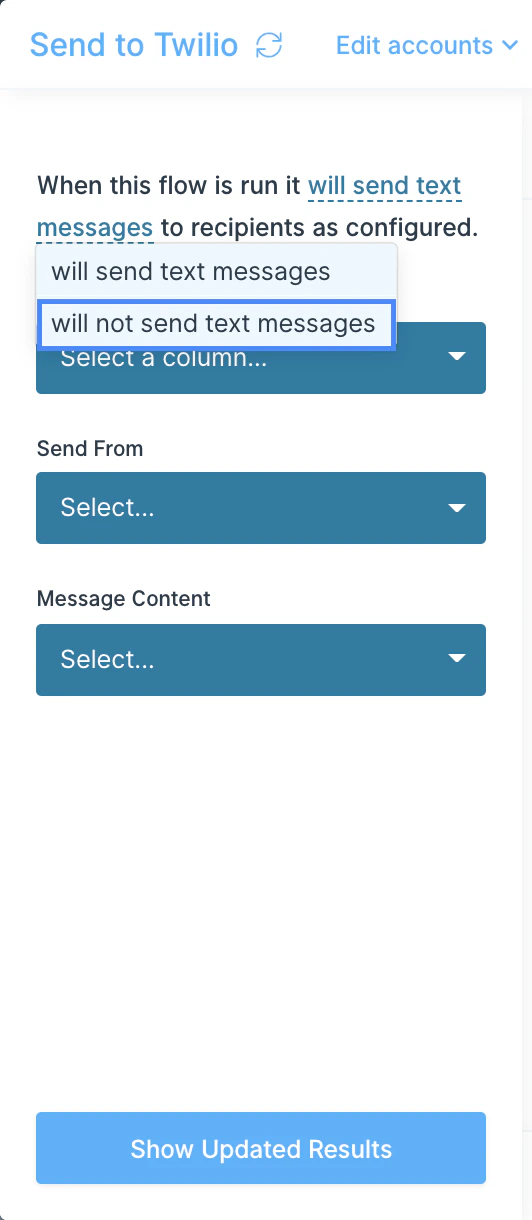
- Send text messages on flow run — defaults to on. Toggle off to test the rest of the flow without actually firing SMS.
- Send To — column with the recipient phone numbers (E.164 format, for example
+15551234567). - Send From — column with the sending phone numbers. These must be Twilio-owned numbers your account is authorized to send from. Verified Caller ID numbers cannot send outbound SMS.
- Message Content — pick a column with per-row dynamic message text, or choose Custom to send the same message to every row. For dynamic content, build the message body in an Insert column step before this one.
Available data
Pull from Twilio covers the most common reporting endpoints. For everything else (call logs, recordings, usage records, sub-accounts), use a Pull from an API step pointed at Twilio’s REST API.- Messages — outbound and inbound SMS/MMS, with status, pricing, body, and timestamps.
- Phone Numbers — incoming phone numbers your account owns, with capabilities and metadata.
- Calls — voice call logs (via Pull from an API).
- Usage records — daily/monthly usage and spend by category (via Pull from an API).
- Recordings, transcriptions, conferences — voice product data (via Pull from an API).
Common use cases
- Send shipping notifications: Trigger SMS updates on order ship, out-for-delivery, and delivered events using carrier data from DHL, FedEx, UPS, or AfterShip joined to orders from Shopify or Amazon Seller Central.
- Alert your ops team on exceptions: Send SMS via Twilio (and a backup Slack message) when a high-value order fails to ship, an SLA breaks, or inventory drops below threshold.
- Run win-back campaigns: Pull lapsed customers from Shopify or Klaviyo, filter to phone numbers with consent, and send a targeted SMS via Twilio with a custom discount code per row.
- Confirm appointments and bookings: Send dynamic appointment-reminder texts using data from Airtable, Google Drive sheets, or a CRM like HubSpot.
- Audit messaging spend: Pull Outbound Message logs nightly, sum price by date and From number, and push the result to Google Drive, Smartsheet, or a BigQuery warehouse for finance review.
- Route inbound replies to support: Pull Inbound Messages on a tight schedule, filter to keywords (STOP, refund, cancel), and push tickets into Zendesk, Front, or Gorgias.
Tips for using Parabola with Twilio
- Use E.164 phone numbers everywhere. Both Send To and Send From fields expect numbers in E.164 format (
+15551234567). Use Parabola’s text steps to normalize numbers before the Twilio step. - Twilio rate-limits SMS to 1 per second. A flow sending 5,000 messages takes about 90 minutes to finish. Plan for that in your schedule and downstream alerts.
- Verified Caller IDs can’t send outbound SMS. Send From numbers must be Twilio-owned numbers in your account. Toll-free, short codes, and 10DLC numbers all work; Verified Caller IDs (used for voice) do not.
- Test with the toggle. Before launching a campaign, set Send text messages on flow run to off and review the rows in the data preview. Flip it on once you’re confident.
- Watch your spend in the Twilio Console. Each row of data triggers one billable SMS. The Twilio Console shows usage and balance.
- Match cadence to use case. Webhook-triggered for transactional sends, hourly for ops alerts, daily for batch campaigns. For sub-second response time, set Twilio to call a Parabola webhook trigger flow.
FAQ
Can I send WhatsApp or voice via Parabola?
The native Send to Twilio step is SMS-only. For WhatsApp, voice, or programmable messaging APIs, use a Send to an API step pointed at the relevant Twilio endpoint with your Account SID and Auth Token as Basic Auth.Does Parabola support Twilio webhooks?
Yes. Configure a Twilio webhook (incoming SMS, message status callback) to point at a Parabola webhook trigger on a separate flow. The flow runs as soon as the event fires.How do I pull more than 100,000 messages?
The native step caps at 100,000 messages per pull. For larger histories, narrow the date range and run the flow on a schedule, or use a Pull from an API step pointed at Twilio’s/Messages endpoint with custom pagination.
Can I send messages from multiple Twilio numbers in one flow?
Yes. Map the Send From column to a column in your data that holds the right number per row. As long as each number is owned by the connected Twilio account, the step picks the right sender for each message.Why do my messages show “undelivered” or “failed”?
Common causes: invalid recipient (not E.164, landline, or out-of-region), unverified sender, blocked content under carrier compliance, or insufficient Twilio balance. Pull the Outbound Messages log and check the Status and Twilio’s error codes to debug.With Twilio and Parabola connected, the customer notifications, ops alerts, and one-off SMS campaigns your team used to wire up by hand run on a schedule with dynamic, per-row content.