

Amazon Seller Central is the merchant dashboard for selling on Amazon’s marketplace, where brands manage listings, FBA inventory, orders, advertising, and settlements. Connecting Amazon Seller Central to Parabola lets ops, finance, and ecommerce teams pull Selling Partner API reports into the same flows used for accounting, inventory planning, and ads reporting, without writing code or paying for a separate ETL tool.Documentation Index
Fetch the complete documentation index at: https://parabola.io/docs/llms.txt
Use this file to discover all available pages before exploring further.
Pull from Amazon Seller Central
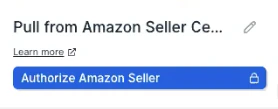
The Pull from Amazon Seller Central step pulls reports from Amazon’s Selling Partner API (SP-API). You pick a report category, a report type, and a date range — Parabola requests the report, waits for Amazon to generate it, and loads the results into your flow.How to authenticate
Configure your settings
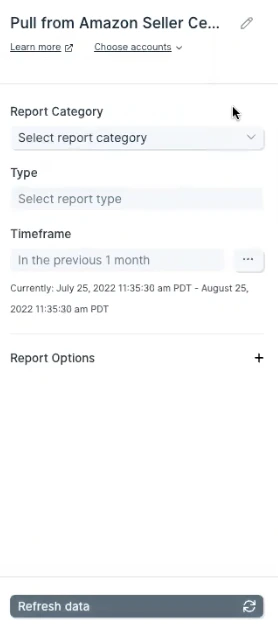
- Report category — select the type of report you want. Category descriptions live in Amazon’s SP-API report type reference.
- Report type — options change based on the selected category.
- Timeframe — defaults to the last month. Use the shortest window that meets your needs to speed up report delivery.
- Report options — some reports expose extra filters (marketplace, granularity, fulfillment channel).
Available data
Amazon’s SP-API exposes dozens of report types across these categories. The most common ones operators pull:- Sales reports — order detail, settlement reports, sales and traffic by ASIN, sales tax reports.
- Inventory reports — current inventory, manage inventory health, listings, suppressed listings.
- FBA inventory reports — daily inventory history, monthly inventory history, received inventory, FBA returns, reserved inventory, inbound shipments.
- FBA payments reports — FBA reimbursements, removal order detail, removal shipment detail.
- Settlement reports — flat-file settlement reports for reconciling deposits to your bank.
- Performance reports — feedback, returns, customer-metrics history.
- Advertising reports — sponsored products, sponsored brands, and sponsored display performance (where available).
Common use cases
- Reconcile Amazon settlements to your bank: Pull settlement reports and join them with deposits in NetSuite or QuickBooks Online so finance can post Amazon revenue, fees, and refunds cleanly.
- Compare marketplace sales side by side: Combine Amazon orders with Shopify, Walmart, and Squarespace order data to build a single multi-channel sales report.
- Audit FBA fees and reimbursements: Pull FBA reimbursements, removal orders, and inventory adjustments to catch unreimbursed losses, then send a clean summary to Google Drive or Smartsheet.
- Forecast inventory and trigger replenishment: Join FBA inventory health with sales velocity and your 3PL stock from ShipBob or ShipHero, then alert in Slack when an ASIN is at risk of stocking out.
- Send marketplace data to your warehouse: Push cleaned Amazon orders and inventory snapshots into Snowflake, BigQuery, or Redshift so analytics teams can join Amazon with the rest of the business.
- Build ops alerts for returns and feedback: Trigger a Slack message when return volume spikes on a specific ASIN or when negative feedback hits a threshold.
Tips for using Parabola with Amazon Seller Central
- Use the smallest timeframe that works. SP-API reports can take up to an hour to generate. A 7-day pull comes back faster than a 90-day pull.
- Pick the right inventory report. Inventory reports cover SKUs you fulfill yourself; FBA Inventory reports cover SKUs Amazon fulfills. Run both if you sell across both fulfillment models.
- Don’t repeat identical requests back-to-back. Amazon can return fatal errors when the same report is requested in rapid succession. Space requests at least a few minutes apart, or schedule the flow.
- Check the timezone. The default matches your browser. Parabola converts your timeframe to UTC before requesting the report — so set the timezone you want your “today” to mean.
- Use Pull from an API for unsupported reports. A handful of report categories (Easy Ship, Orders) aren’t yet exposed in the native step. For those, use Pull from an API with your SP-API credentials.
- Match cadence to use case. Hourly for active ops dashboards is overkill — most operators run Amazon flows daily for reconciliation and weekly for ads and inventory health.
FAQ
Why am I getting a “fatal error” response from Amazon?
Common causes:- No data exists for the date range you requested.
- The date range violates Amazon’s per-report limits (some reports have minimum/maximum windows — check the report type description).
- The connected seller account doesn’t sell in the marketplace specified.
- Identical report requests fired back-to-back; space them out by 24 hours and try again.
Does Parabola support Amazon Seller Central webhooks?
The native step is API-pull only. Schedule your flow on a tight cadence for near-real-time updates, or trigger it from another service via Parabola’s webhook trigger.Can I pull from the Orders or Customers APIs directly?
The native step pulls from Amazon’s Reporting API. Most order-level data is available through reports — pick a report type that contains the fields you need. For anything not covered, use the Pull from an API step with your SP-API credentials.A report exists in Seller Central but I don’t see it in the dropdown — what now?
Email help@parabola.io with the report name. In the meantime, you can usually pull it via Pull from an API against the SP-API endpoint directly or by file upload.With Amazon Seller Central and Parabola connected, the spreadsheets your team rebuilds every Monday — settlements, FBA reimbursements, multi-channel sales rollups — run themselves on a schedule.