

Squarespace is an e-commerce platform that powers online stores for thousands of small and mid-sized brands. Connecting Squarespace to Parabola lets you pull orders, transactions, products, and inventory out of the Commerce API and into the same flows you use for accounting, fulfillment, and reporting, without writing code or paying for a separate ETL tool.Documentation Index
Fetch the complete documentation index at: https://parabola.io/docs/llms.txt
Use this file to discover all available pages before exploring further.
Pull from Squarespace
The Pull from Squarespace step pulls data from your Squarespace account via the Commerce API. It’s a beta step built on top of Parabola’s Pull from an API step, pre-configured to point at Squarespace and authenticate with a single API key.The Squarespace Commerce API is only available on Squarespace’s Advanced Commerce plan. See Squarespace pricing for plan details.
How to authenticate
Generate an API key in Squarespace
- In your Squarespace admin, generate an API key with read access to your Commerce data. Squarespace’s instructions are here.
- Copy the key and store it somewhere secure.
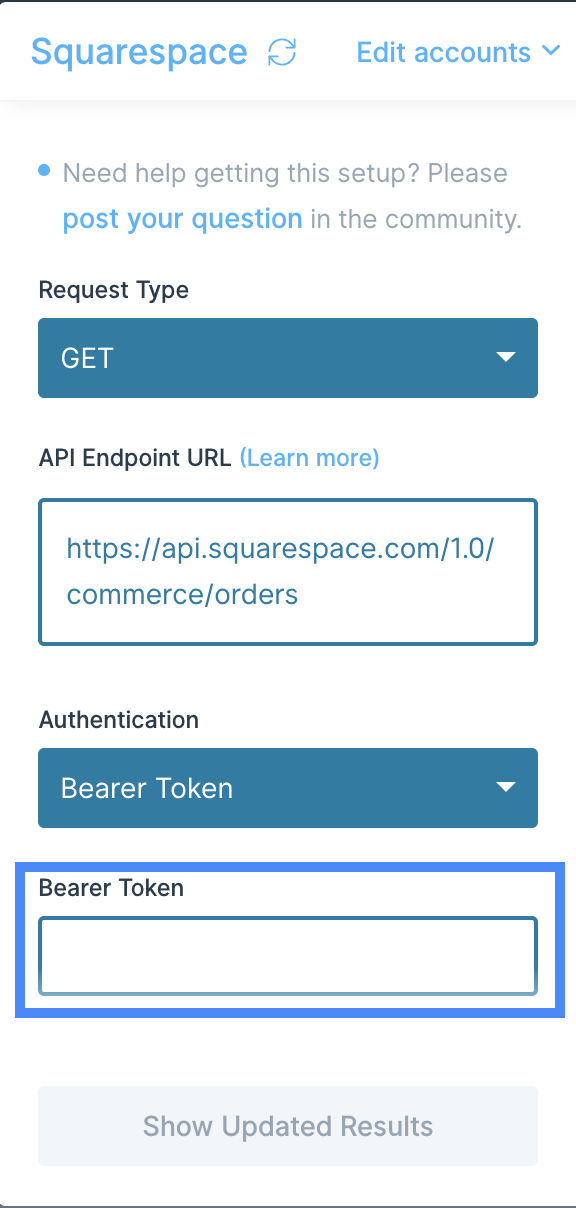
Custom settings
By default, the step pulls from the Squarespace Orders endpoint. A few fields you’ll commonly adjust:- API Endpoint URL — change this to pull a different resource (Products, Inventory, Transactions, Profiles). The full list of endpoints lives in Squarespace’s Commerce API reference.
- Max Requests — Squarespace paginates responses. If your pull doesn’t return all your data, increase this number so more pages are fetched.
Available data
Using the Pull from Squarespace step, you can access any endpoint on Squarespace’s Commerce API. The most common resources operators pull:- Orders — order ID, order number, customer info, line items (product, variant, SKU, quantity, price), shipping and billing addresses, totals, taxes, fulfillment status, and timestamps. Filter by date range or fulfillment status.
- Products — full catalog with variants, SKUs, pricing, descriptions, image URLs, and store-page status.
- Inventory — stock levels by variant, useful for reconciliation against your warehouse or 3PL.
- Transactions — payment records tied to orders, including amounts, fees, refunds, and the underlying payment processor (typically Stripe).
- Profiles — customer profiles with order history, lifetime value, and contact details.
Common use cases
- Reconcile orders against payments: Pull Squarespace orders alongside Stripe payouts to confirm the cash you received matches the orders you fulfilled, and flag any discrepancies for finance.
- Keep marketing lists current: Sync new and updated Squarespace customer profiles into Klaviyo or Mailchimp so your email and SMS campaigns reach the right audience without manual list uploads.
- Automate accounting: Push Squarespace orders, refunds, and transaction fees into NetSuite or QuickBooks Online on a daily or weekly cadence for clean revenue and fee reporting.
- Send fulfillment files to your 3PL: Build a clean order CSV from Squarespace and drop it on an FTP server or shared Google Drive folder for your warehouse partner to pick up.
- Combine Squarespace and Shopify orders: For brands running both platforms, join Squarespace data with Shopify orders to build a single source of truth for sales, inventory, and customer reporting.
- Trigger ops alerts: Send a Slack message when a high-value order comes in, when inventory for a key SKU drops below a threshold, or when refund volume spikes.
Tips for using Parabola with Squarespace
- Confirm your plan first. The Commerce API only works on Squarespace’s Advanced Commerce plan. If your auth keeps failing with 403s, this is the most likely cause.
- Adjust the endpoint URL to pull more than orders. The same step works for Products, Inventory, Transactions, and Profiles. Drop in the right path from Squarespace’s Commerce API reference.
- Increase Max Requests for large stores. If you have more than a few hundred orders or products in the date range you’re pulling, raise Max Requests until you’re getting the full set back.
- Convert money values to dollars. Squarespace returns currency amounts in minor units (cents). Divide by 100 in a Calculation step before joining with other data sources or formatting as currency.
- Normalize timestamps. Squarespace returns timestamps in UTC. Use Parabola’s date steps to convert to your reporting timezone before any SLA or “orders today” logic.
- Match cadence to use case. Hourly for ops dashboards, daily for finance reconciliation, weekly for retention and lifecycle reporting. Schedules live on the flow itself, so you can run the same setup at different intervals if you fork it.
FAQ
What Squarespace plan do I need?
The Advanced Commerce plan. Squarespace’s Commerce API is gated to that tier. See Squarespace pricing.Can I push data back into Squarespace?
The Pull from Squarespace step is read-only. To write back to Squarespace (for example, updating a product or posting a note on an order), use a Send to an API step pointed at the relevant Squarespace endpoint with your API key in the Bearer Token field.How do I pull products or inventory instead of orders?
Open the Pull from Squarespace step and replace the path in the API Endpoint URL field with the endpoint you want. Squarespace’s full Commerce API reference is here. Authentication and pagination work the same way regardless of which endpoint you point at.With Squarespace and Parabola connected, you can replace the weekly CSV exports and spreadsheet stitching that used to eat up hours with flows that pull, clean, and route the data on their own.