

Smartsheet is a work management platform that combines a spreadsheet interface with project, resource, and workflow tools. Connecting Smartsheet to Parabola lets ops, finance, and program teams pull rows out of Smartsheet sheets into automated flows, blend them with data from other systems, and write results back so the sheets your team already runs day-to-day stay current.Documentation Index
Fetch the complete documentation index at: https://parabola.io/docs/llms.txt
Use this file to discover all available pages before exploring further.
Pull from Smartsheet
The Pull from Smartsheet step reads rows from a sheet in your Smartsheet account into Parabola. Use it to bring project trackers, manually maintained reference tables, or partner-shared sheets into a flow that joins with data from other systems.Send to Smartsheet
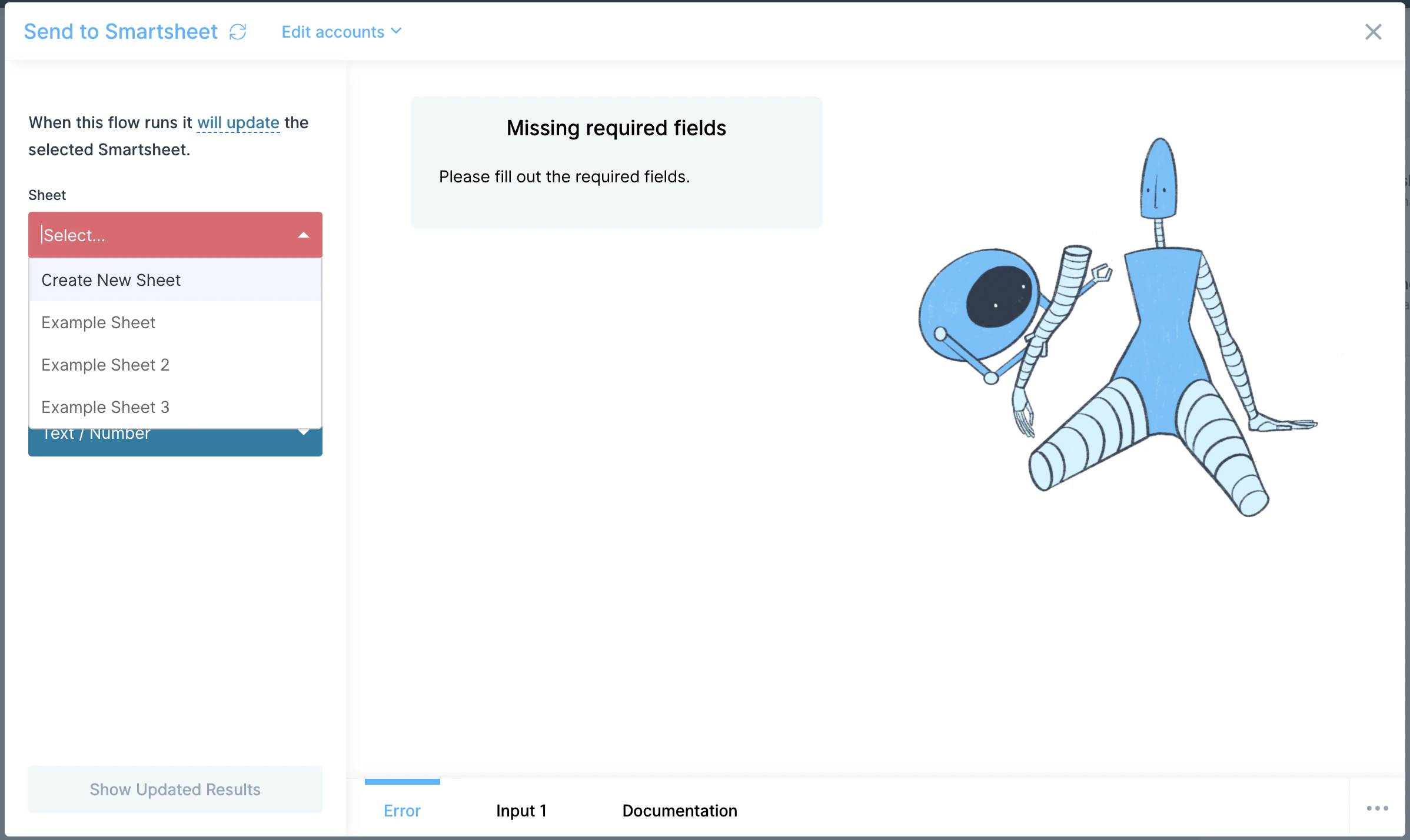
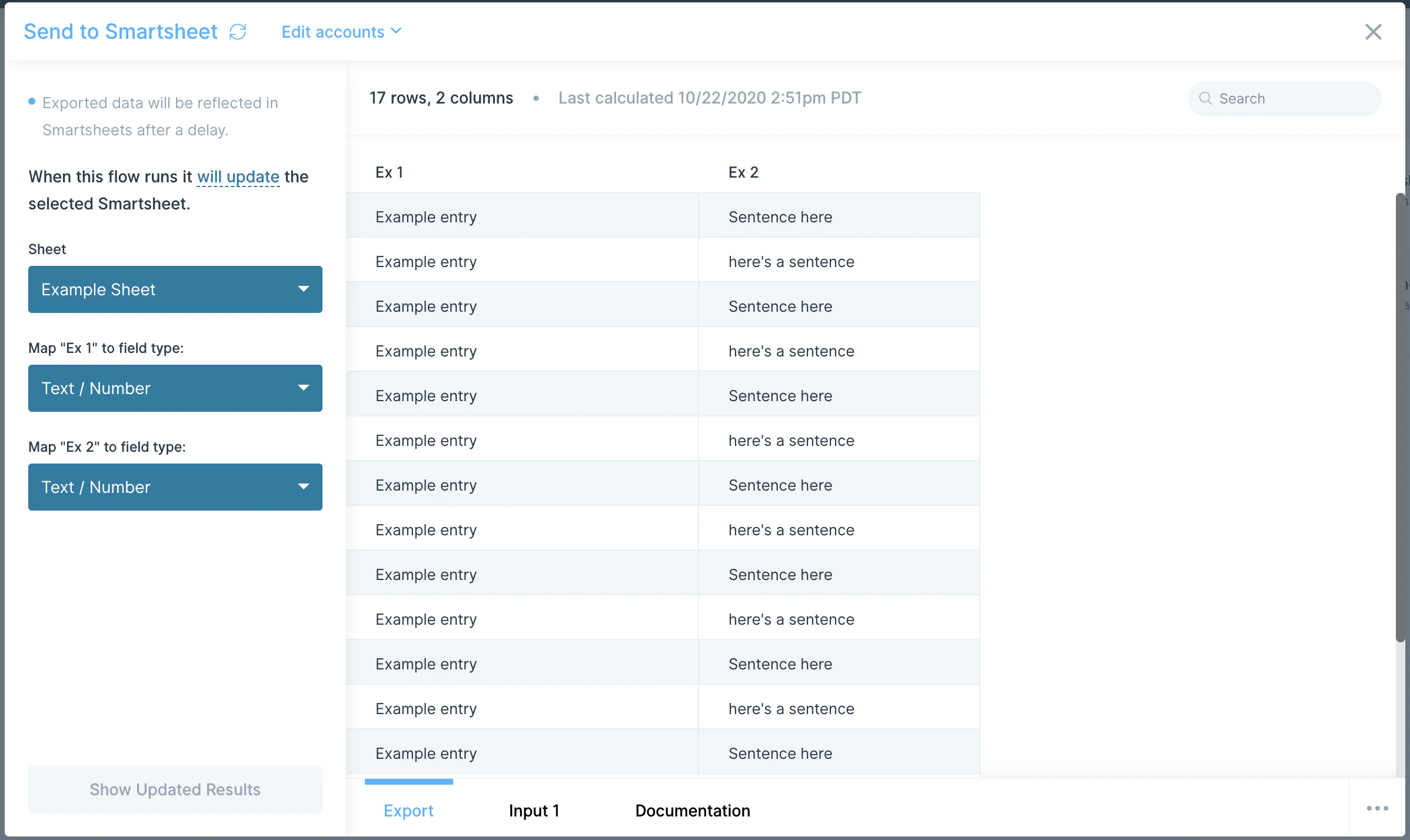
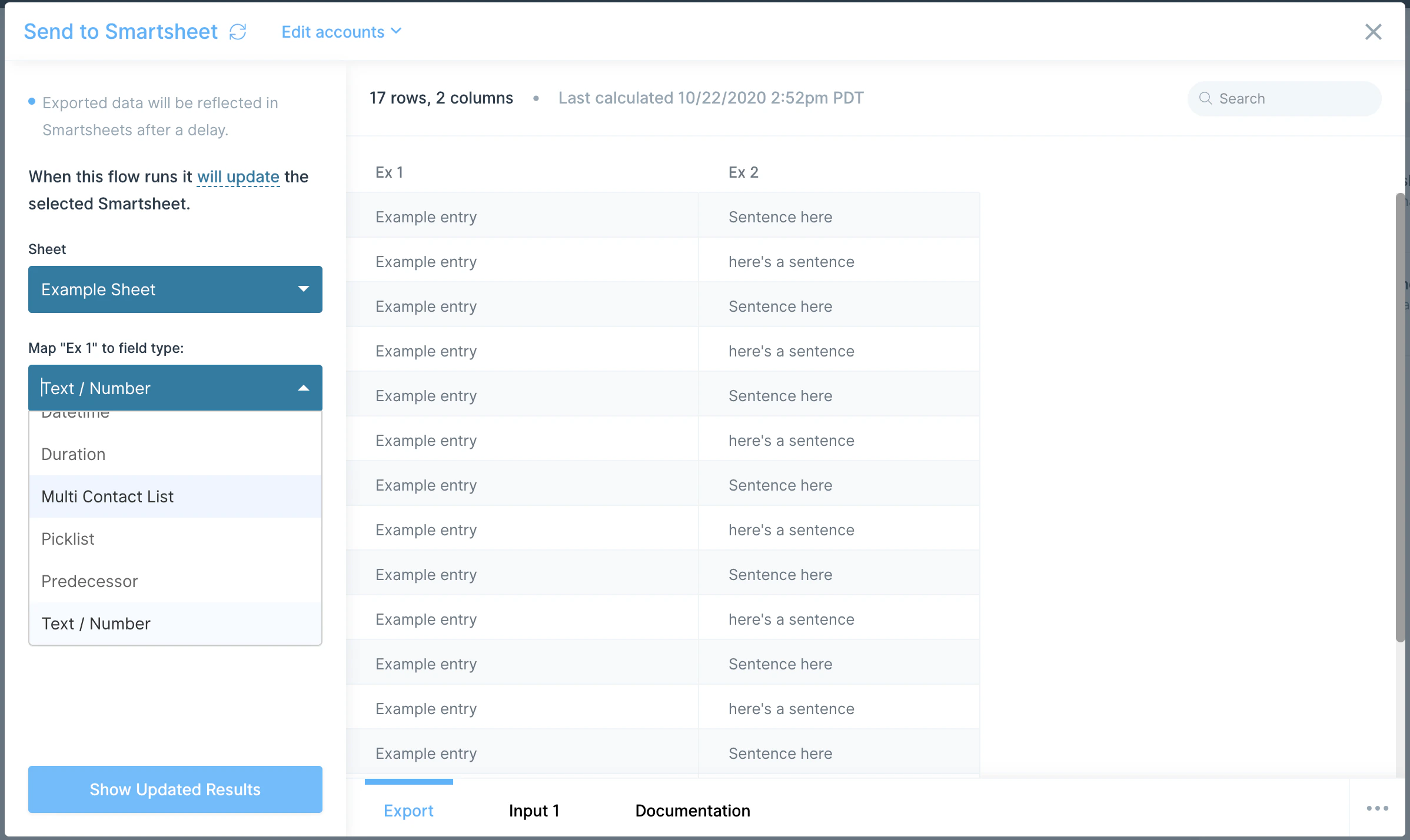
The Send to Smartsheet step writes the output of your flow into Smartsheet. You can overwrite an existing sheet or create a new one, and you can map each Parabola column to one of Smartsheet’s 11 column field types (text, number, date, contact, picklist, and so on).How to authenticate
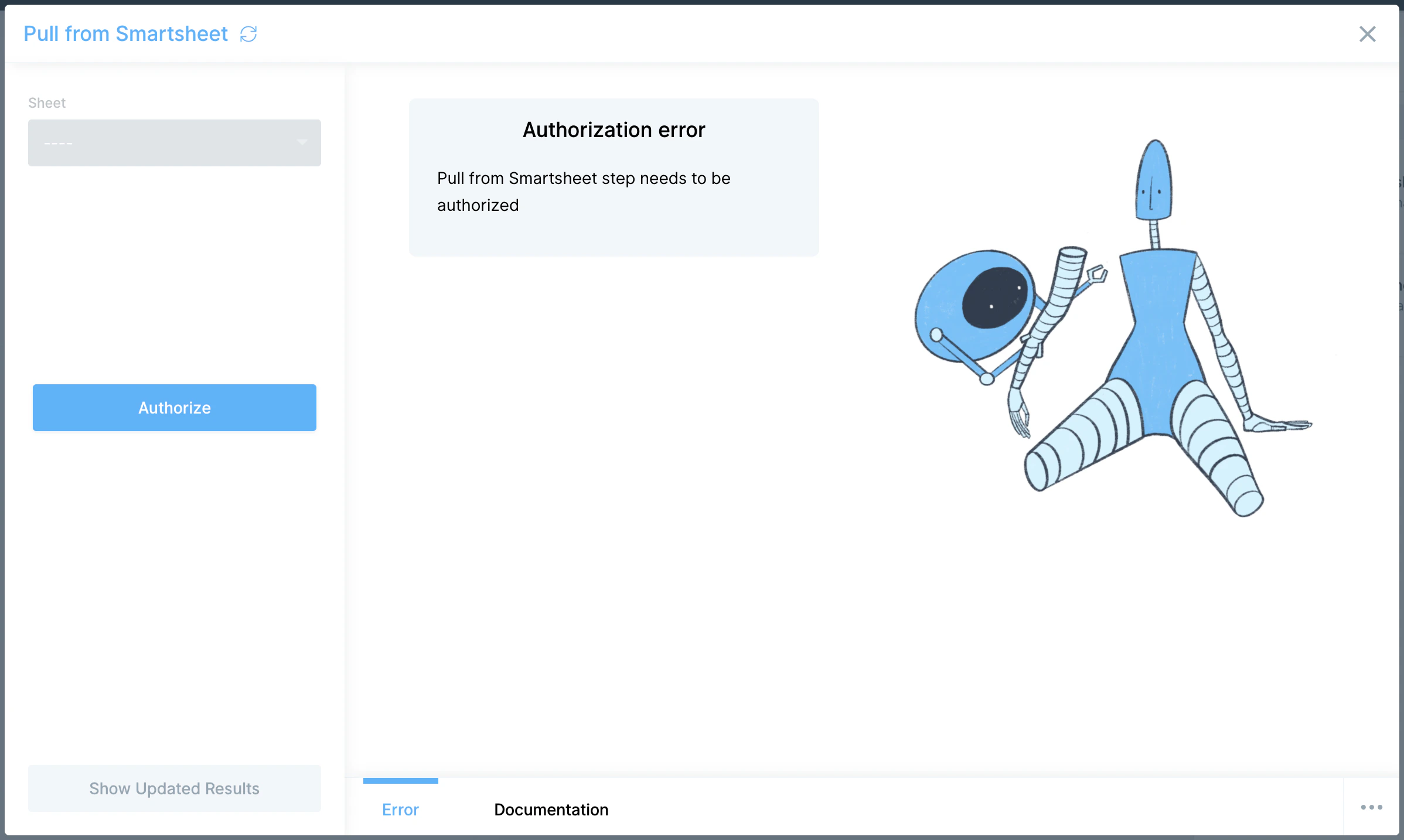
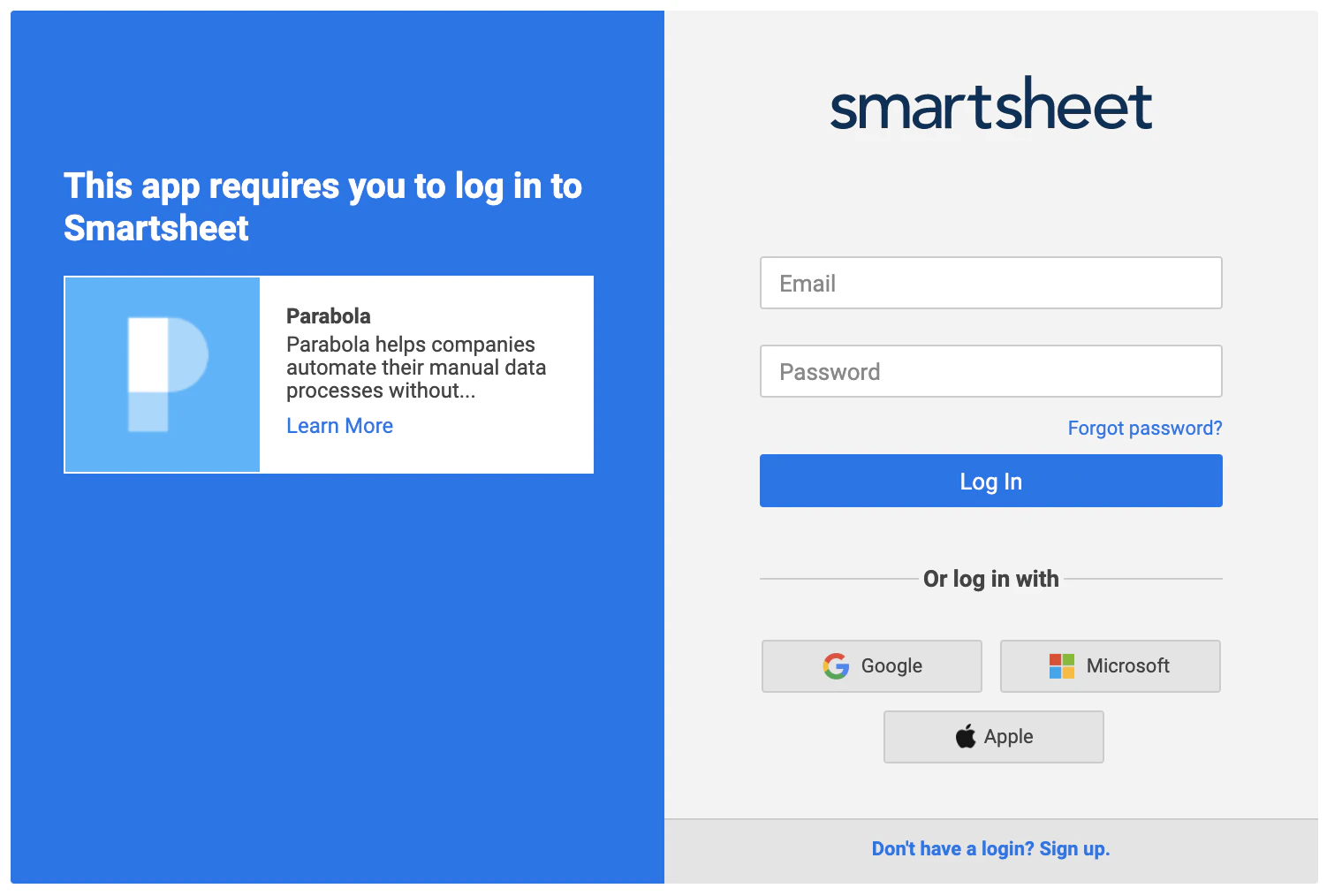
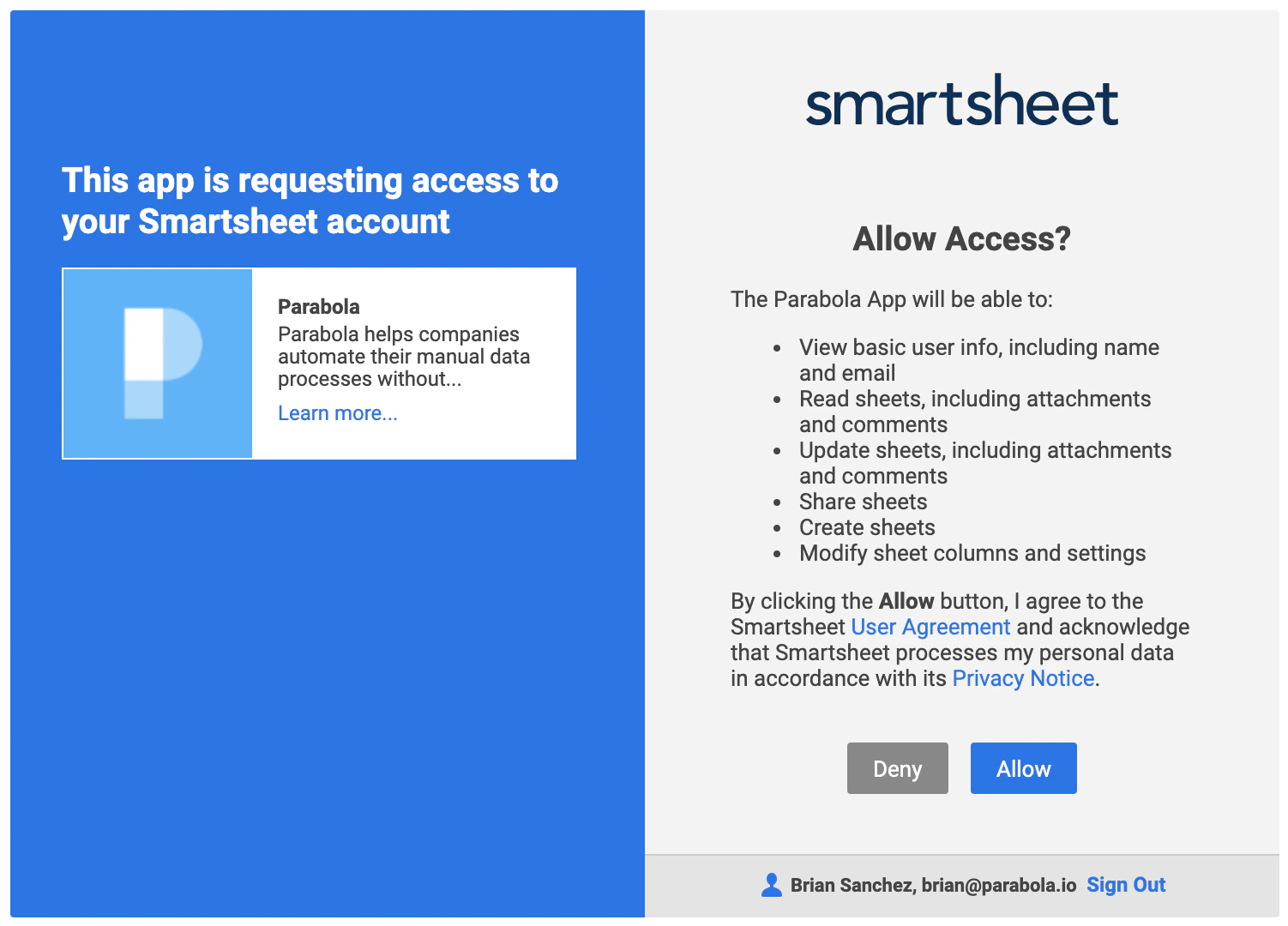
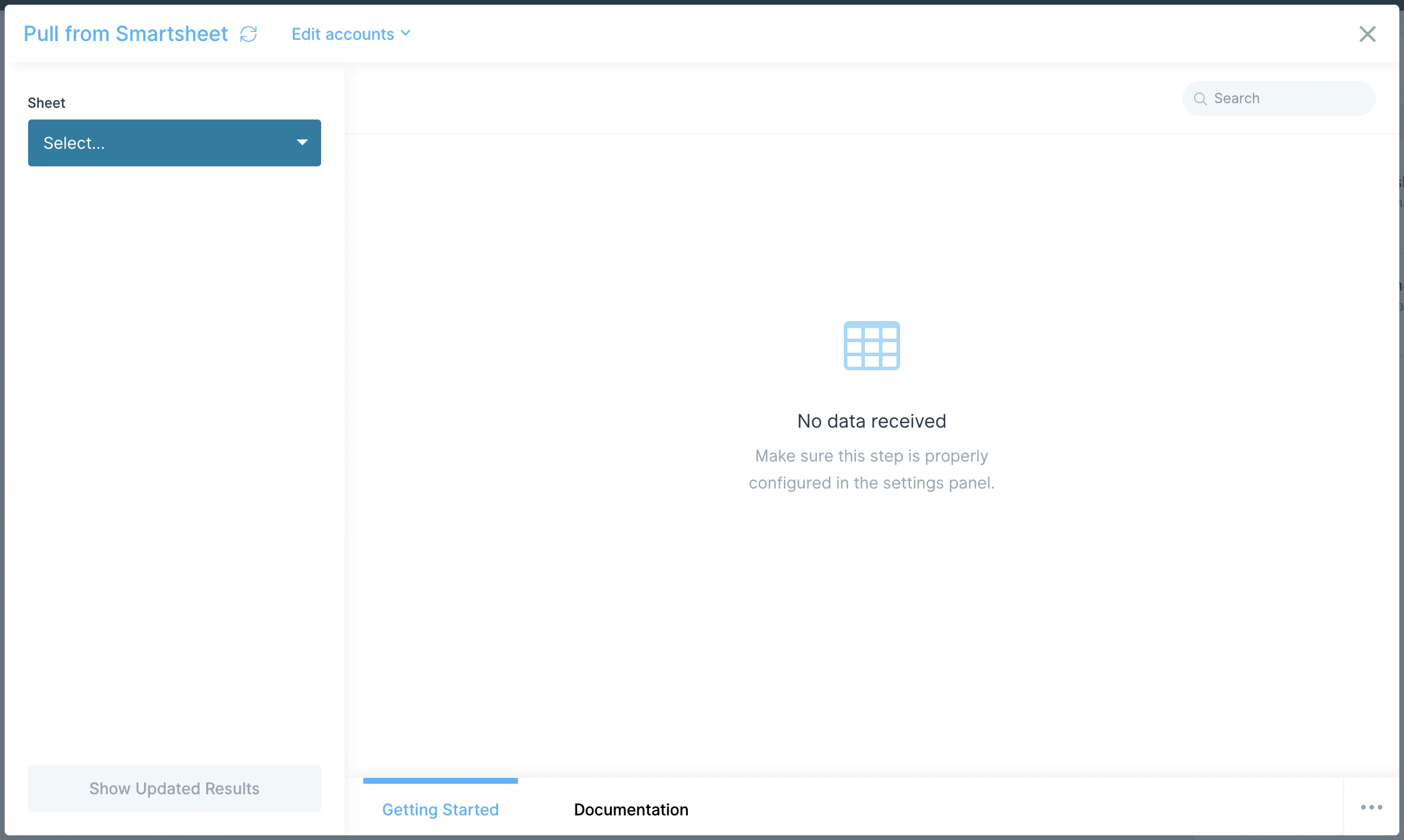
Configure your settings (Pull from Smartsheet)
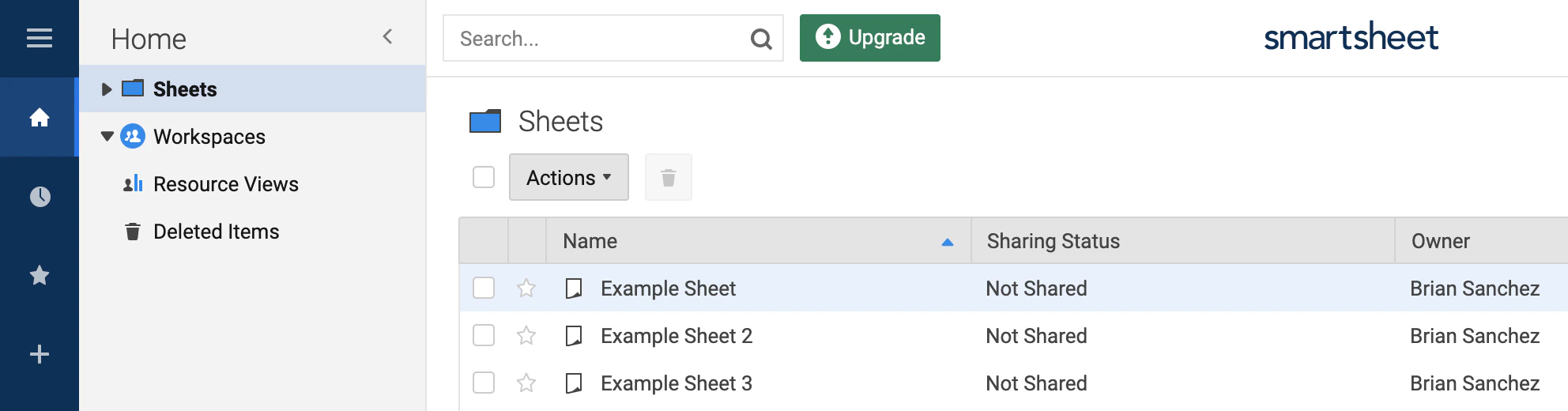
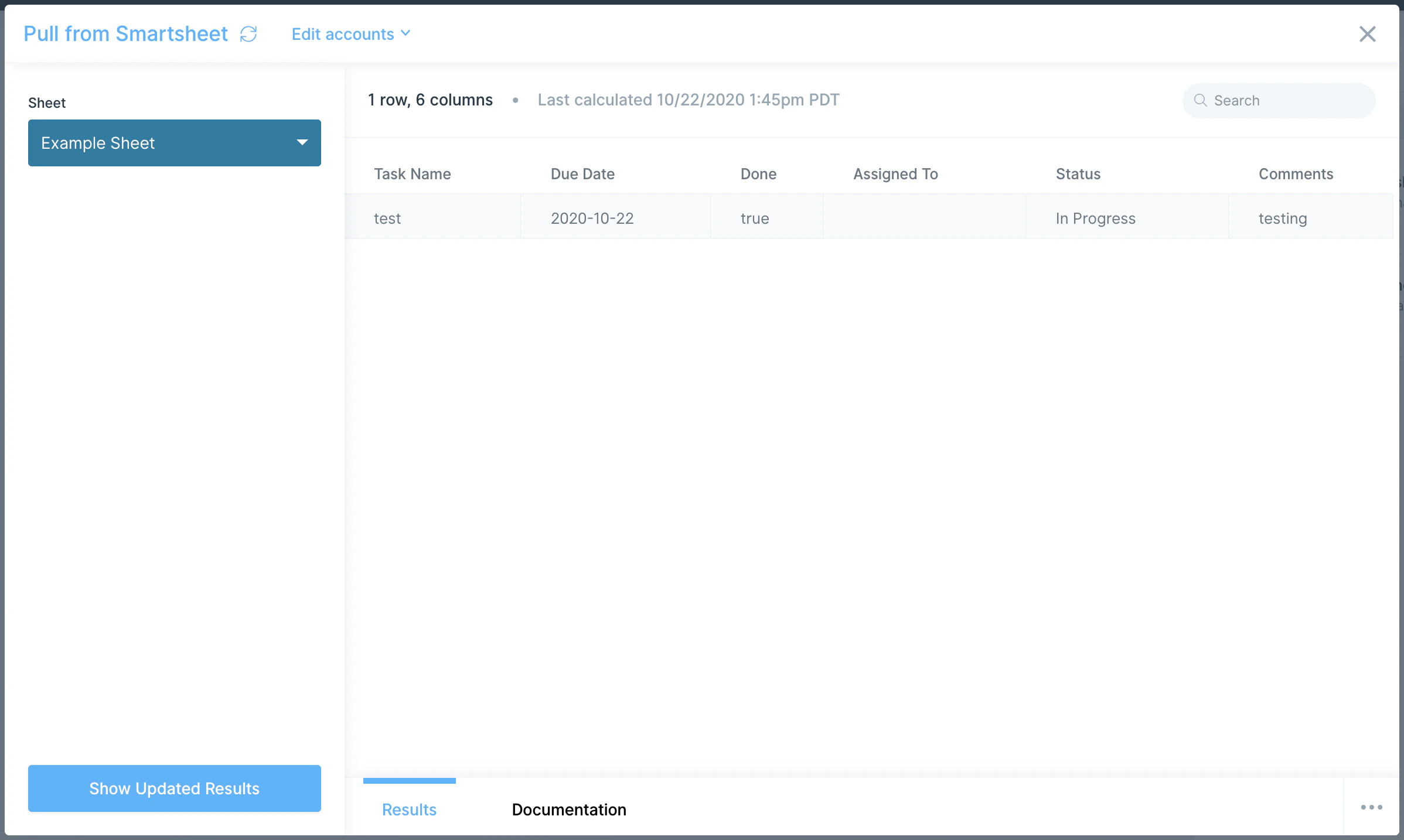
The step automatically selects the first sheet in your Smartsheet account’s Sheets section. To pull a different sheet, pick its name from the Sheet dropdown and click the refresh icon next to Pull from Smartsheet to reload the display.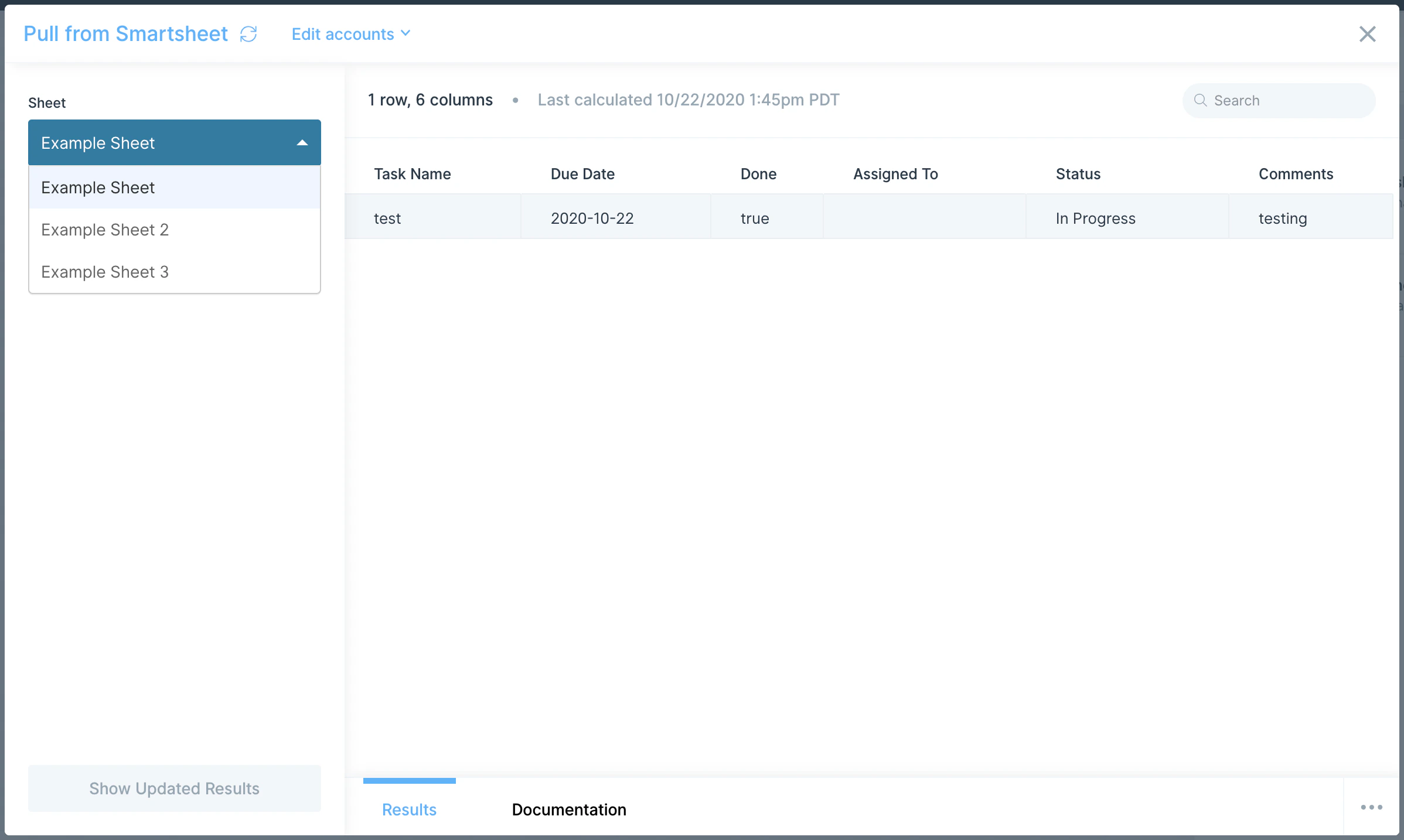
Configure your settings (Send to Smartsheet)
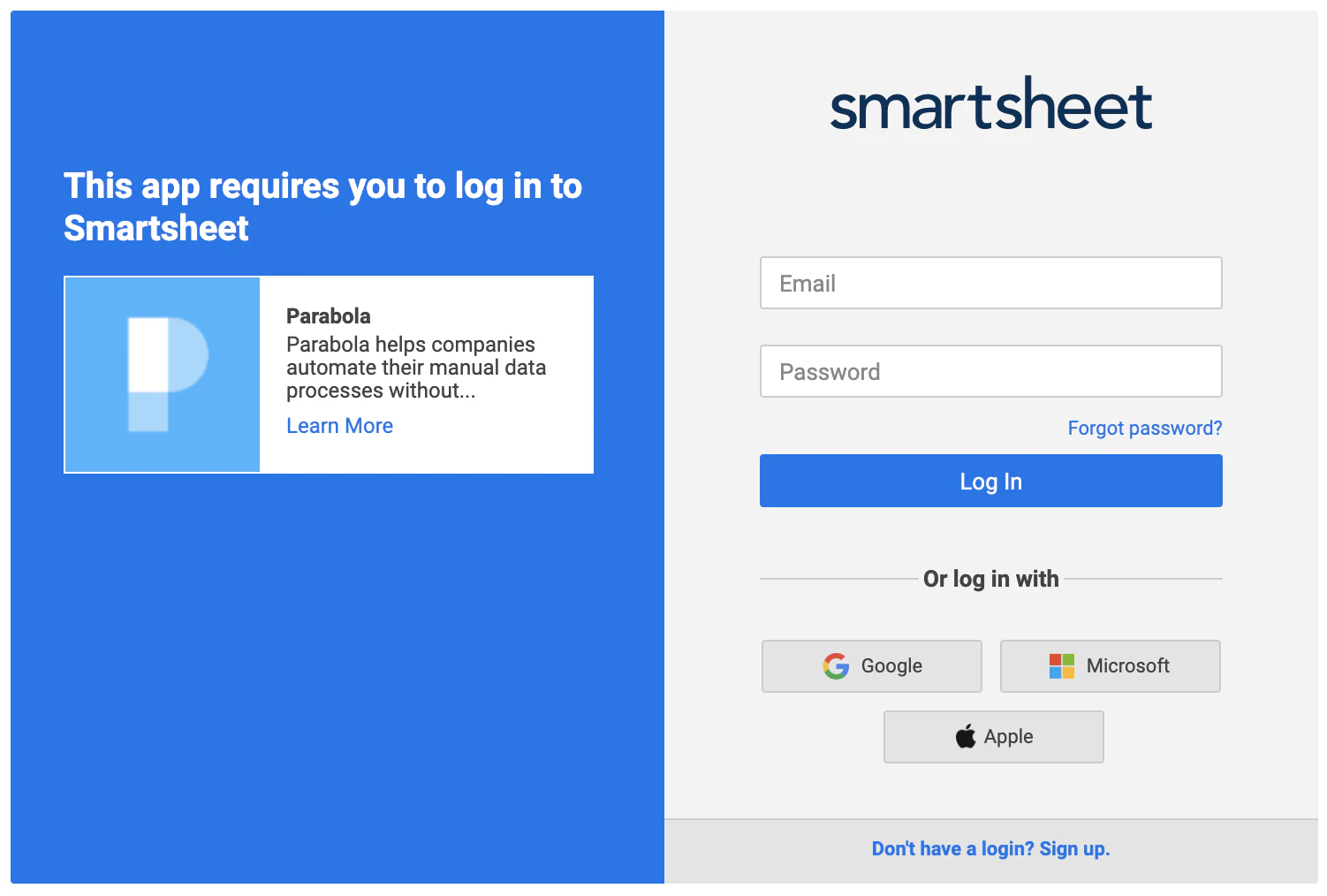
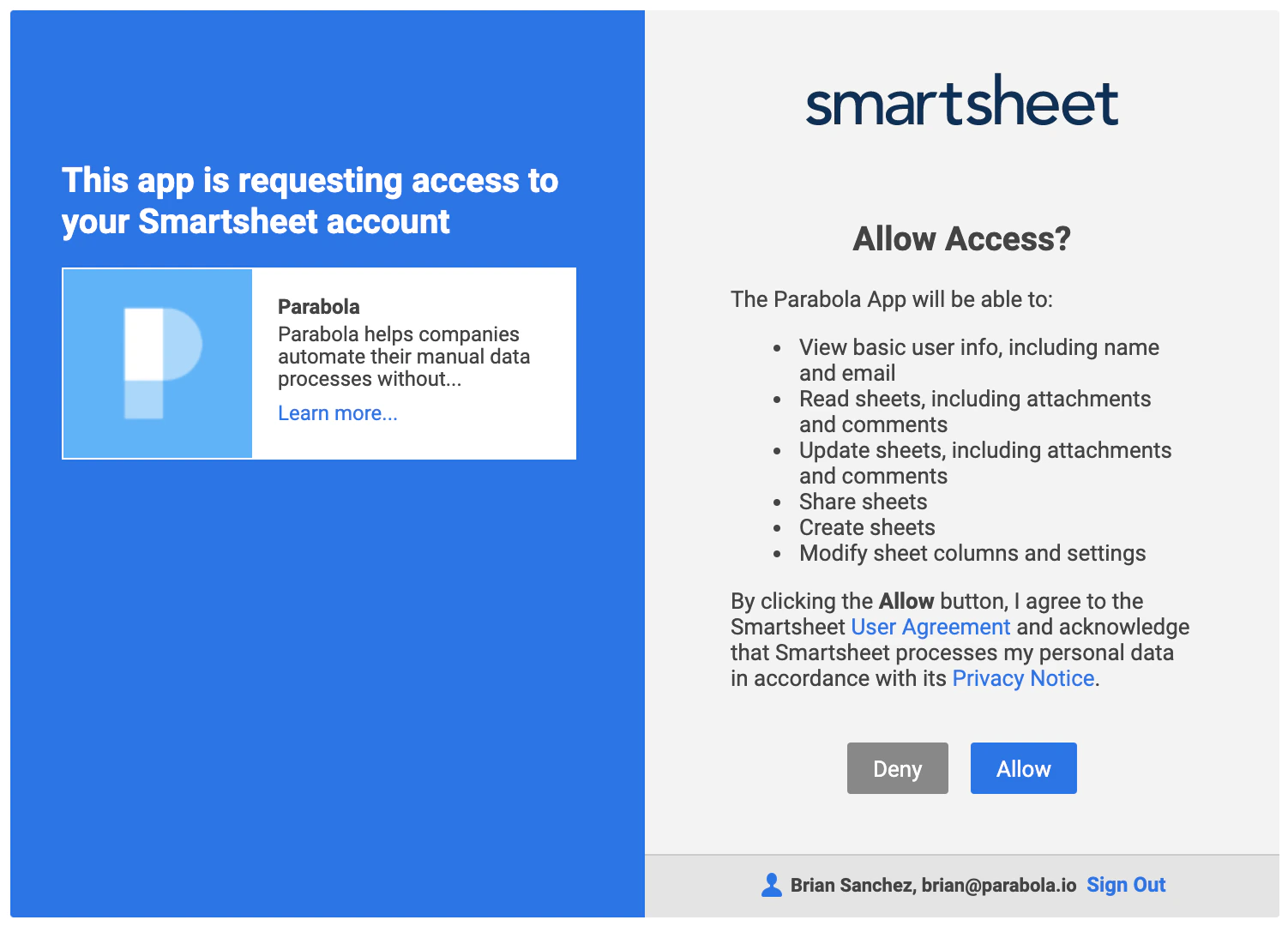
Authorize the step the same way you did for Pull from Smartsheet.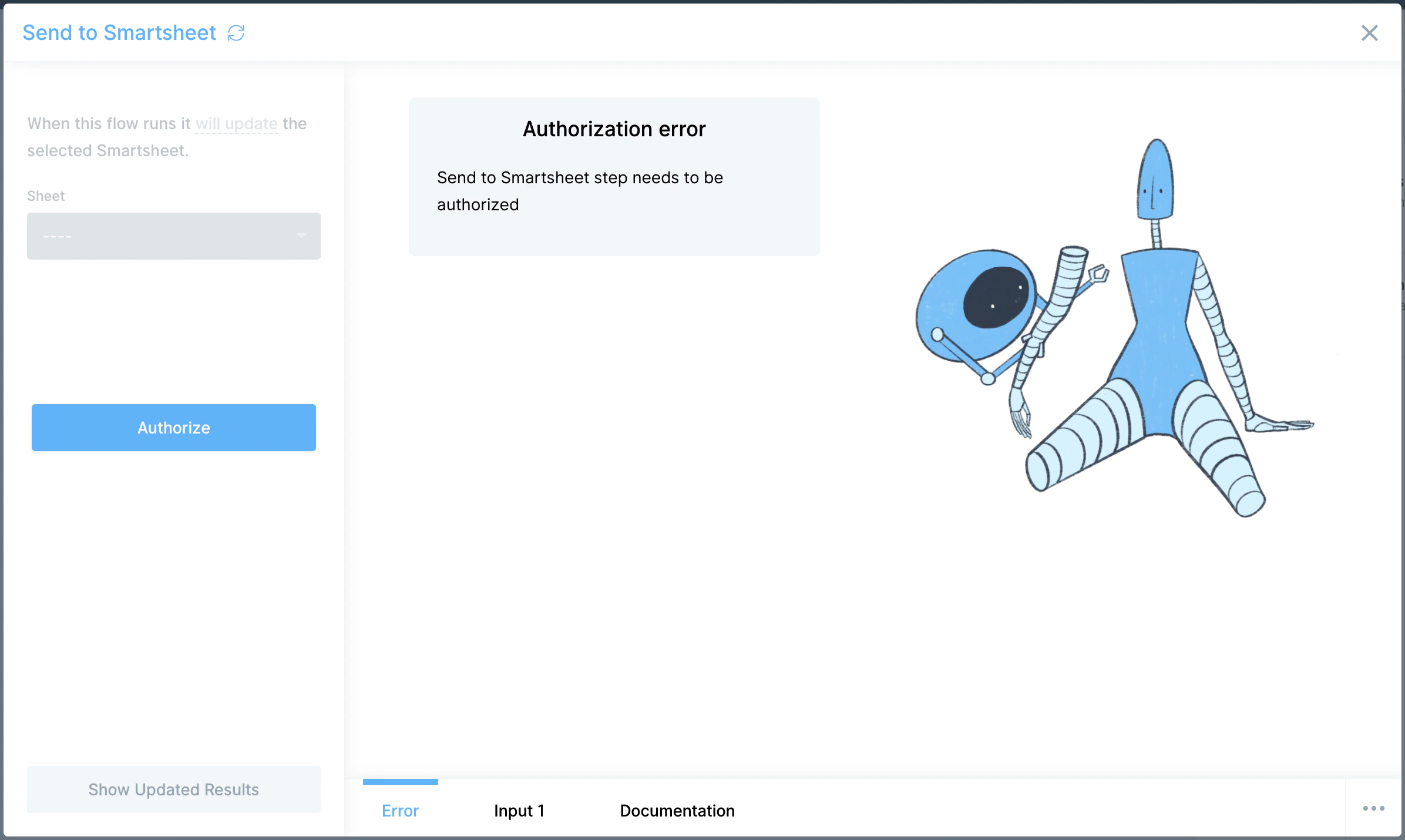
Available data
The Smartsheet steps work with sheet-level data:- Rows from a sheet. Each row in your Smartsheet sheet becomes a row in Parabola, with one column per Smartsheet column.
- All Smartsheet column types. Text, number, date, contact, picklist (single-select), multi-picklist, checkbox, symbols, auto-number, and more.
- Sheets in any workspace the connected user has access to.
Common use cases
- Build automated project trackers: Pull project status from Asana or Jira, blend with timelines from a Smartsheet sheet, and write a clean weekly status update back to the same sheet program managers already use.
- Refresh inventory or supply trackers: Pull stock data from your ERP or 3PL like Fulfil, ShipBob, or ShipHero, and write a daily snapshot to a Smartsheet supply tracker.
- Reconcile finance schedules: Combine NetSuite or QuickBooks Online data with a manually maintained Smartsheet schedule (vendor payments, accruals, capex), and write reconciled output back to the sheet.
- Drop weekly KPI rollups for execs: Send daily or weekly rollups to a Smartsheet dashboard sheet leadership already checks, instead of emailing slide decks around.
- Sync sales handoffs: Push qualified leads or won deals from HubSpot into a Smartsheet sheet that ops, fulfillment, or onboarding teams own.
- Bridge Smartsheet and a database: Pull rows from Smartsheet, transform them, and load them into Snowflake, BigQuery, or Redshift for long-term analytics access.
Tips for using Parabola with Smartsheet
- Send to Smartsheet overwrites the entire sheet. Whatever’s in the step’s results view replaces the rows in the destination sheet. Make sure your output is the full dataset, not a delta.
- Map column types deliberately. The default is text. If a column should be a date, contact, or picklist in Smartsheet, set the field type explicitly under Map “column name” to field type so formulas and views downstream still work.
- Refresh after Smartsheet schema changes. If columns are added or renamed in Smartsheet, refresh the step to pick them up.
- Match cadence to use case. Hourly for active project trackers, daily for finance and ops snapshots, weekly for executive rollups.
- Pair with cleaning steps. Manually maintained Smartsheet sheets often have inconsistent date formats, free-text columns where dropdowns would be better, and trailing whitespace. Add Edit columns and Find and replace before pushing downstream.
- Use Create New Sheet for archives. When you want to preserve historical snapshots, configure Send to Smartsheet to create a new sheet on each run rather than overwriting one.
FAQ
Does Send to Smartsheet append rows or overwrite the whole sheet?
It overwrites. The data in the step’s results view replaces the rows in the destination sheet. To preserve history, send to a new sheet on each run.Can I update specific rows by ID instead of the whole sheet?
The native step does not support row-level updates. For that pattern, use a Send to an API step pointed at Smartsheet’s REST API with a personal access token, targeting the row update endpoint.Does Parabola pull Smartsheet attachments or comments?
The native step pulls cell-level data from a sheet. Attachments, comments, and discussions are not exposed through the step. For those, use a Pull from an API step against Smartsheet’s REST API.What plan do I need?
Any Smartsheet plan with API access works. See Smartsheet pricing for plan-level details on API features.Can I pull from a Smartsheet report or dashboard?
The step pulls from sheets directly. For reports or dashboards, use a Pull from an API step against Smartsheet’s REST API endpoints for those object types.With Smartsheet and Parabola connected, the trackers your team already runs day-to-day stay current on a schedule, with input data flowing in automatically and clean output landing back in the sheets stakeholders already use.