

DocSpring is a document generation platform that fills PDF templates with data from your systems via API, used by ops, finance, and customer-facing teams to produce invoices, contracts, packing slips, certificates, and reports without manual data entry. Connecting DocSpring to Parabola lets you build a flow that pulls data from any source, cleans it, and turns each row into a populated PDF, all on a schedule, without writing code or stitching API calls together.Documentation Index
Fetch the complete documentation index at: https://parabola.io/docs/llms.txt
Use this file to discover all available pages before exploring further.
Send to DocSpring
The Send to DocSpring step creates submissions for your DocSpring PDF templates. Each row of data sent through the step becomes one filled PDF, with column values mapped into the corresponding template fields by name.How to authenticate
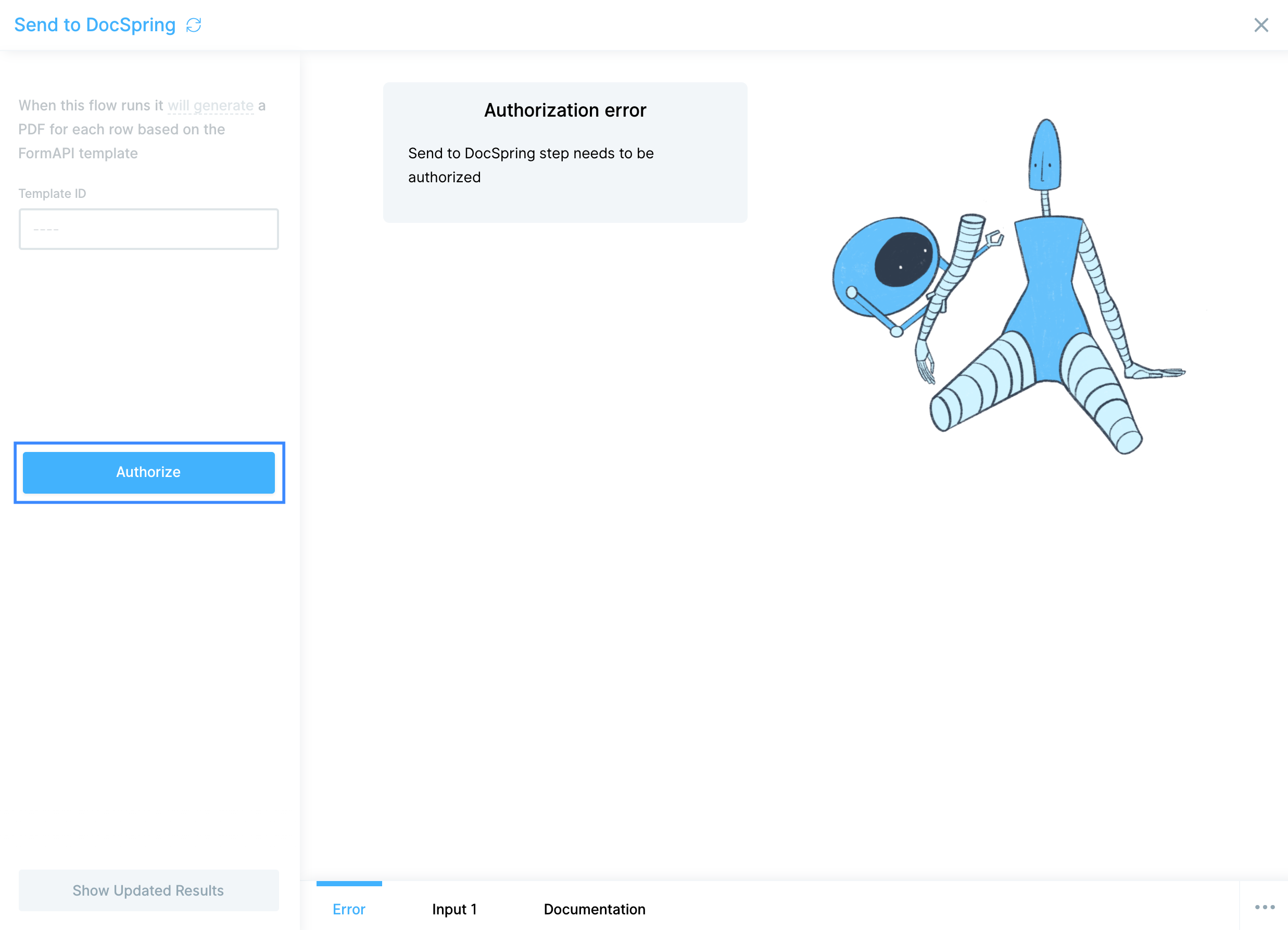
You’ll need your DocSpring API Token ID and API Token Secret. Get both from your DocSpring API Token settings.If you’re creating a new API Token, the Token Secret is only revealed once, immediately after creation. Copy it to a secure location before leaving the page.
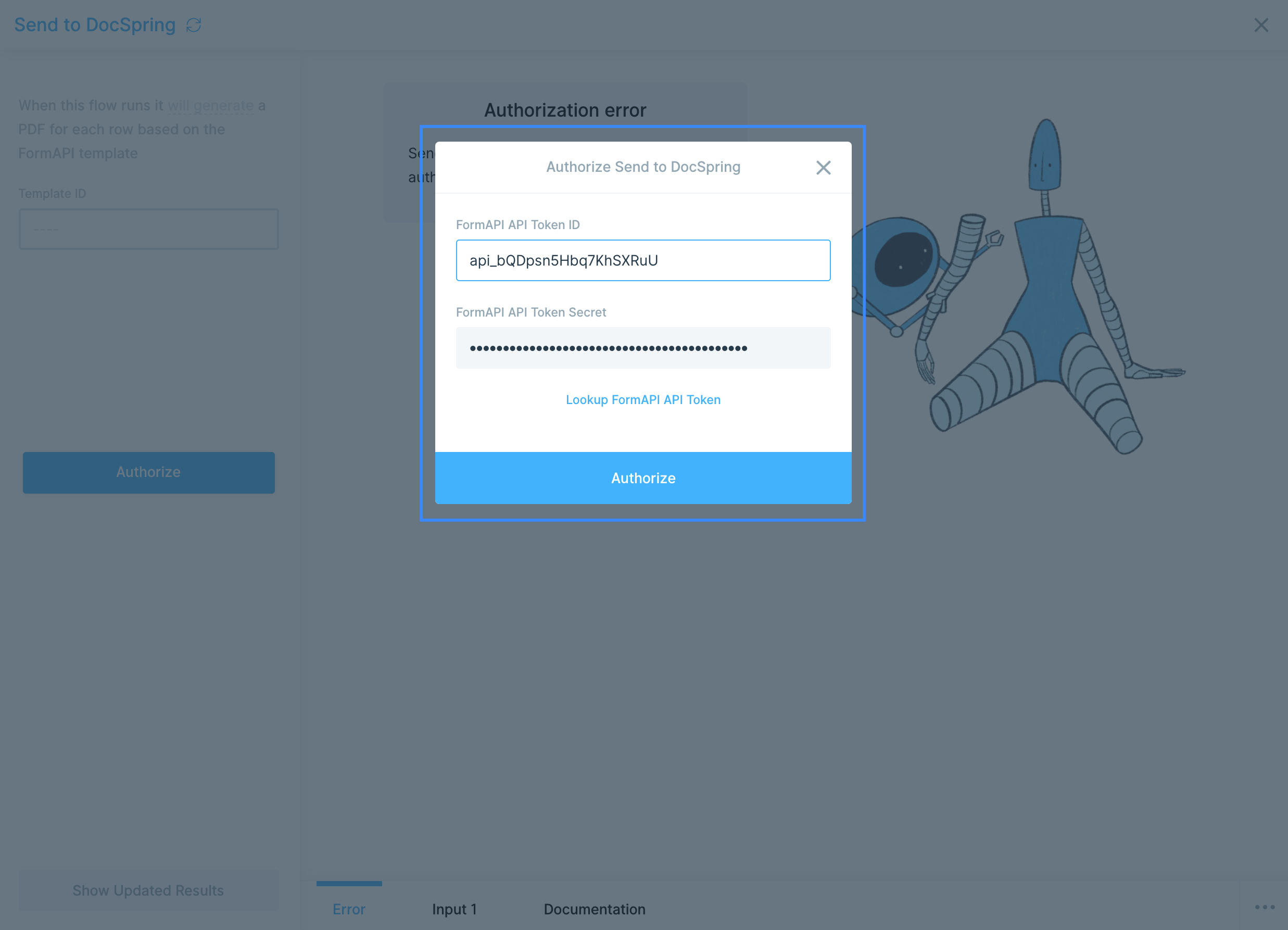
Configure your settings
To pull in the right DocSpring template, locate its Template ID. Open the template in DocSpring and look at the URL. The Template ID is the string of characters aftertemplates/:
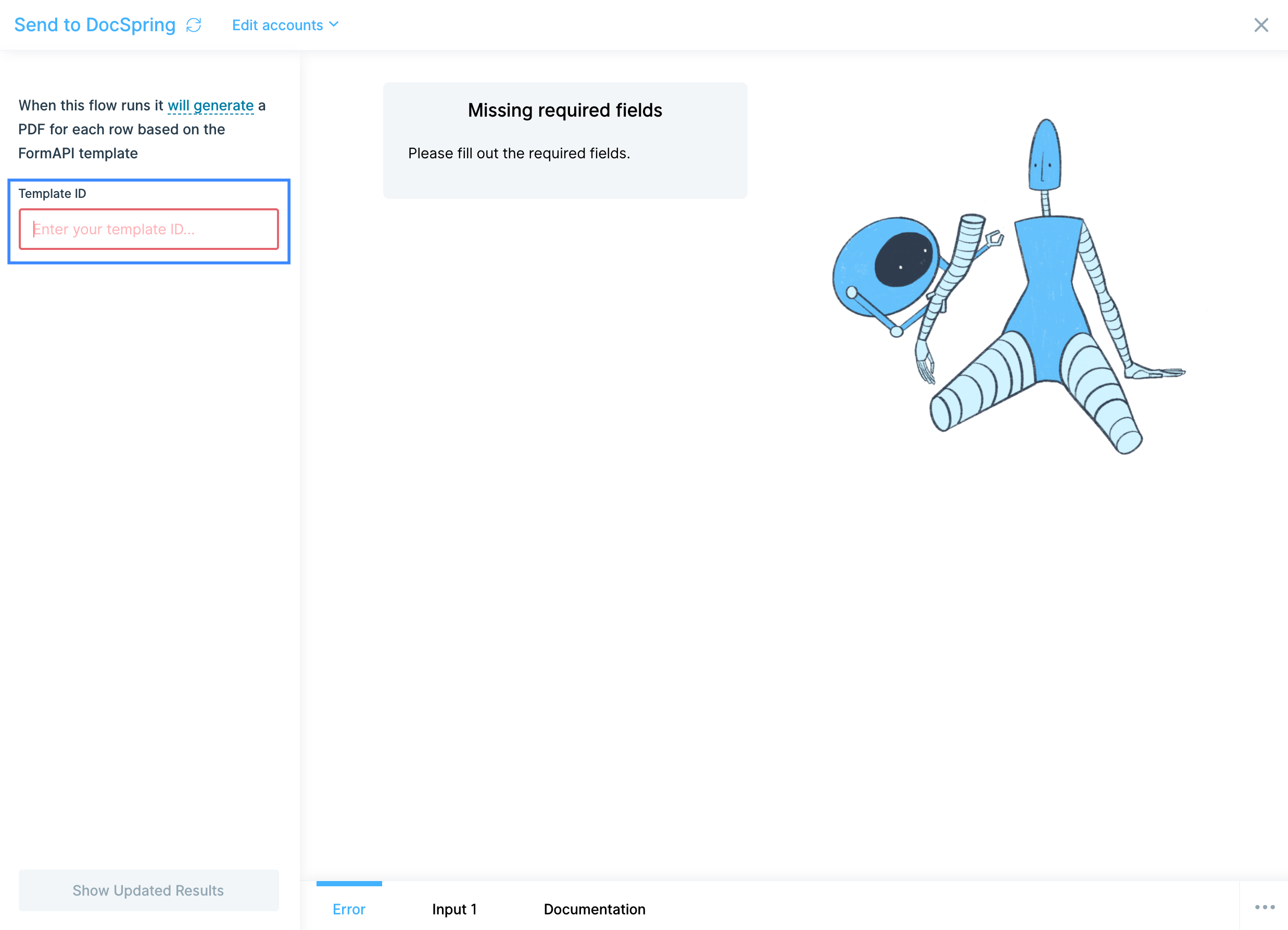
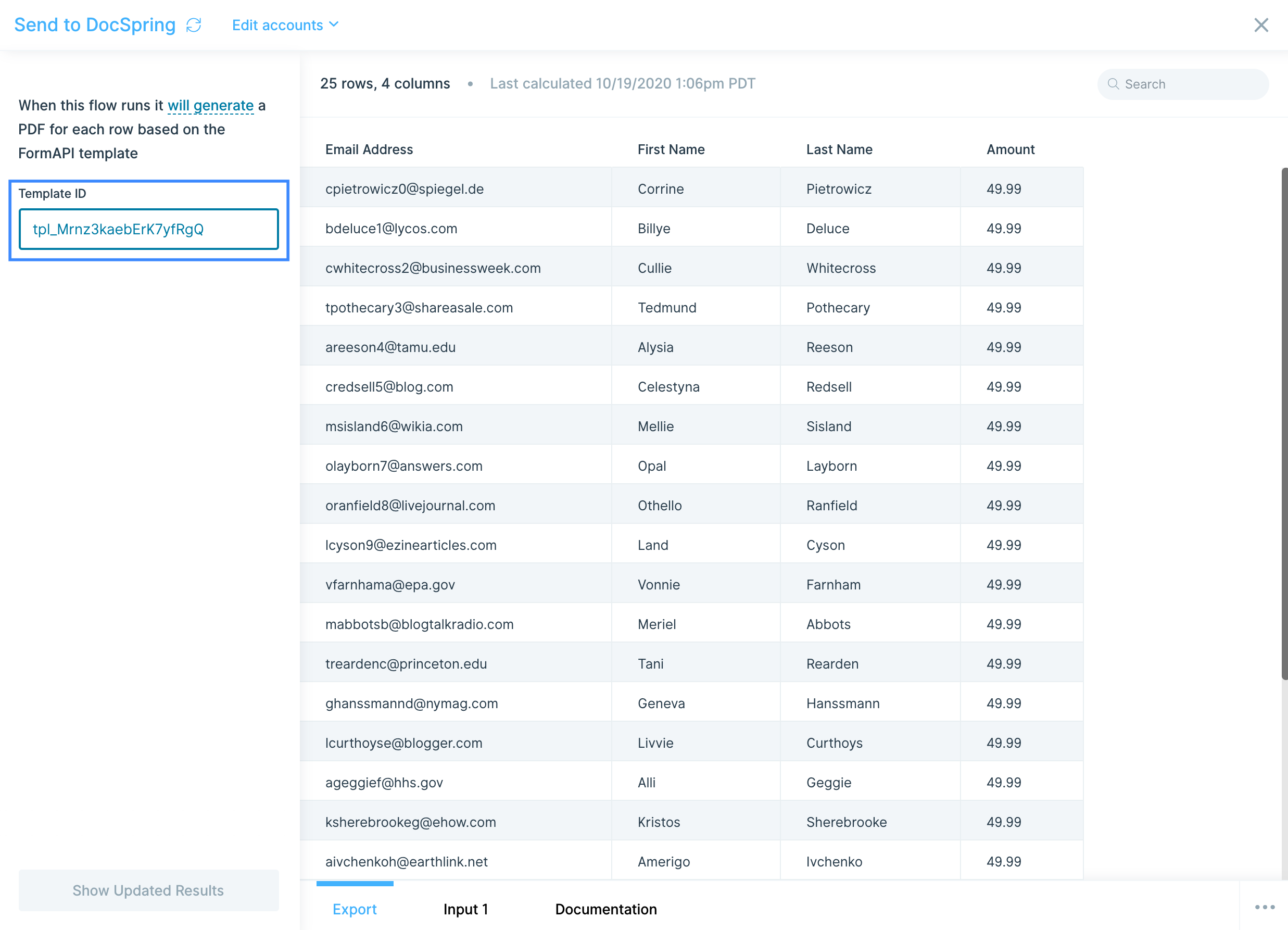
DocSpring fields are matched to Parabola columns by exact name. There’s no column-mapping UI in the Send to DocSpring step, so make sure your Parabola column headers exactly match the field names defined in your DocSpring template, including capitalization and spacing.
Available data types
DocSpring template fields accept several data types:- Text — for names, addresses, descriptions, and any free-form string content.
- Number — for quantities, prices, totals, and any numeric value.
- Date — for invoice dates, due dates, and any date-formatted field. Format dates upstream so they match your template’s expected display.
- Boolean / checkbox — for true/false fields like “paid” or “signed.”
- Image — for logos, signatures, or product images. Provide a public URL in the column.
- Signature — for filled signature fields, typically as a base64 image.
Common use cases
- Generate customer invoices: Pull invoice data from QuickBooks Online, NetSuite, or Microsoft Dynamics Finance, enrich it with customer details, and turn each row into a branded PDF invoice via DocSpring.
- Build packing slips and shipping labels: Combine order data from Shopify, Amazon Seller Central, or Walmart with carrier info from FedEx, UPS, or DHL and generate a packing slip PDF for each order.
- Produce vendor or supplier reports: Aggregate spend data from Ramp or Coupa by vendor, then send each vendor a personalized monthly statement PDF.
- Auto-fill contracts and agreements: Pull deal data from HubSpot or Salesforce and send each row through a DocSpring contract template, then drop the resulting PDF into Google Drive, Dropbox, or Box.
- Generate certificates or completion docs: Pull a list of recipients from a Google Drive sheet, Airtable, or Smartsheet and produce a personalized certificate for each.
- Notify on completion: After the Send to DocSpring step, push the resulting PDF URLs into Slack or email them via SendGrid so the right person gets each document.
Tips for using Parabola with DocSpring
- Match column names exactly. DocSpring matches Parabola columns to template fields by name. Use a Rename columns or Edit columns step to align your column headers with the DocSpring field names before the Send step, including capitalization.
- Format values upstream. DocSpring fills fields with whatever you send. Format dates, currency, and decimals in Parabola first, so the PDF displays them the way you want.
- Provide image URLs as public links. For image fields (logos, signatures, product photos), the URL must be reachable by DocSpring. Use Google Drive public links, Dropbox shared links, or a CDN.
- Test with a single row first. Use Limit rows to send one row through the flow on the first run. Inspect the resulting PDF, then remove the limit once the template is filling correctly.
- Save the Token Secret immediately. DocSpring only reveals the Token Secret once at creation. If you lose it, you’ll need to generate a new token.
- Schedule to match your document cadence. Hourly for high-volume operational documents, daily for invoices, weekly or monthly for statements and reports.
FAQ
Where do I get my DocSpring API Token?
In DocSpring, go to API Tokens, create a new token, and copy both the Token ID and the Token Secret. The Secret is only shown once at creation, so save it immediately.How does column mapping work?
There’s no column-mapping UI in the Send to DocSpring step. DocSpring matches your Parabola columns to template fields by exact name. Rename your columns in Parabola so they match the template field names, including capitalization and spacing.Can I generate hundreds or thousands of PDFs in one flow?
Yes. Each row in the data passed to the Send to DocSpring step becomes one PDF. For very large jobs, watch DocSpring’s plan limits and consider running the flow in batches by filtering the input upstream.How do I download or distribute the resulting PDFs?
DocSpring returns a URL for each generated PDF. Use a downstream step to email the link via SendGrid, post it to Slack, or save the file to Google Drive, Dropbox, or Box.With DocSpring and Parabola connected, the invoice generation, contract assembly, and packing slip workflows that used to require a developer or hours of manual work run on a schedule, with clean data flowing into populated PDFs automatically.