

Box is a cloud content management platform used by enterprises to store, share, and govern files across teams. Connecting Box to Parabola lets ops, finance, and supply-chain teams pull CSV and Excel files out of Box, blend them with data from other systems, and drop cleaned outputs back into Box folders that the rest of the business already uses.Documentation Index
Fetch the complete documentation index at: https://parabola.io/docs/llms.txt
Use this file to discover all available pages before exploring further.
Pull from Box
The Pull from Box step reads a CSV or Excel file from your Box account and brings the rows into your flow. Use it to ingest reports your team or vendors drop into Box on a regular cadence, or to source reference data (rate cards, GL maps, SKU master) that lives in a shared Box folder.Send to Box
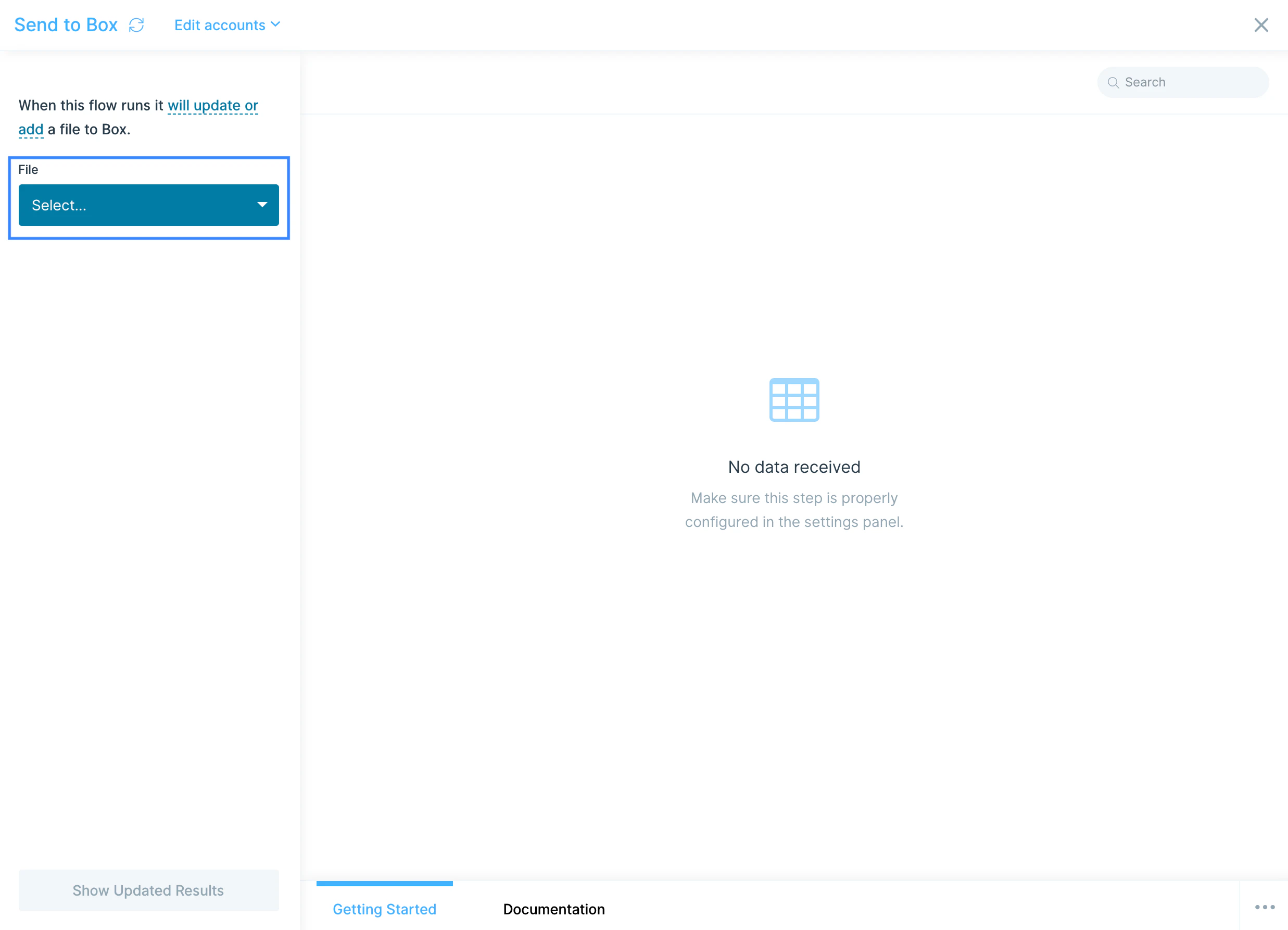
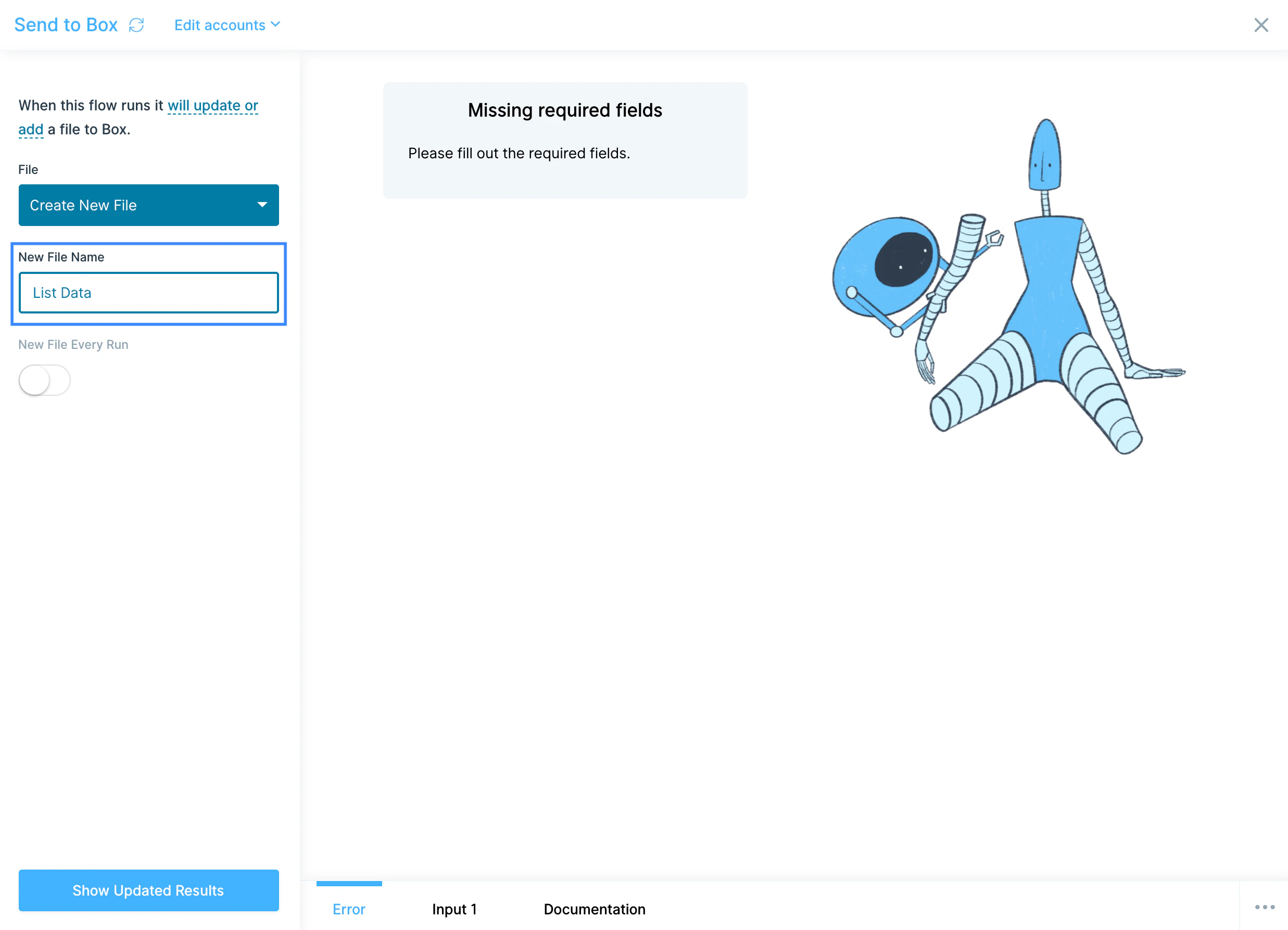
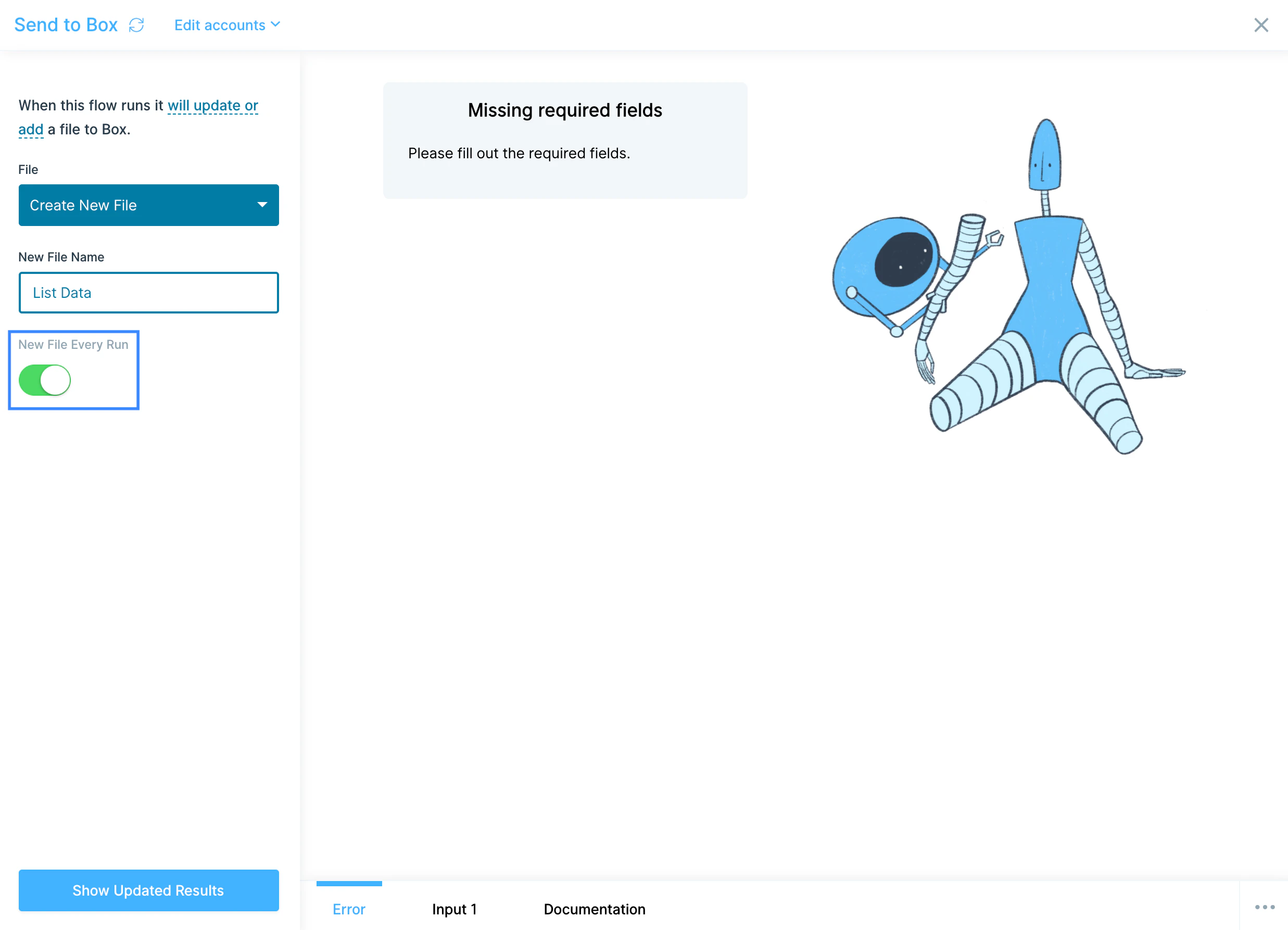
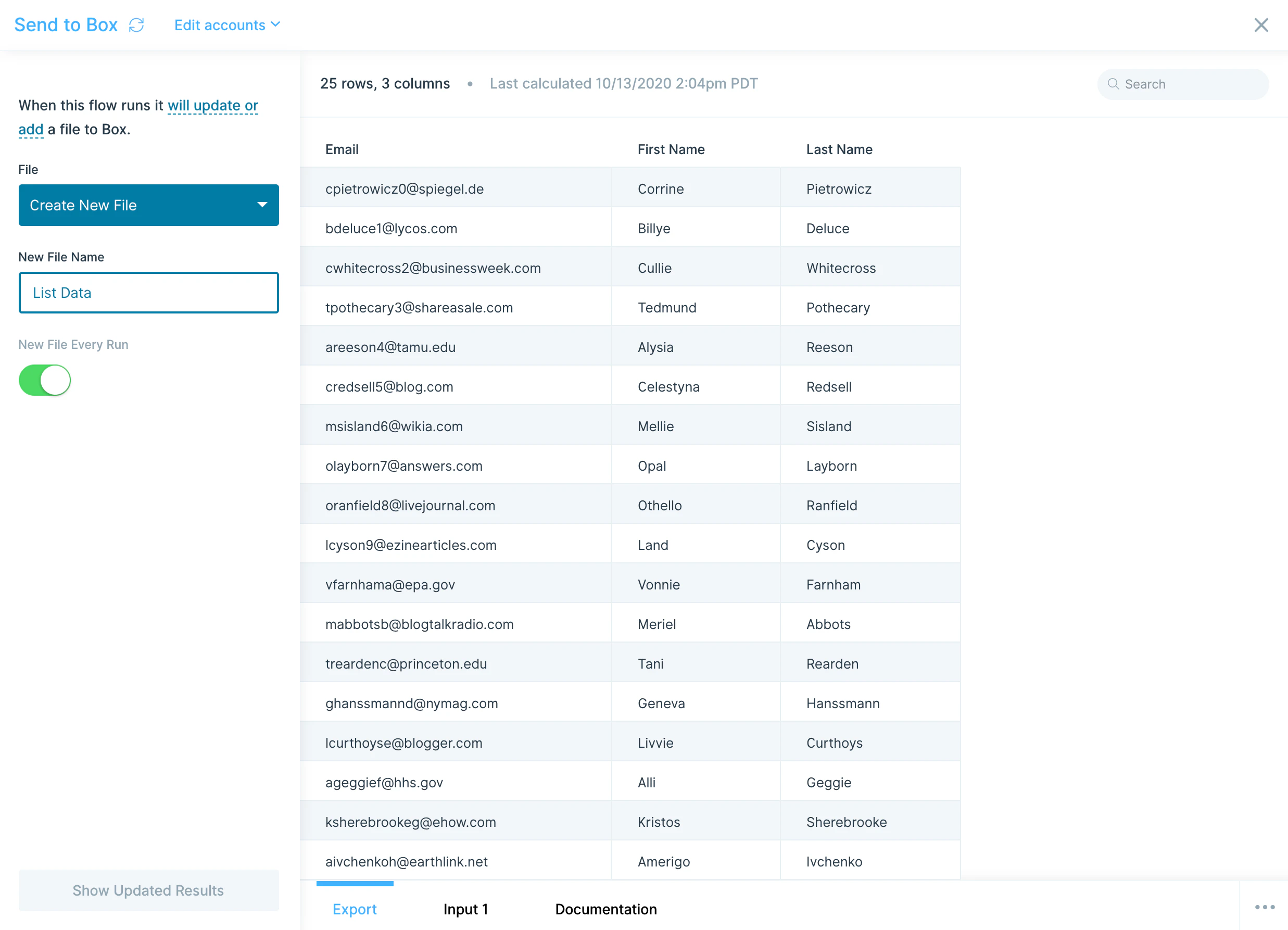
The Send to Box step writes the output of your flow to Box, either by overwriting an existing file or creating a new one. Pair it with a Pull from Box at the start of the same flow to refresh a dashboard, settlement file, or 3PL feed without touching a spreadsheet.How to authenticate
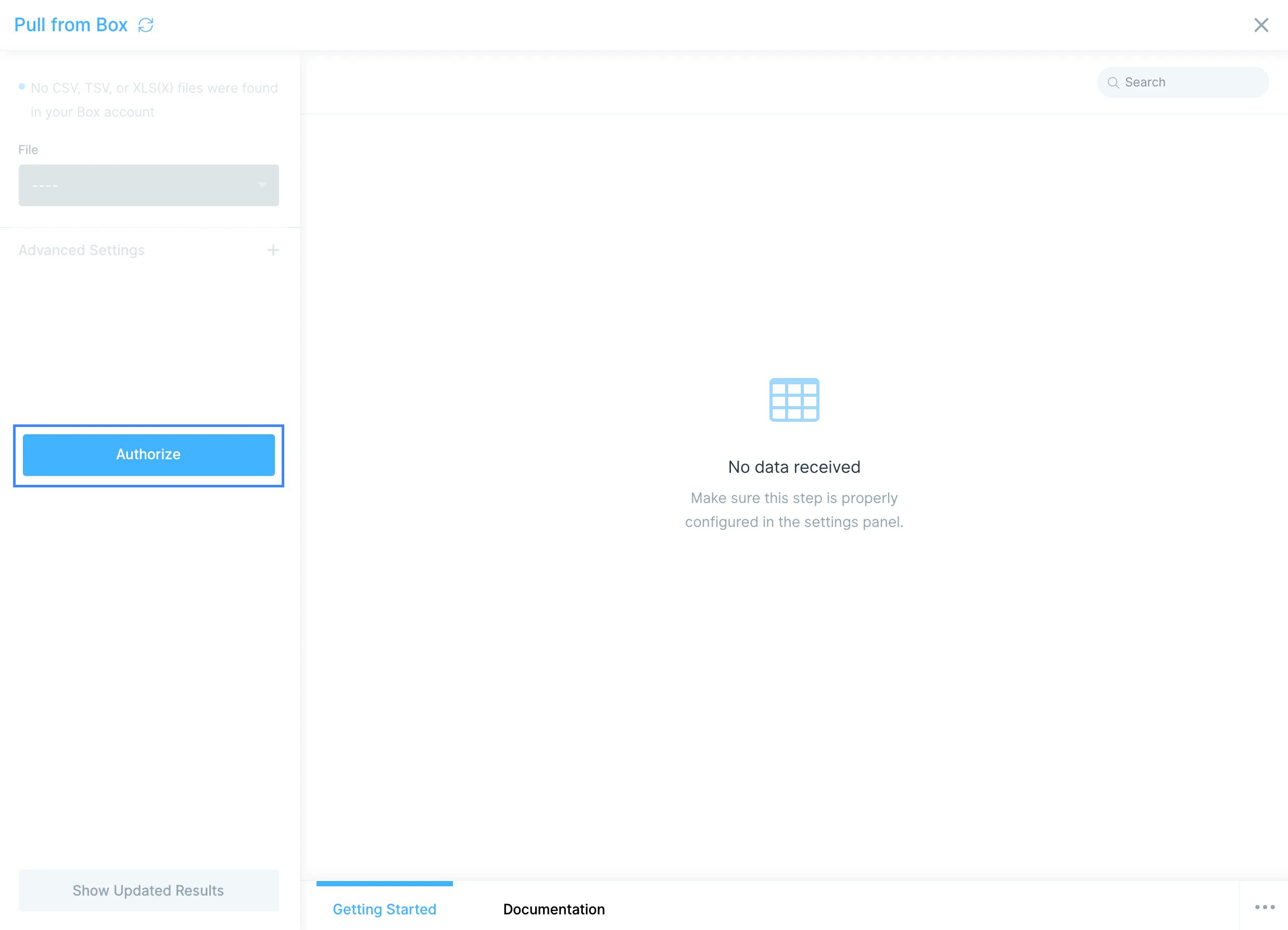
Configure your settings
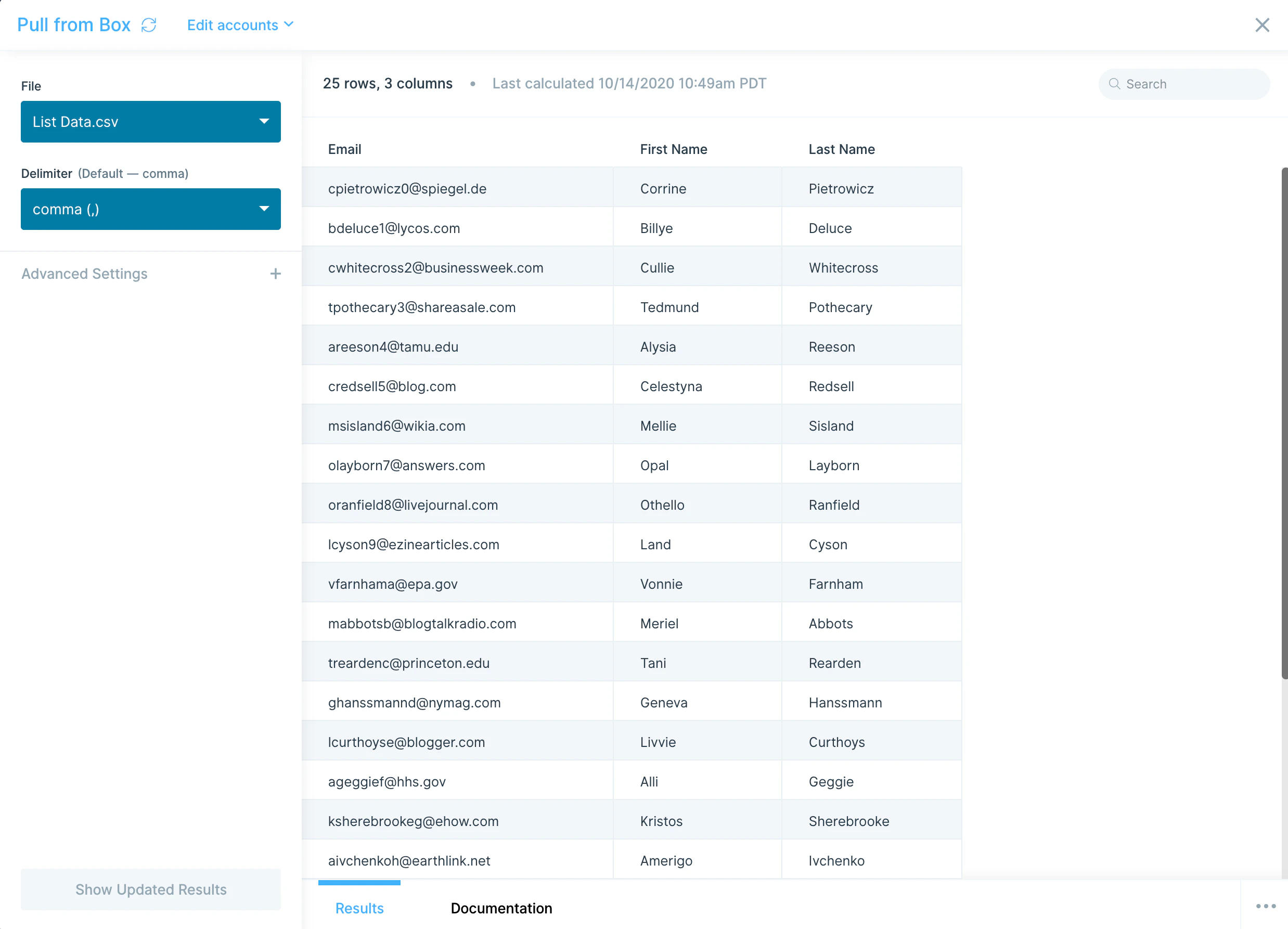
For the Pull from Box step, pick the file you want from the File dropdown.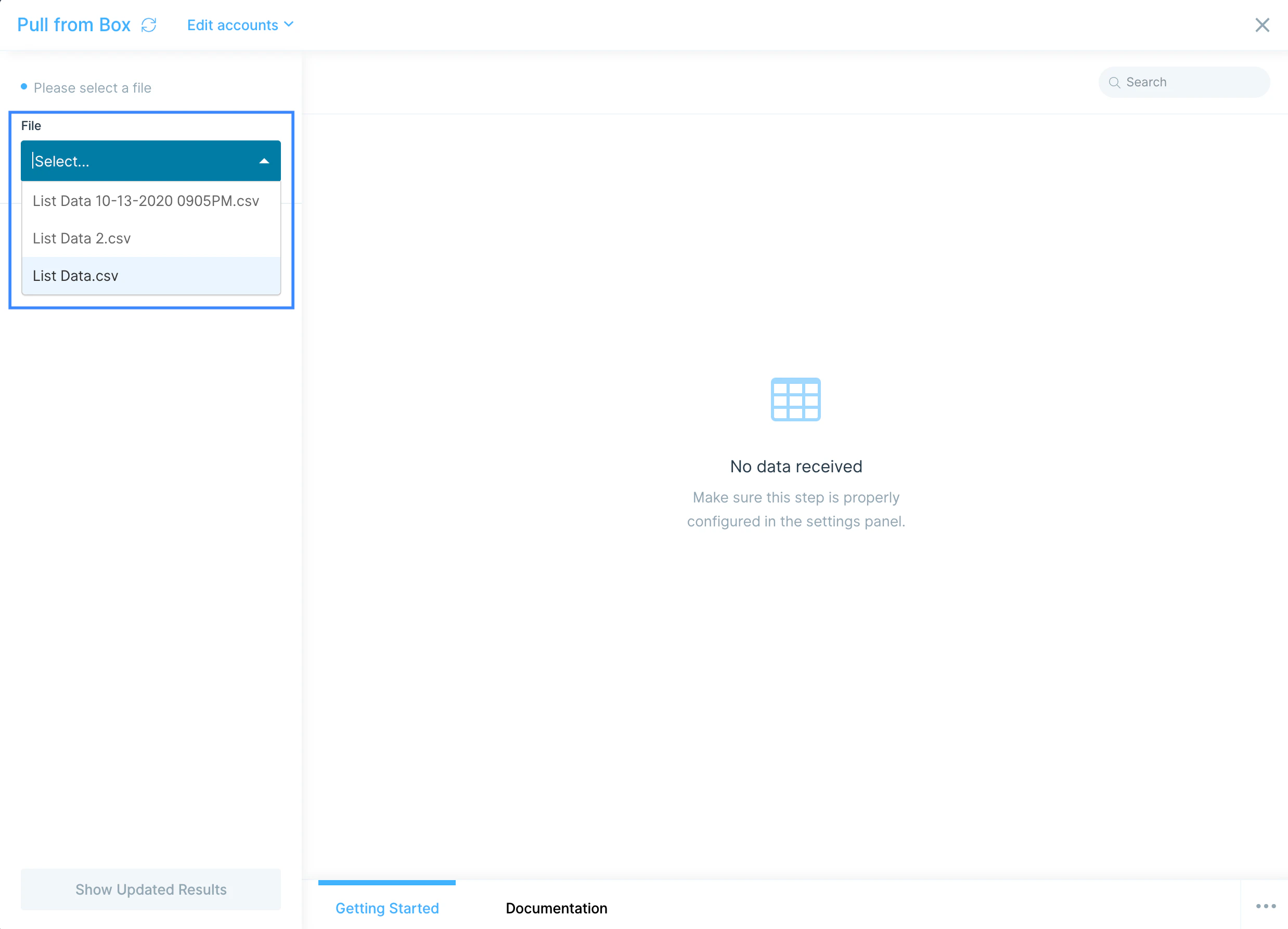
Available data
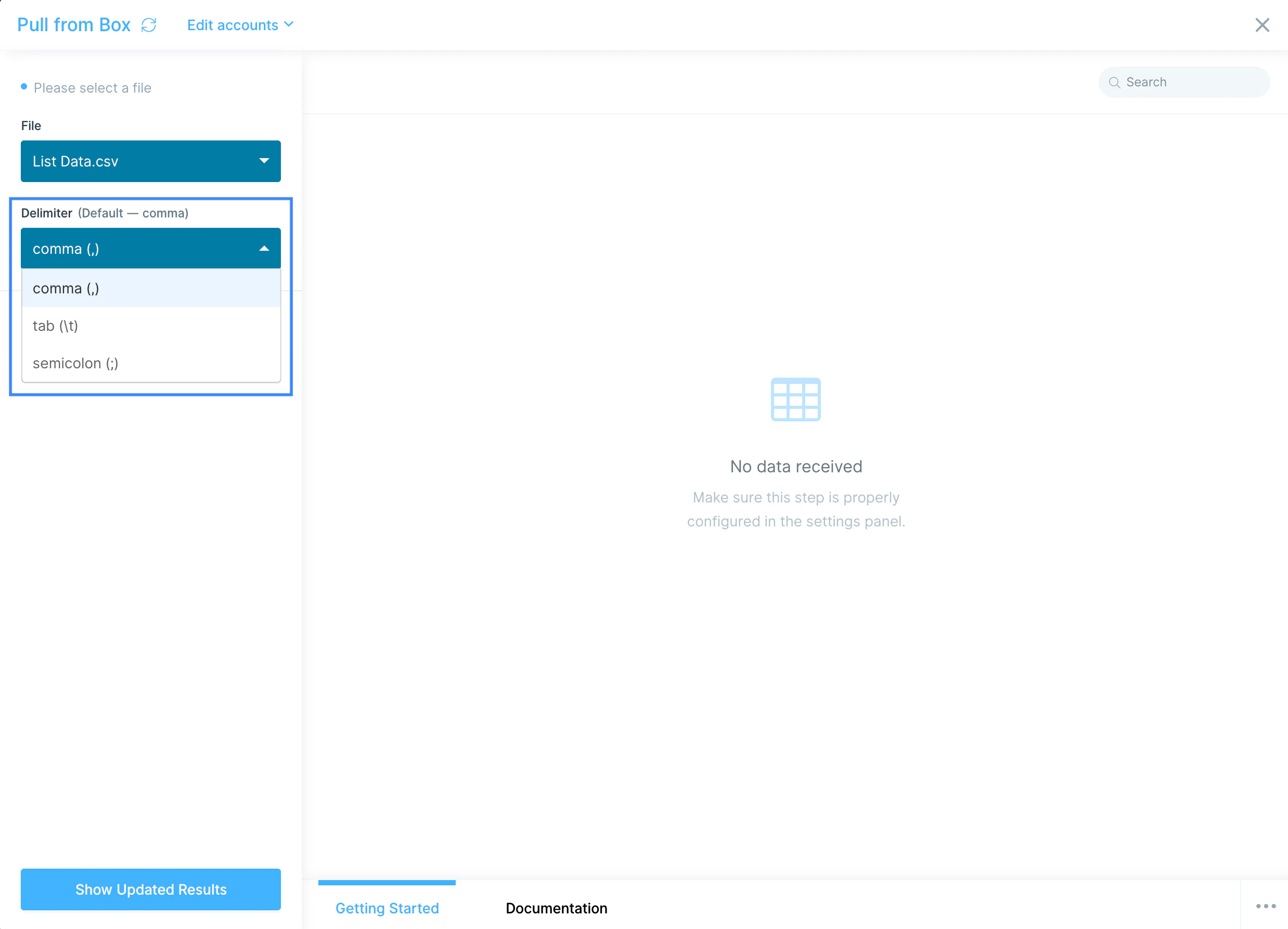
The Box steps work with file-level data, not API records. Common formats and patterns:- CSV with comma, tab, or semicolon delimiters.
- Excel workbooks (.xlsx). Pick the sheet you want once the file is selected.
- Files in shared folders. You can read from any folder you have access to in Box, including shared workspaces.
- Vendor-dropped files. Reports your 3PL, agency, or accounting team drops into a recurring Box folder are a common source.
Common use cases
- Ingest 3PL reports: Pull weekly inventory or shipment files your warehouse drops into Box, then join with order data from Shopify or Amazon Seller Central to reconcile fulfillment.
- Sync reference data: Read a rate card, GL account map, or SKU master from Box and use it to enrich shipping invoices, sales orders, or accounting feeds going to NetSuite or QuickBooks Online.
- Drop accounting files for finance: Send formatted journal entries, accruals, or settlement files to a Box folder where finance picks them up for upload into the GL.
- Share cleaned reports with stakeholders: Push daily ops reports or KPI rollups to a Box folder that execs and team leads already check, instead of emailing CSVs.
- Bridge Box and a database: Pull files from Box, transform them, and load the results into Snowflake, BigQuery, or Redshift so analytics teams have access without learning Box.
- Mirror files to other storage: Read from Box and write the same dataset to Google Drive, Dropbox, or SharePoint when different teams use different tools.
Tips for using Parabola with Box
- Wait 10 minutes for new files to appear. Box’s API has a delay before newly uploaded files surface in the File dropdown. If your file isn’t there, give it a few minutes.
- Watch the 50 MB upload limit on Send to Box. Files larger than ~50 MB will fail. Split outputs into multiple files or filter before sending.
- Send to Box writes to a fixed location. You can’t pick a destination folder for new files in Send to Box. If a specific folder matters, plan accordingly or move files in Box after the run.
- Schedule pulls to match upstream cadence. If your vendor drops a daily report at 6 a.m., schedule the flow for 6:30 a.m. so you’re working from fresh data without polling all day.
- Pair with cleaning steps. Box files from external partners often have inconsistent headers, blank rows, or merged cells. Add Edit columns and Filter rows steps right after the pull to standardize.
- Use Excel sheets deliberately. When pulling an .xlsx with multiple tabs, confirm you’ve selected the right sheet — switching tabs in Box doesn’t change which one Parabola pulls.
FAQ
What file formats does the Box integration support?
The Pull from Box step reads CSV (comma, tab, or semicolon delimited) and Excel (.xlsx) files. Other file types in Box won’t appear in the File dropdown.How big can my Box files be?
The Send to Box step has an upload size limit of about 50 MB. The Pull from Box step can read larger files, but very large workbooks may slow down step execution. Split files where possible.Why isn’t my new Box file showing up?
Box’s API runs on a 10-minute delay for newly created files. Wait a few minutes, then refresh the File dropdown. If the file still doesn’t appear, confirm it’s a supported format and that the connected Box account has access.Can I send a file to a specific folder in Box?
Not at this time. The Send to Box step writes new files to a fixed location. To organize outputs, move files manually in Box after the run, or use a different file storage integration that supports folder targeting, like SharePoint or OneDrive.With Box and Parabola connected, the spreadsheets your team drops into shared folders become live inputs for automated reports, accruals, and reconciliations that update on a schedule.