

Microsoft OneDrive is the cloud file storage built into Microsoft 365, used by individuals and businesses to store, share, and collaborate on files. Connecting OneDrive to Parabola lets ops, finance, and supply-chain teams pull Excel and CSV files into automated flows, blend them with data from other systems, and write outputs back to the same OneDrive folders the rest of the business already works in.Documentation Index
Fetch the complete documentation index at: https://parabola.io/docs/llms.txt
Use this file to discover all available pages before exploring further.
Pull from OneDrive
The Pull from OneDrive step reads a file from your OneDrive account into Parabola. It supports the most common formats teams already work with: Excel workbooks, CSV, TSV, JSON, and XML. For Excel files, you can pick which sheet to pull.Send to OneDrive
The Send to OneDrive step writes the output of your flow to OneDrive. You can create a new file in any drive and folder you have access to, or update an existing file by overwriting it or appending rows to the bottom (Excel only).How to authenticate
Selecting a file (Pull from OneDrive)
Search for the file you want by typing a term or pasting the full filename. Matching files appear in the dropdown.
File types supported
- XLS, XLSX (*see size limit below)
- CSV (comma delimiter)
- TSV (tab delimiter)
- JSON
- XML
Configure your settings (Send to OneDrive)
First, choose whether to create a new file or update an existing one.Create a new file
Pick the file type, enter a filename, and choose the drive to save into. Within a drive, you can save to the root (default) or search for a specific folder.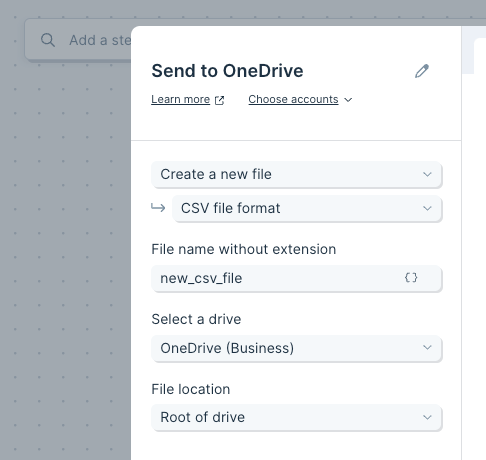
Update an existing file
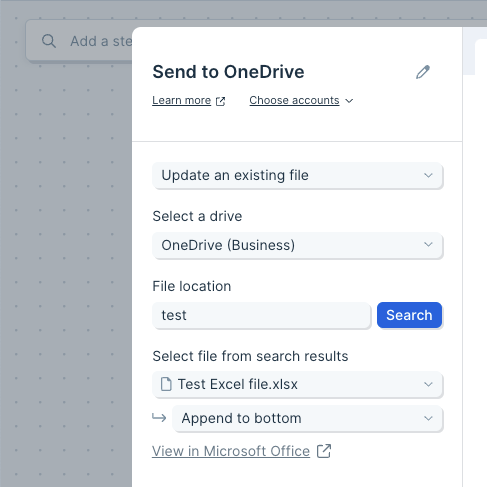
Pick the drive, search for the file by name, and decide how to update it:- Replace entire file — works for all file types.
- Append to bottom — Excel only. You can also pick which sheet to append to.
For Excel files, you can specify which sheet to update.
File types supported
- XLSX
- CSV (comma delimiter)
- TSV (tab delimiter)
- JSON
- XML
Available data
The OneDrive steps work with file-level data:- Excel workbooks with multiple sheets. Pick the sheet to pull or update.
- CSV and TSV for tabular data.
- JSON and XML for nested structures, useful for ingesting API exports your team has saved to OneDrive.
- Personal and shared drives. Any drive your Microsoft account has access to appears in the drive dropdown.
- Folders within a drive. When sending a new file, search for the destination folder so output lands where it should.
Common use cases
- Refresh recurring Excel reports: Pull a finance Excel workbook from OneDrive, blend with NetSuite or QuickBooks Online data, and write the updated workbook back to the same file every Monday.
- Drop ops summaries for stakeholders: Send a daily ops report to a OneDrive folder execs already check, replacing the email-CSV-around workflow.
- Append to a running log: Use the Excel append option to add today’s rows to a year-to-date workbook without overwriting prior data.
- Bridge OneDrive and your database: Pull files from OneDrive, transform them, and load the results into Snowflake, BigQuery, or Redshift.
- Mirror files between storage tools: Read from OneDrive and write the same dataset to Google Drive, Box, or SharePoint when different teams standardize on different platforms.
- Ingest vendor and partner files: Pull weekly shipment, invoice, or inventory files partners drop into a shared OneDrive folder and reconcile against orders from Shopify or Amazon Seller Central.
Tips for using Parabola with OneDrive
- Watch the 100 MB Excel limit. The Microsoft API caps Excel workbooks at 100 MB or 1,048,576 rows by 16,384 columns. Files larger than this will return an error. The limit applies to .xlsx only, not .xls.
- Pulled values come in formatted. Dates and numbers come into Parabola exactly as Excel displays them. Visual formatting (colors, fonts, sizes) does not. Plan to clean formats with Edit columns or Find and replace steps.
- Excel updates can take minutes. Writes to Excel workbooks via the Microsoft API can take several minutes to show up in OneDrive. Don’t panic if the file looks stale right after a flow run.
- Use append for running logs, replace for snapshot files. Append works for Excel only. CSVs and other formats always replace the whole file.
- Search for folders when sending. When creating new files, search for the destination folder rather than relying on the drive root, especially for shared workspaces.
- Refresh after permission changes. If you’ve just been granted access to a drive in OneDrive, use the refresh control on the step. There can be a brief delay before new permissions appear.
FAQ
What file formats does the OneDrive integration support?
Pull supports XLS, XLSX, CSV, TSV, JSON, and XML. Send supports XLSX, CSV, TSV, JSON, and XML. CSV uses comma; TSV uses tab.Why am I getting a 100 MB error?
The Microsoft API limits Excel workbooks (.xlsx) to 100 MB or 1,048,576 rows by 16,384 columns. Reduce the workbook size, split the data across multiple files, or output as CSV instead.Why are my Excel changes not showing in OneDrive?
Microsoft’s Excel update operations can take several minutes to propagate through their API. Wait a few minutes, then refresh the file in OneDrive.Can I save to a specific folder?
Yes. When creating a new file with Send to OneDrive, search for the destination folder within the selected drive. Default behavior is to save to the drive root.Does this support OneDrive Personal and OneDrive for Business?
Yes. Both work, as long as the authorized Microsoft account has access to the drive in question.With OneDrive and Parabola connected, the Excel workbooks your team relies on for reporting, reconciliation, and partner handoffs stay current on a schedule, with output landing exactly where stakeholders already look for it.