

Microsoft SQL Server (MS SQL) is a relational database used for transactional applications, business intelligence, and enterprise reporting. Connecting MS SQL to Parabola lets analysts and ops teams query SQL Server on a schedule, blend the results with data from other systems, and write cleaned data back into MS SQL tables, without writing a custom ETL pipeline.Documentation Index
Fetch the complete documentation index at: https://parabola.io/docs/llms.txt
Use this file to discover all available pages before exploring further.
Pull from MS SQL
The Pull from MS SQL step connects to a remote Microsoft SQL Server and brings query results into your flow. Pick a table for the defaultselect * pull, or write a custom T-SQL query to filter, join, and aggregate before the data reaches Parabola.
How to authenticate
Click Authorize and enter your connection details: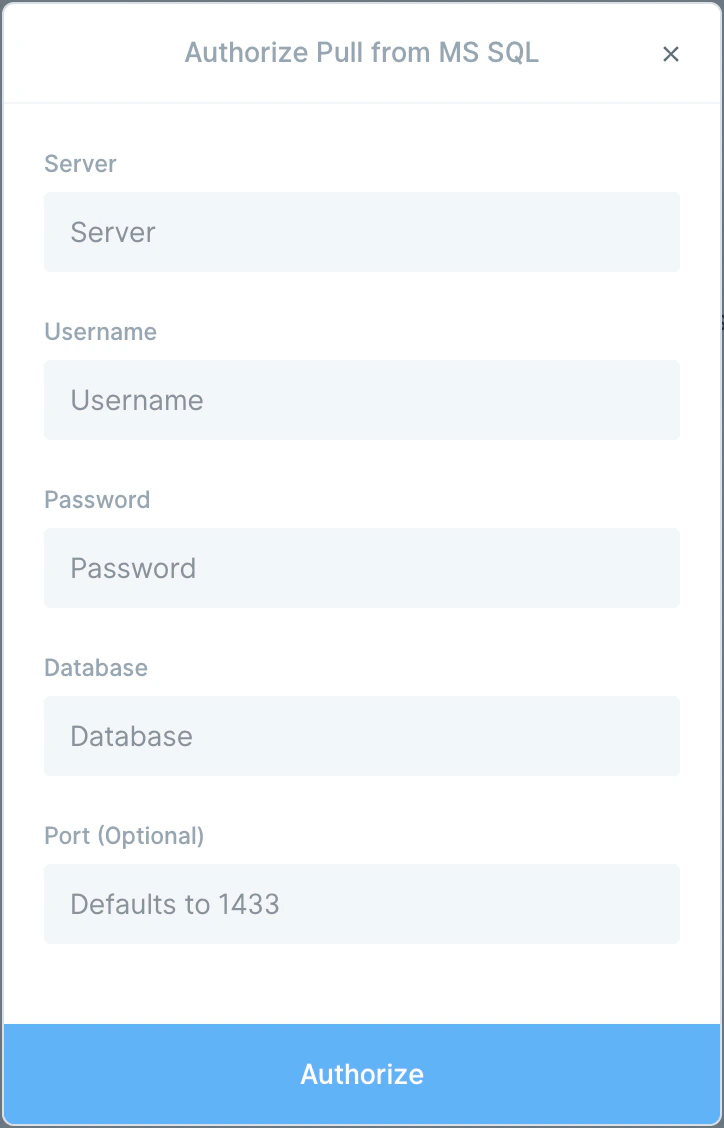
- Hostname
- Username
- Password
- Database
- Port (optional, defaults to 1433)
Configure your settings
To narrow the result set, write T-SQL in the Query (optional) field. A targeted query keeps the pull fast and avoids dragging entire historical tables into the flow. Two AI buttons live next to the query field:- Help write query — describe the data you want in plain language (for example, “Show me the last 30 days of shipped orders”) and AI drafts the SQL for you.
- Optimize query — paste an existing query to fix syntax errors, improve performance, or refine the logic.
Tips for reliable imports
- Select only the columns you need. Smaller payloads mean faster runs.
- Add filters in your query (a date range, a status flag) to avoid pulling entire historical tables.
- Use
top (N)while building. Remove or increase it when you’re ready to run on full data. - Include an
order byonly when you need a specific sort. Sorting can slow large queries; sort inside Parabola with the Sort rows step instead.
Send to MS SQL
The Send to MS SQL step inserts, updates, or upserts rows in a remote SQL Server database, useful for syncing reconciled data back into operational tables or pushing transformed records to a reporting database.How to authenticate
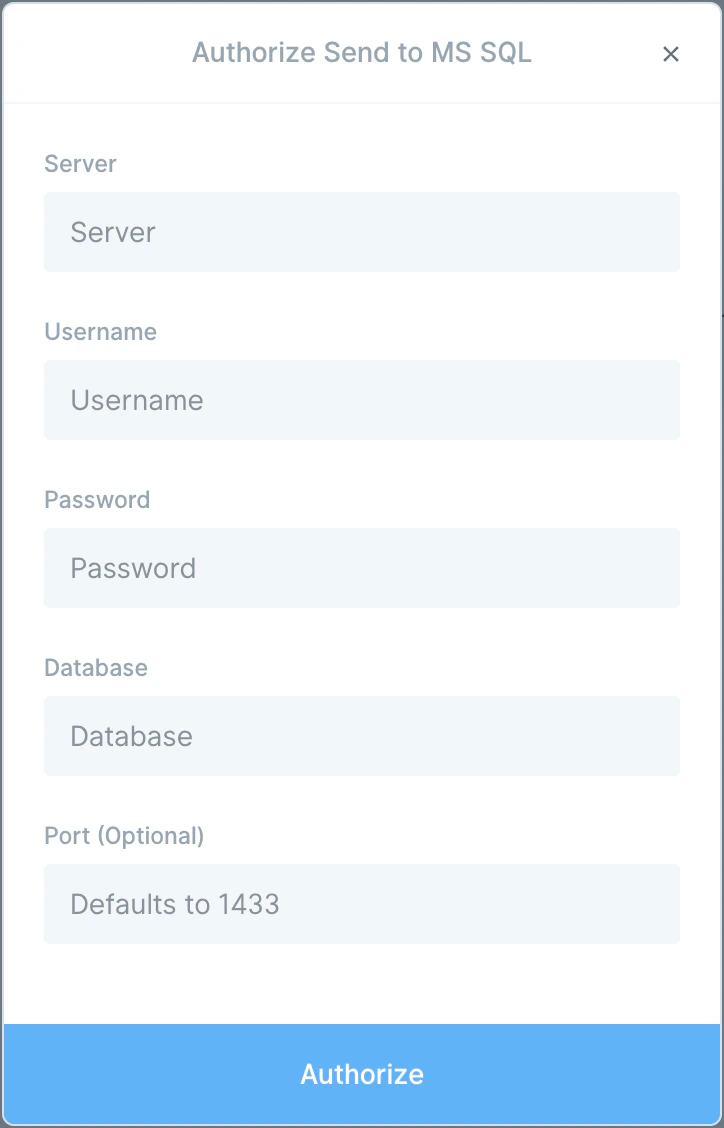
Configure your settings
Once connected, pick the destination table from the dropdown. Maximum Connections — defaults to 20. Parabola splits your rows across this many concurrent connections to write faster. Every database has a maximum number of connections it accepts, so set Parabola’s value to no more than 50–60% of that ceiling. Above the ceiling and the step errors out; at the ceiling and nothing else can connect to the database while the flow runs. Talk to whoever owns the database if you’re not sure. Operations — pick how rows should land:- Insert — adds new rows. Make sure duplicates are okay; Parabola won’t dedupe for you.
- Upsert — updates existing rows where a primary key matches, inserts the rest. Requires a unique identifier column on the database table and a matching column in your Parabola data.
- Update — only updates existing rows. Same primary-key requirement as upsert. Rows that don’t match are skipped.
How errors are handled
Send to MS SQL processes rows top to bottom. Unlike most Parabola export steps, it doesn’t halt on a row failure. It logs the error, skips the row, and keeps going. If every row succeeds the step finishes in a normal state; if any row was skipped due to errors the step finishes in a failure state with the bad rows logged.Available data
The MS SQL integration works against any database the connection has access to:- Pull: any table or view in the connected database, plus arbitrary T-SQL queries (joins, CTEs, window functions, stored-procedure-style logic via views).
- Send: any table the connection has insert/update privileges on.
- AI query helpers for drafting and optimizing T-SQL inside the step.
Common use cases
- Build reports that combine SQL Server data with the rest of the business: Pull from MS SQL, join with Shopify orders, HubSpot deals, and Stripe payouts, then drop the result in Google Drive or Smartsheet on a schedule.
- Push reconciled data into a SQL Server reporting database: Clean and join data from across the business in Parabola, then write the result back into an MS SQL reporting table for Power BI, Tableau, or other downstream consumers.
- Move SQL Server data into a cloud warehouse: Pull from MS SQL and push into Snowflake, BigQuery, or Redshift so analysts can query enterprise data alongside the rest of the stack.
- Sync ERP or CRM data to marketing tools: Pull customers from MS SQL and push them into Mailchimp, HubSpot, or Klaviyo so lifecycle campaigns stay current without engineering work.
- Trigger ops alerts on database conditions: Run a query on a schedule, then send a Slack alert when a count, sum, or status flag crosses a threshold.
- Reconcile internal SQL Server data with vendor systems: Compare MS SQL records with data from NetSuite, QuickBooks Online, or Fulfil to catch sync gaps before close.
Tips for using Parabola with MS SQL
- Filter in SQL, not in Parabola. Add
whereclauses, date ranges, and column selection to your query so only the rows you need cross the wire. - Use
top (N)while building. Once the flow is wired up, remove or raise the limit so production runs pull the full dataset. - Allow-list Parabola’s IPs. If your MS SQL server restricts inbound traffic (Azure SQL firewalls, on-prem firewalls, AWS RDS security groups), add Parabola’s IP ranges so the connection isn’t blocked.
- Cast types before sending. Send to MS SQL writes everything as strings. Make sure target columns accept strings, or cast on the database side. Null values arrive as empty strings, not true
NULL. - Match column names exactly. Use a Rename columns step before sending so Parabola column names line up with the MS SQL table. Mismatches cause skipped rows.
- Use schemas in your queries. Fully qualify table names (
dbo.Orders,analytics.Sales) in your T-SQL to avoid ambiguous lookups. - Match cadence to use case. Every 15 minutes for ops dashboards, daily for finance reports, weekly for cohort analysis.
FAQ
Can Parabola write true NULL values to MS SQL?
No. Send to MS SQL writes empty strings instead ofNULL. If your column needs true NULL, write the row, then run an UPDATE ... SET column = NULL WHERE column = '' on the database side, or handle the conversion with a trigger.
Does Parabola support Azure SQL and on-prem SQL Server?
Yes. The Pull and Send steps work against any reachable MS SQL endpoint, including Azure SQL Database, Azure SQL Managed Instance, and self-hosted SQL Server. Make sure inbound traffic from Parabola’s IPs is allowed.How do I send only changed rows to MS SQL?
Use the Upsert operation with a primary key, or filter rows in Parabola to only the changed records before the Send step. Many teams pull a snapshot of the destination, diff it against the new data, and only send rows that differ.Why does the step skip some rows instead of failing?
Send to MS SQL is designed not to halt on a single bad row. It logs the error, skips the row, and continues. The step ends in a failure state if any row was skipped, with the errors visible in the run log so you can fix and re-run.Can I call a stored procedure?
The Pull from MS SQL step expects a single SELECT query. Wrap stored-procedure logic in a view or scalar/inline table-valued function, then query the view, or call the procedure on a scheduled job in MS SQL and have Parabola read the resulting table.With MS SQL and Parabola connected, the queries your team runs by hand every week, the spreadsheets exported off Power BI for finance, and the manual writebacks into operational tables all become flows that run on a schedule.