

Microsoft SharePoint is an enterprise document management and collaboration platform built into Microsoft 365, used by organizations to store, share, and govern files across teams and sites. Connecting SharePoint to Parabola lets ops, finance, and supply-chain teams pull Excel and CSV files out of SharePoint sites, blend them with data from other systems, and write outputs back to the document libraries the rest of the business already uses.Documentation Index
Fetch the complete documentation index at: https://parabola.io/docs/llms.txt
Use this file to discover all available pages before exploring further.
Pull from SharePoint
The Pull from SharePoint step reads a file from a SharePoint site into Parabola. It supports Excel workbooks, CSV, TSV, JSON, and XML. For Excel files, you can pick which sheet to pull.Send to SharePoint
The Send to SharePoint step writes the output of your flow to SharePoint. You can create a new file in any site, drive, and folder you have access to, or update an existing file by overwriting it or appending rows to the bottom (Excel only).How to authenticate
Selecting a file (Pull from SharePoint)
Search for the file by typing a term or pasting the full filename. Matching files appear in the dropdown.
File types supported
- XLS, XLSX (*see size limit below)
- CSV (comma delimiter)
- TSV (tab delimiter)
- JSON
- XML
Microsoft Azure user permission settings
Parabola is a verified app publisher with Microsoft, so we’ve been authenticated by Microsoft as a trusted app. Parabola only has access to files in SharePoint and OneDrive that the authorizing user has access to (per-user, not org-wide). Parabola requests these permissions:- Read, create, update, and delete OneDrive files the signed-in user has access to.
- Read, create, update, and delete documents and list items in all SharePoint sites the signed-in user has access to.
- Read the profile of signed-in users (name, email).
- The “write” permissions are used by Send to SharePoint and Send to OneDrive to create or update files.
Configure your settings (Send to SharePoint)
First, choose whether to create a new file or update an existing one.How SharePoint locations are structured
Every file in SharePoint lives at three nested levels. The step’s fields map to these in order:- Site — a top-level SharePoint site (for example,
Supply Chain). One organization typically has many sites. - Drive — a document library inside the site, usually called
DocumentsorShared Documents. A site can have multiple drives, but most have one main library. - Folder — any subfolder inside the drive. Folders can be nested arbitrarily deep (for example,
Customer Supply Chain / 5. DIGITAL / Team Folders).
“Team Folders,” “Shared Documents,” and similar names are not drives. They look like top-level locations in the SharePoint web UI, but in the step they’re usually subfolders inside the
Documents drive. Pick the site and drive first, then drill into folders.Finding your site, drive, and folder from a SharePoint URL
If you have a link to the file or folder in SharePoint, you can read the structure straight from the URL:- Site:
Supply Chain(from/sites/SupplyChain) - Drive:
Documents(theShared Documentslibrary) - Folder path:
Customer Supply Chain / 5. DIGITAL / Team Folders
Create a new file
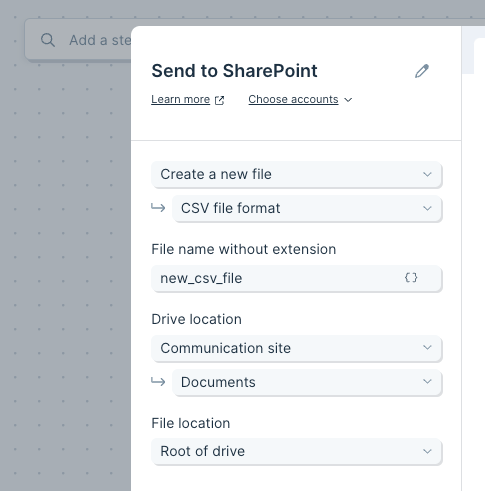
Searching for a folder
The folder picker matches by folder name only — it does not understand full paths. Type the name of the destination folder itself, not the path that leads to it.- ✅
Team Folders - ❌
Customer Supply Chain / 5. DIGITAL / Team Folders
Team Folders, Archive, or 2024), every match appears in the dropdown. Hover or expand each result to see its full path, then pick the one whose path matches the location you want.
If the folder name is too generic to find quickly, search for a more distinctive parent folder first (for example, 5. DIGITAL), confirm the right match, then refine to the child folder.
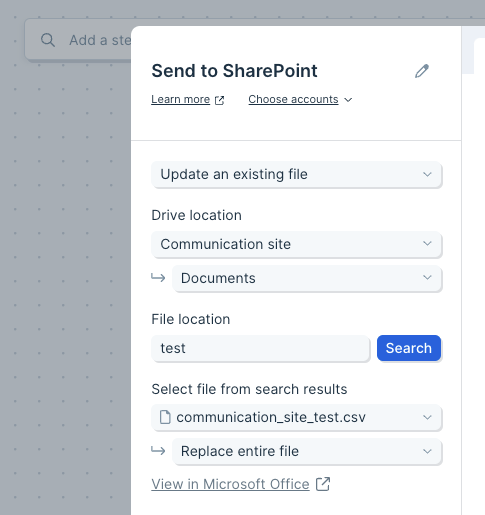
Update an existing file
Search for the file by name. The picker matches on filename, not folder path — you don’t need to navigate to the folder first.
For Excel files, you can specify which sheet to update.
EMEA Stock Master WIP.xlsx files in different team folders), every match appears. Check the path on each result to pick the right one.
File types supported
- XLSX
- CSV (comma delimiter)
- TSV (tab delimiter)
- JSON
- XML
Available data
The SharePoint steps work with file-level data inside SharePoint document libraries:- Excel workbooks with multiple sheets. Pick the sheet to pull or update.
- CSV and TSV for tabular data.
- JSON and XML for nested data your team has saved to SharePoint.
- Sites and document libraries. Any site your Microsoft account has access to appears in the site dropdown, and any drive (document library) within that site appears in the drive dropdown.
- Folders within a library. When sending a new file, search for the destination folder so output lands where it should.
Common use cases
- Refresh enterprise reports: Pull a finance Excel workbook from a SharePoint site, blend with NetSuite or Microsoft Dynamics Finance data, and write the updated workbook back to the same file weekly.
- Drop ops summaries to team sites: Send a daily ops report to a SharePoint document library the leadership team already checks, instead of emailing CSVs.
- Append to a running log: Use the Excel append option to add today’s rows to a year-to-date workbook in a department’s site without overwriting prior data.
- Bridge SharePoint and your database: Pull files from SharePoint, transform them, and load the results into Snowflake, BigQuery, or Redshift so analytics teams have access without SharePoint logins.
- Mirror files across storage tools: Read from SharePoint and write the same dataset to Google Drive, Box, or Dropbox when different teams use different platforms.
- Ingest partner and vendor files: Pull weekly inventory or shipment files partners drop into a shared site and reconcile against orders from Shopify or Amazon Seller Central.
Tips for using Parabola with SharePoint
- Watch the 100 MB Excel limit. The Microsoft API caps Excel workbooks at 100 MB or 1,048,576 rows by 16,384 columns. Files larger than this return an error. The limit applies to .xlsx only, not .xls.
- SharePoint changes can take 10–30 minutes to appear. Edits made directly in SharePoint may take time to surface in Parabola. If you’ve just updated a file, give it some time before troubleshooting.
- New site permissions take time too. When you’ve just been granted access to a SharePoint site, it can take a few minutes before that site appears in the Site dropdown. Refresh the step.
- Excel writes can take several minutes. Updates to Excel workbooks via the Microsoft API are not instantaneous. Don’t panic if the file looks stale right after a flow run.
- Use append for running logs, replace for snapshots. Append is Excel-only. CSVs and other formats always replace the entire file.
- Search for folders when creating files. Don’t rely on the drive root if a specific folder is the right destination, especially for sites used by multiple departments.
- Loop in IT for first-time auth. If your organization requires admin approval for new apps, plan ahead — share the verified-publisher info above with your IT admin.
FAQ
What file formats does the SharePoint integration support?
Pull supports XLS, XLSX, CSV, TSV, JSON, and XML. Send supports XLSX, CSV, TSV, JSON, and XML. CSV uses comma; TSV uses tab.Why am I getting a 100 MB error?
The Microsoft API limits Excel workbooks (.xlsx) to 100 MB or 1,048,576 rows by 16,384 columns. Reduce the workbook size, split the data across multiple files, or output as CSV instead.Why are my SharePoint changes not showing in Parabola?
SharePoint file changes can take 10–30 minutes to appear via the Microsoft API. The same applies to permission changes — newly granted access to a site can take several minutes before it shows up in Parabola.Why does authorization say “Need admin approval”?
Your Microsoft Azure user consent settings require admin approval for new apps. An IT admin can review this under Microsoft Azure > Enterprise Applications > Consent and Permissions. Parabola is a verified Microsoft app publisher, so admins can typically allow it without further review.Can I save to a specific folder in a document library?
Yes. When creating a new file with Send to SharePoint, search for the destination folder within the selected drive. Default behavior is to save to the drive root.Why can’t I find my folder when I paste the full path?
The folder picker searches by folder name only, not by full path. Search for just the destination folder name (for example,Team Folders, not Customer Supply Chain / 5. DIGITAL / Team Folders). If the name is shared across multiple folders, every match is returned — check each result’s path to pick the right one.
Where is “Team Folders” / “Shared Documents” in the drive dropdown?
Those are usually subfolders inside theDocuments drive, not drives themselves. Select the site, choose Documents (or Shared Documents) as the drive, then search for the folder by name.
With SharePoint and Parabola connected, the Excel workbooks and CSVs your enterprise team relies on for reporting, reconciliation, and cross-team handoffs stay current on a schedule, with output landing in the document libraries stakeholders already use.