

Dropbox is a cloud file storage and sharing platform used by teams to store documents, share folders with partners, and sync files across devices. Connecting Dropbox to Parabola lets ops, finance, and supply-chain teams pull CSV and Excel files out of Dropbox, blend them with data from other systems, and write outputs back so the same files stakeholders already use stay current on a schedule.Documentation Index
Fetch the complete documentation index at: https://parabola.io/docs/llms.txt
Use this file to discover all available pages before exploring further.
Pull from Dropbox
The Pull from Dropbox step reads a CSV or Excel file from your Dropbox account and brings the rows into your flow. It works with both personal and team folders, so you can ingest a vendor’s weekly drop, a finance reference file, or a manually maintained spreadsheet without anyone uploading anything.Send to Dropbox
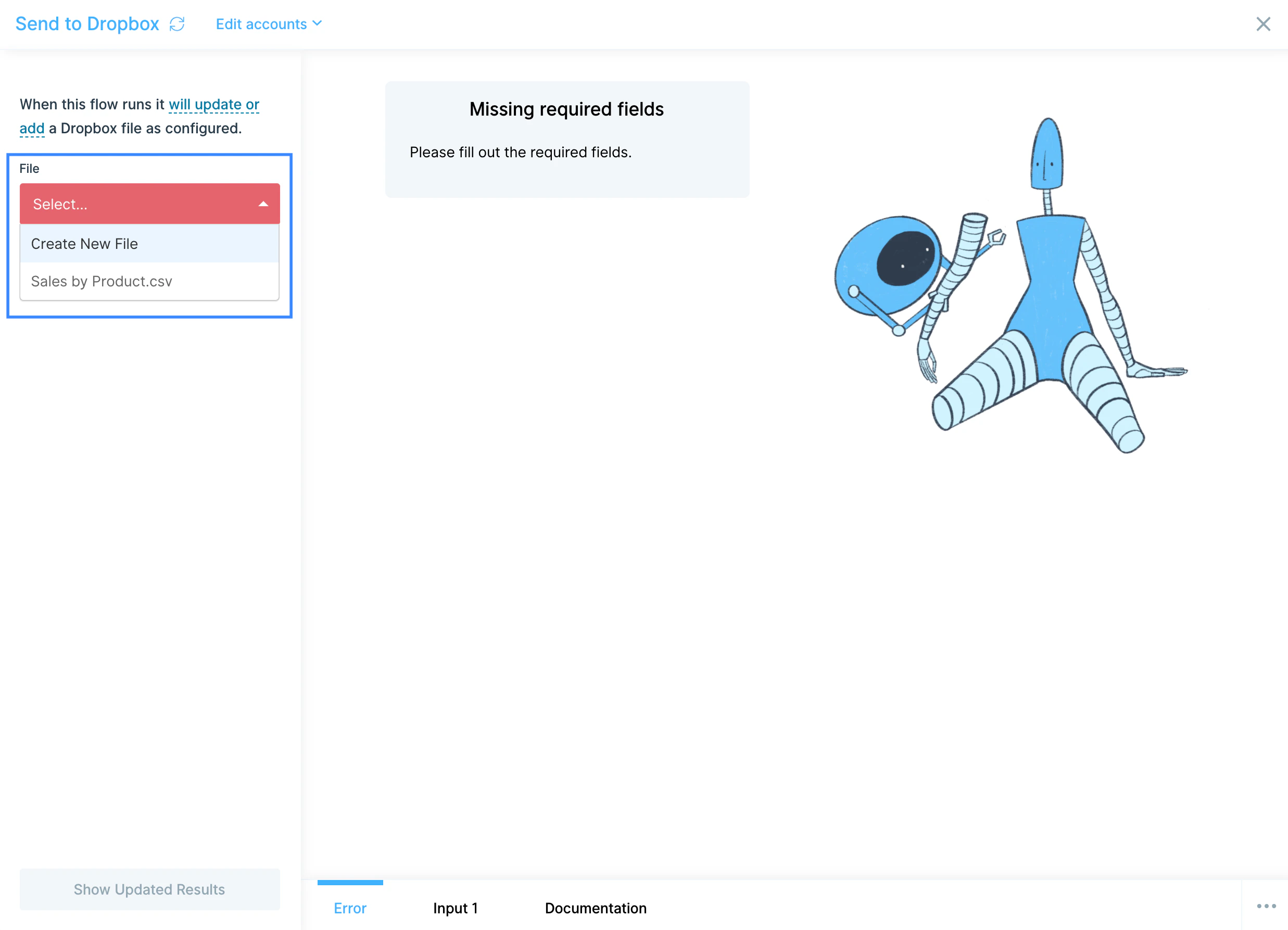
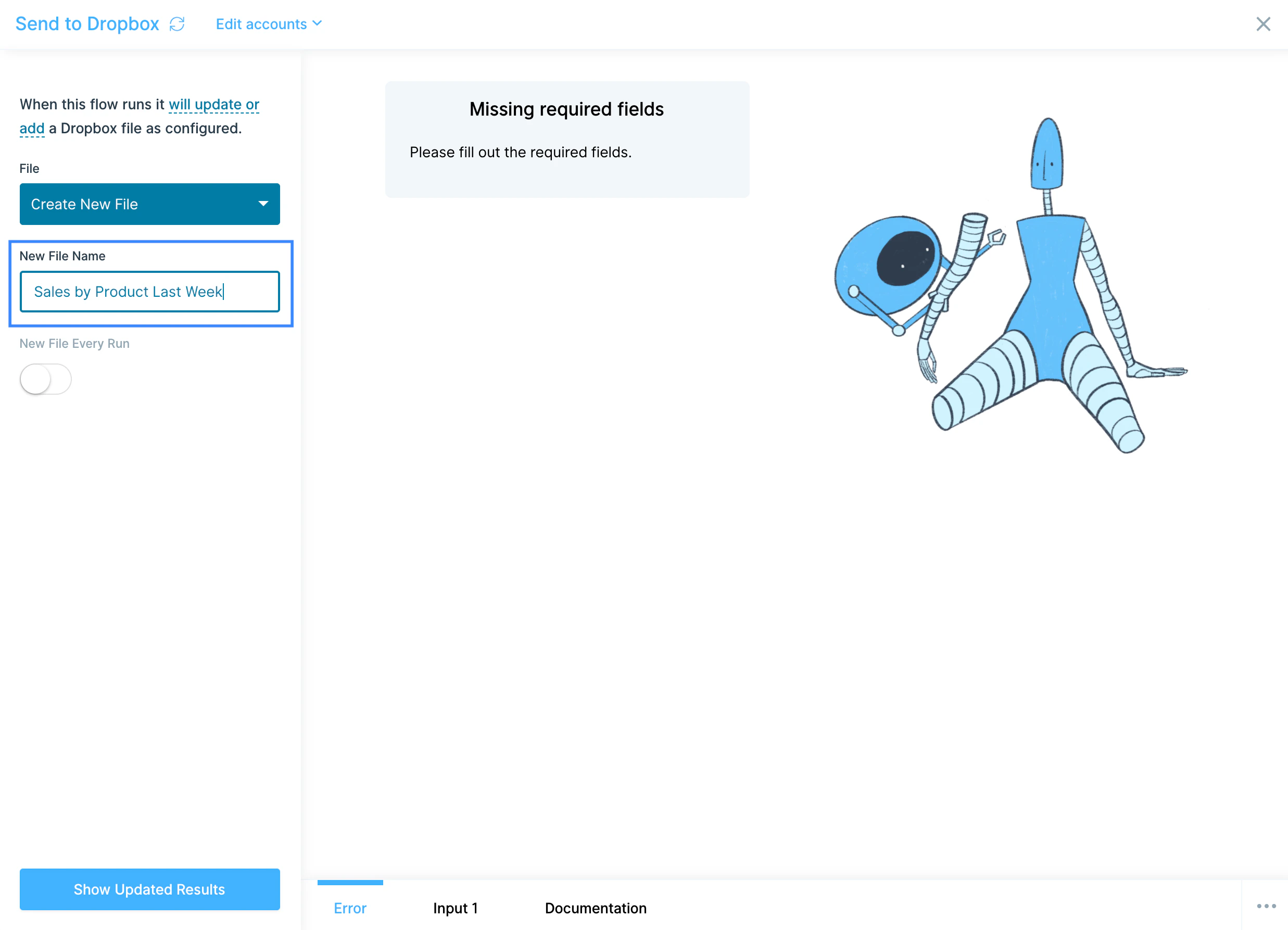
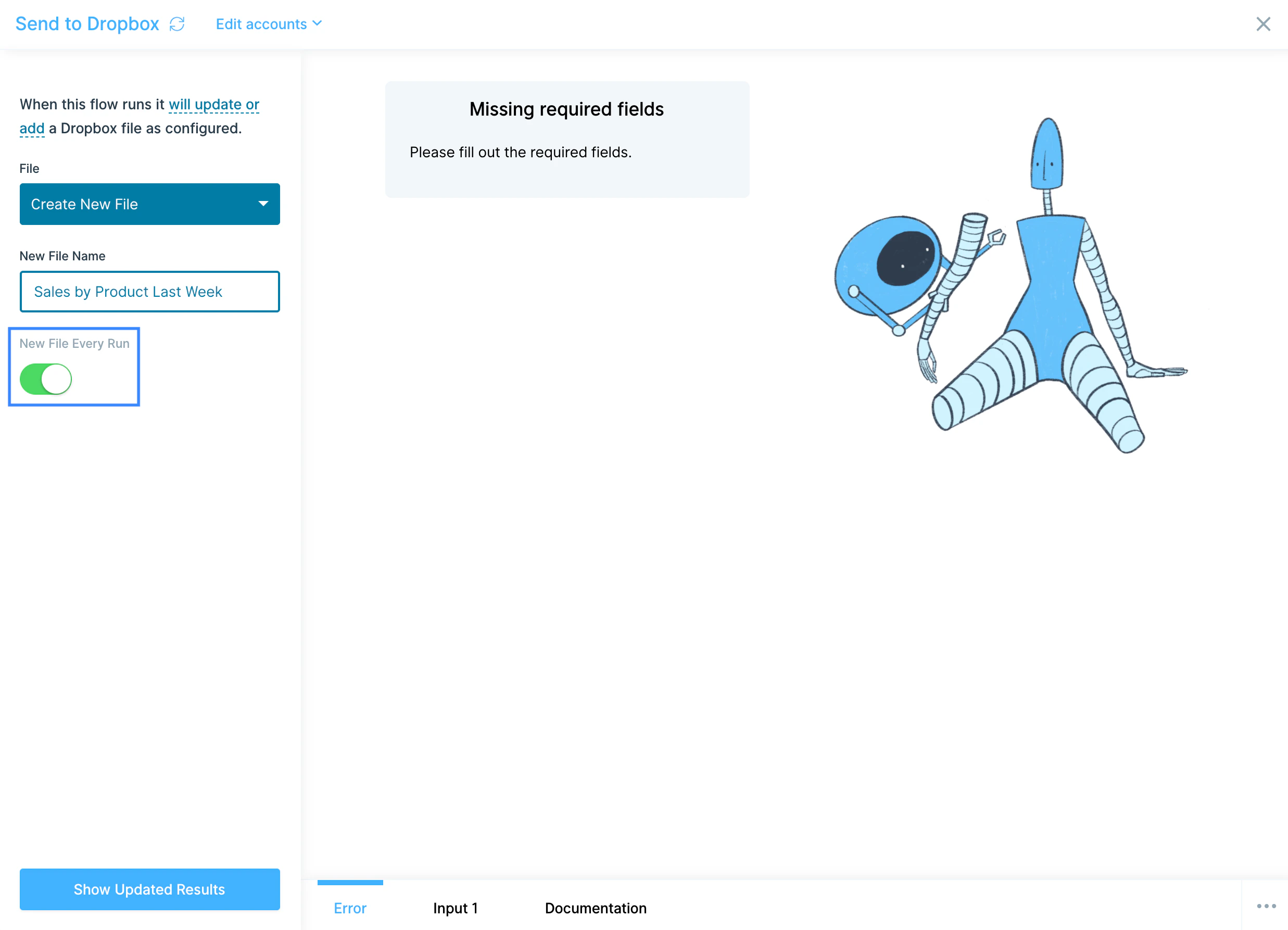
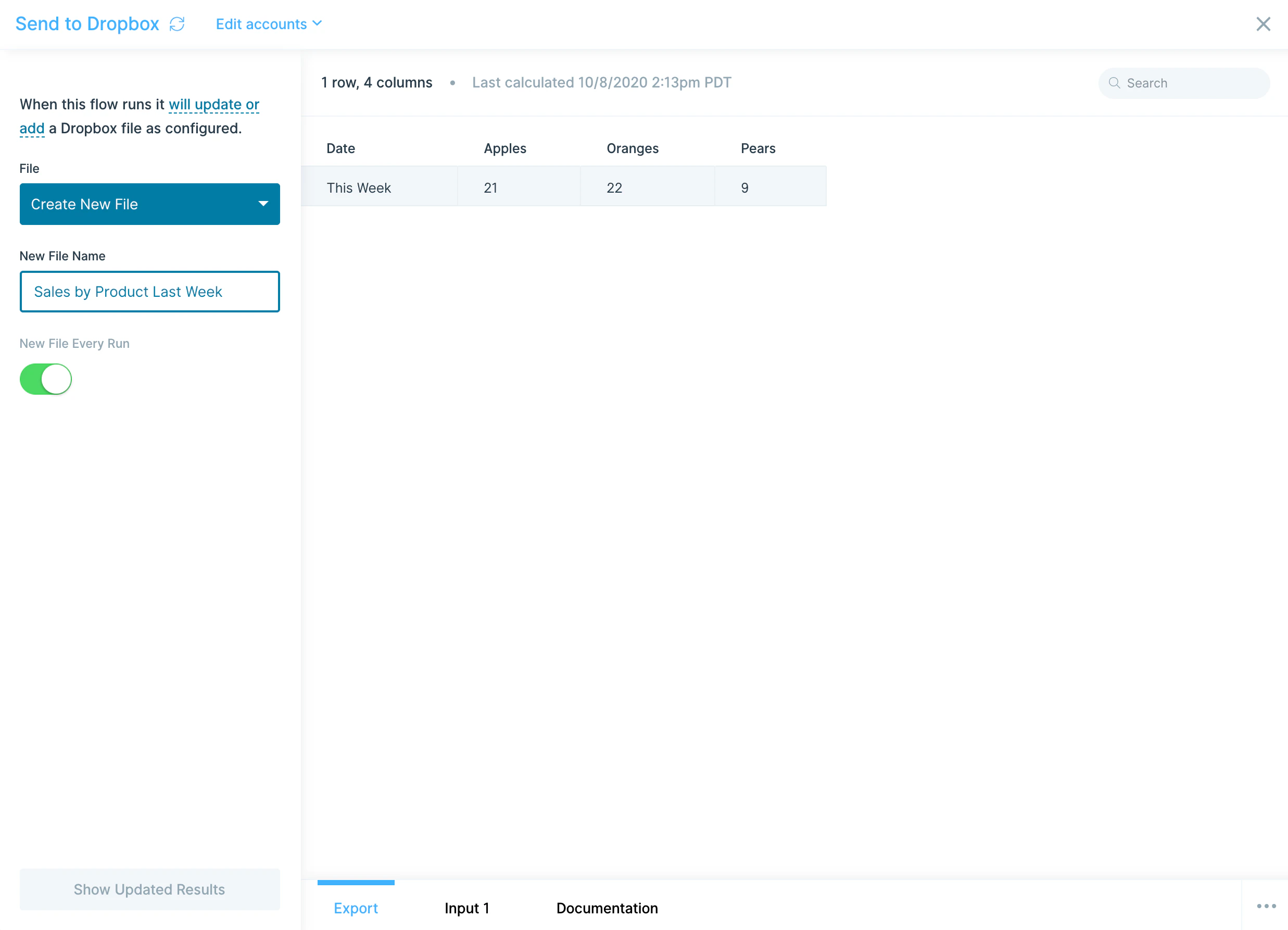
The Send to Dropbox step writes the output of your flow to Dropbox as a CSV. You can overwrite an existing file, create a brand-new file, or generate a new timestamped file every run.How to authenticate
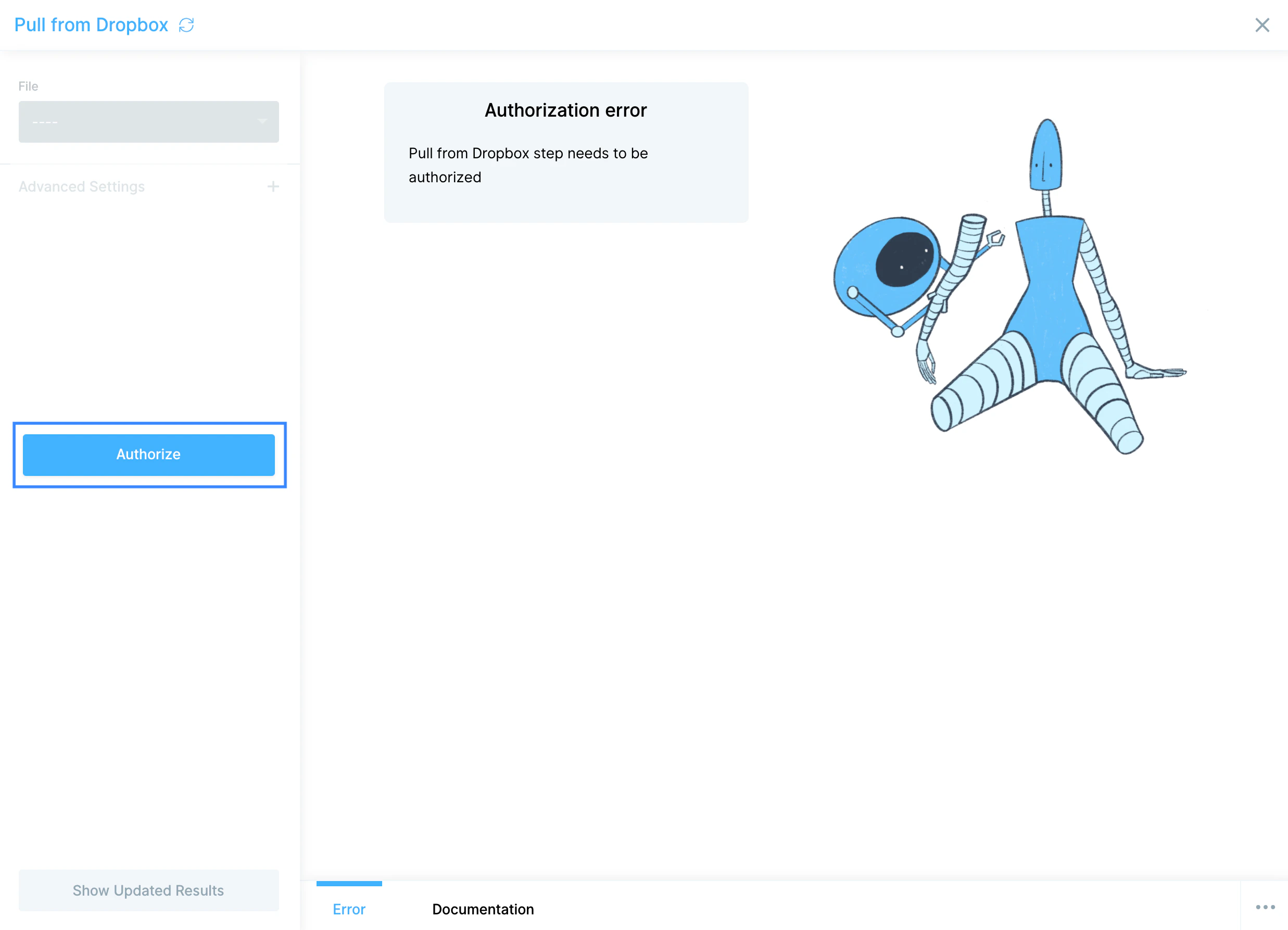
Configure your settings
For the Pull from Dropbox step, select the file from the File dropdown. You’ll see all files you have access to. For Dropbox Business accounts, that includes both personal and team files.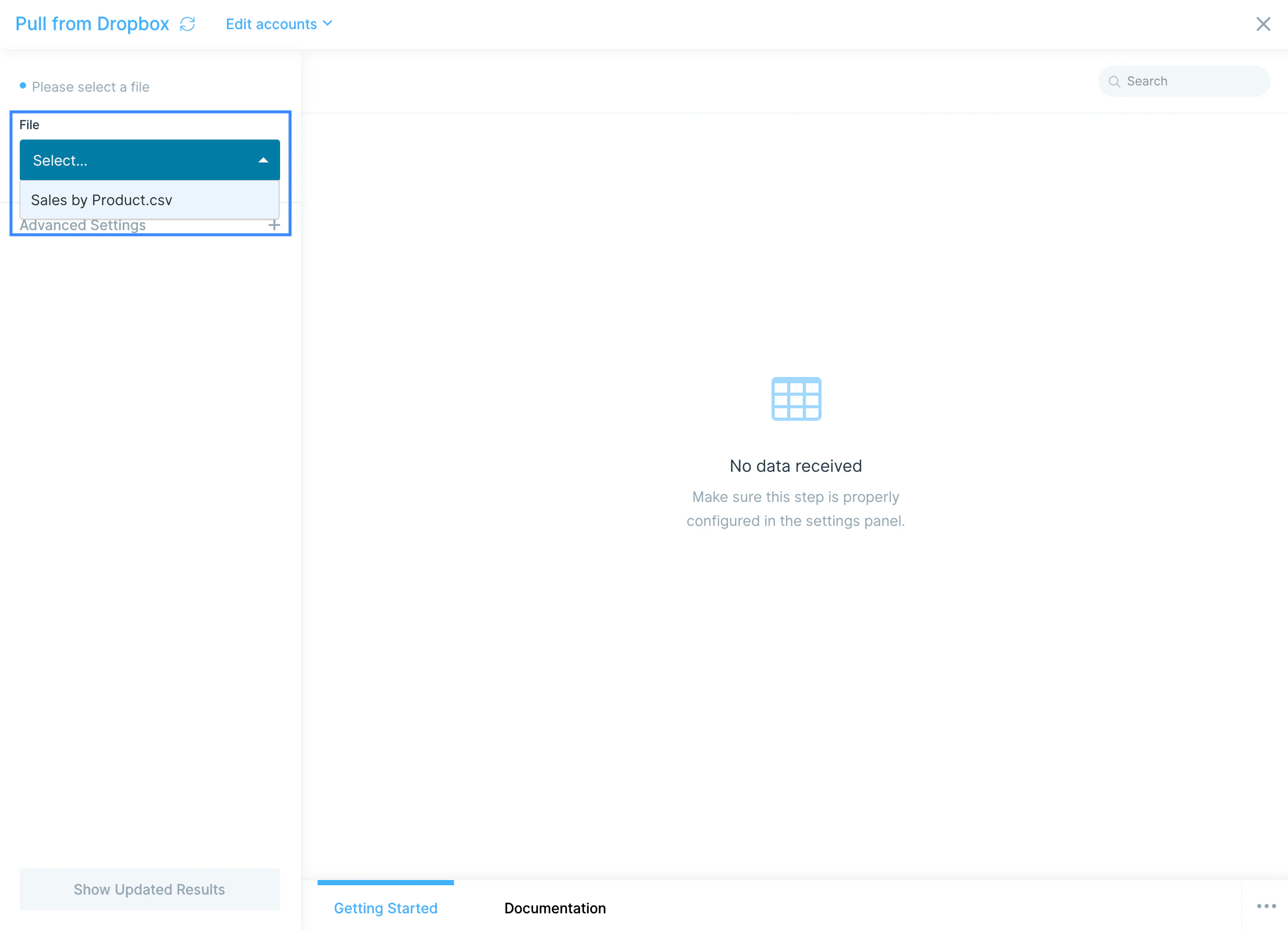
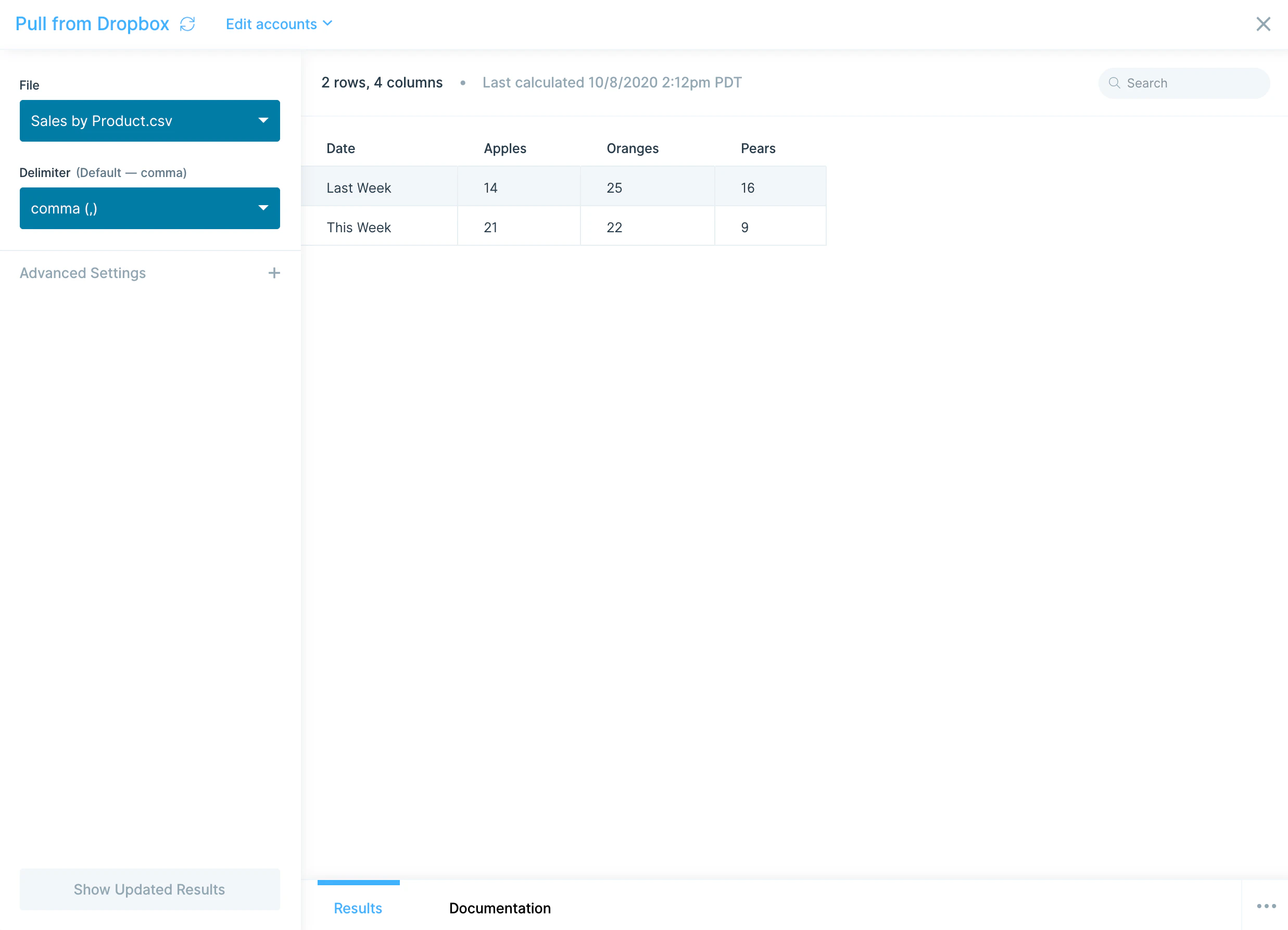
Available data
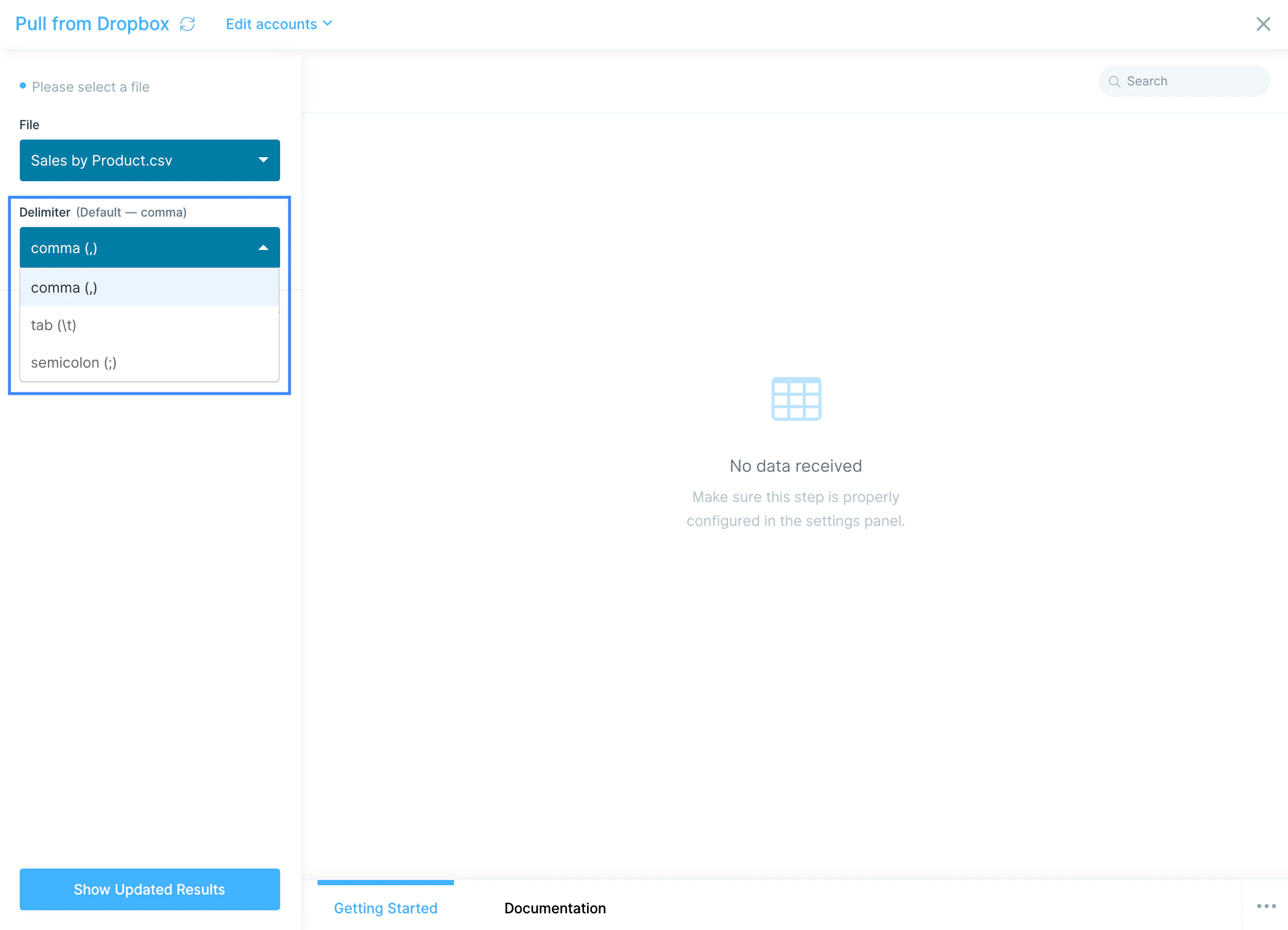
The Dropbox steps work with file-level data, not API records:- CSV with comma, tab, or semicolon delimiters.
- Excel workbooks (.xlsx).
- Personal and team folders. Dropbox Business users see a combined list of all files they have access to. The pull step works against directories owned by the primary Dropbox account owner.
- Search by filename. Under Advanced Settings, type a search term to filter the File dropdown when you’re working in a Dropbox account with thousands of files.
Common use cases
- Ingest partner drops: Pull weekly inventory, shipment, or invoice files your 3PL or supplier shares to a Dropbox folder, then join with order data from Shopify or Amazon Seller Central to reconcile.
- Refresh shared finance files: Read a rate card or GL map from Dropbox, use it to enrich data from NetSuite or QuickBooks Online, and write the result back to the same folder.
- Drop ops reports for stakeholders: Send a daily ops summary to a Dropbox folder execs already check, instead of emailing CSVs around.
- Bridge Dropbox and a database: Pull a file from Dropbox, transform it, and load the result into Snowflake, BigQuery, or Redshift.
- Mirror files between storage tools: Read from Dropbox and write the same dataset to Google Drive, Box, or SharePoint when different teams use different platforms.
- Send fulfillment files to your warehouse: Build a clean order CSV from your e-commerce data and drop it on a shared Dropbox folder for your warehouse partner to pick up.
Tips for using Parabola with Dropbox
- Use search for large accounts. If your Dropbox has thousands of files, type a filename fragment under Advanced Settings to filter the File dropdown instead of scrolling.
- Confirm folder ownership for Pull from Dropbox. The step only sees files in directories owned by the primary Dropbox account owner. If a file isn’t appearing, check who actually owns the folder.
- New Send to Dropbox files land in your private folder. For Dropbox Business accounts, new files created by the step go to your private member folder. Move or share manually if a team folder is required.
- Pair with cleaning steps. Files from external partners often have inconsistent headers, blank rows, or stray columns. Add Edit columns and Filter rows steps right after the pull to standardize.
- Schedule pulls to match upstream cadence. If a partner drops a file every Monday at 8 a.m., schedule the flow for 8:30 a.m. so you’re always working from fresh data.
- Set the right delimiter. European partners often share semicolon-delimited CSVs. Set the Delimiter dropdown before troubleshooting “missing column” errors.
FAQ
What file formats does the Dropbox integration support?
CSV (comma, tab, or semicolon delimited) and Excel (.xlsx) files. Other file types in Dropbox won’t appear in the File dropdown.Can I pull from a shared team folder?
Yes. Dropbox Business users see a combined list of personal and team files in the File dropdown, as long as the connected account has access. Files in folders not owned by the primary Dropbox account owner may not appear.Where does Send to Dropbox put new files?
New files created by the step land in the connected user’s private member folder for Dropbox Business accounts. Move or share manually after the run if a specific team folder is required.Does Parabola sync Dropbox file changes in real time?
Yes, in the sense that each flow run reads the current state of the file. Schedule the flow on the cadence you need (hourly, daily, on demand). For event-driven flows, use a separate service to trigger Parabola’s webhook trigger when a file changes in Dropbox.With Dropbox and Parabola connected, the spreadsheet handoffs that used to require email chains and manual uploads run on a schedule, with clean files landing where your team and partners already work.