

Salesforce is the CRM of record for most enterprise sales, marketing, and CX teams, holding accounts, contacts, leads, opportunities, cases, and custom objects unique to each business. Connecting Salesforce to Parabola lets revenue and ops teams pull CRM data into the same flows used for billing, product analytics, and marketing reporting, and push enriched records back so reps work from current data, without manual exports or engineering work.Documentation Index
Fetch the complete documentation index at: https://parabola.io/docs/llms.txt
Use this file to discover all available pages before exploring further.
The Salesforce integration uses OAuth-based API access. You don’t need a separate Salesforce license to use it.
Pull from Salesforce
The Pull from Salesforce step brings data from your Salesforce CRM into Parabola by object type and field. You can also filter results by a saved Salesforce View.How to authenticate
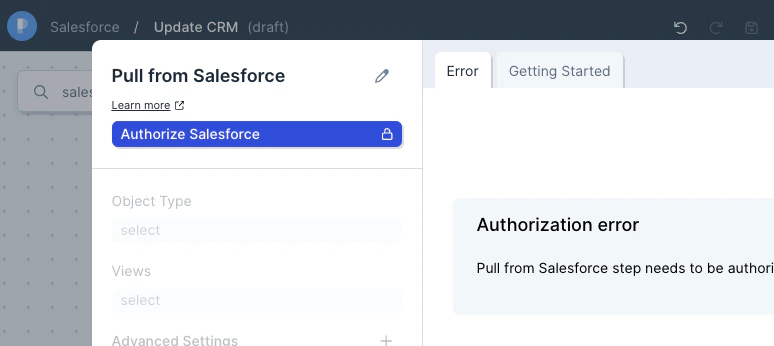
Configure your settings
Pick an Object Type. These are the standard and custom Salesforce objects on your org — Account, Contact, Lead, Opportunity, Case, and any custom objects you’ve defined.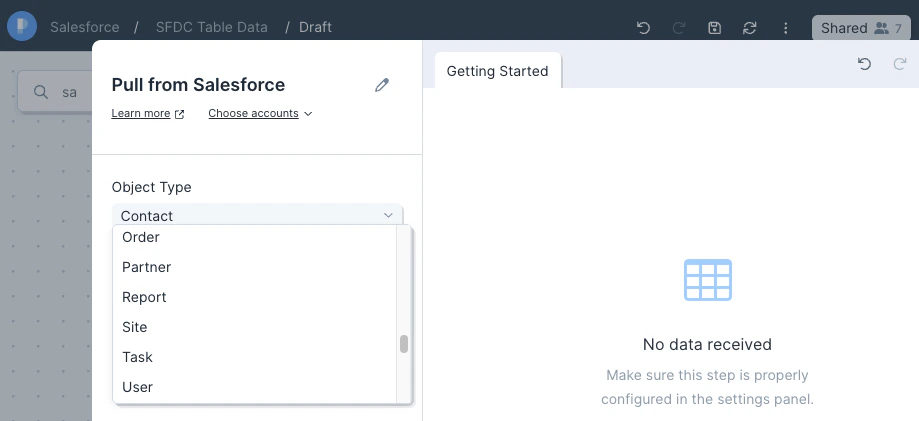
Pick a View to apply Salesforce’s native View criteria as a filter. The pull returns data in the same shape as the View.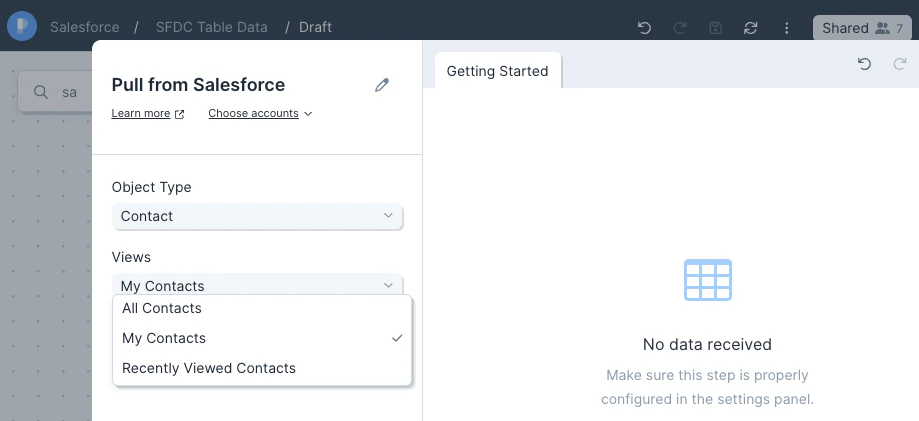
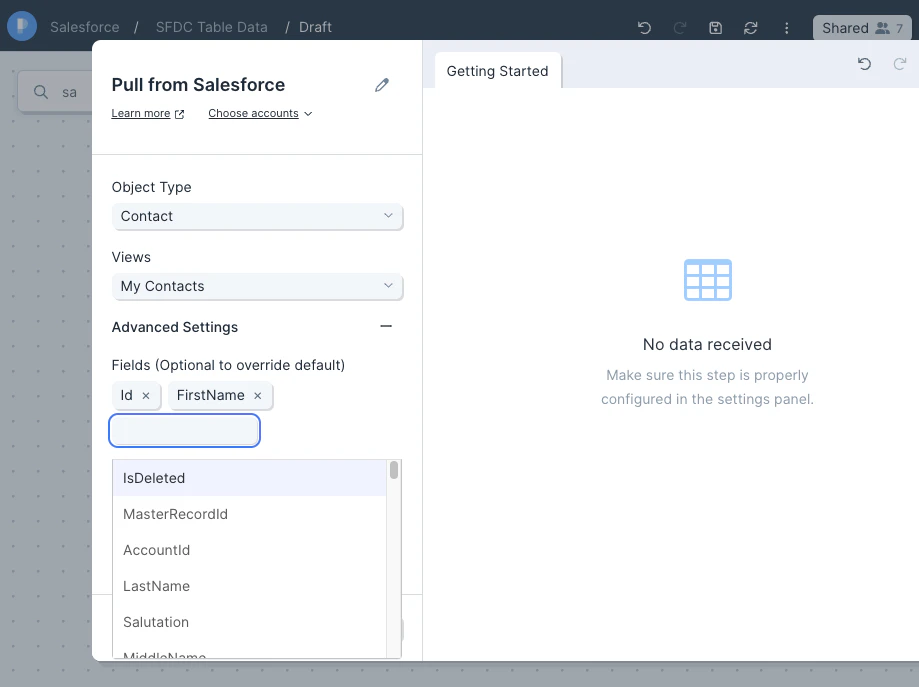
Available data
The Pull from Salesforce step works against any standard or custom object on your org. The objects operators most often pull:- Accounts — company-level records with name, owner, industry, type, billing and shipping address, parent account, custom account fields.
- Contacts — person-level records with name, email, phone, title, account, owner, mailing address, custom contact fields.
- Leads — pre-conversion records with name, email, company, status, source, owner, rating, conversion date.
- Opportunities — deal records with name, amount, stage, close date, probability, account, owner, forecast category, custom opportunity fields.
- Cases — support ticket records with subject, status, priority, owner, account, contact, origin, custom case fields.
- Custom objects — any custom object on your org appears in the Object Type dropdown alongside standard objects.
Send to Salesforce
The Send to Salesforce step writes data from Parabola into your Salesforce CRM as new or updated records.How to authenticate
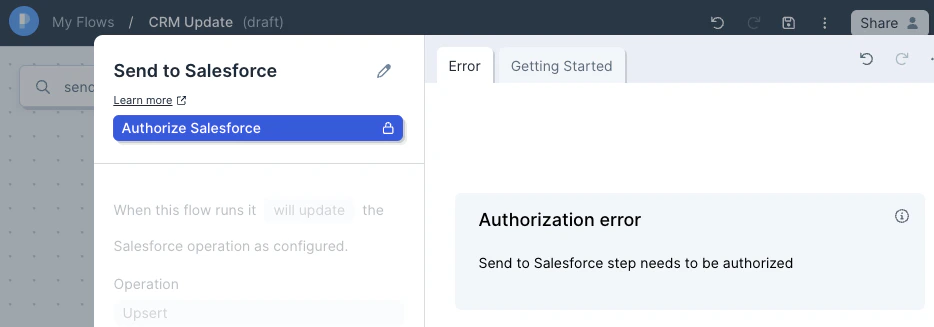
Configure your settings
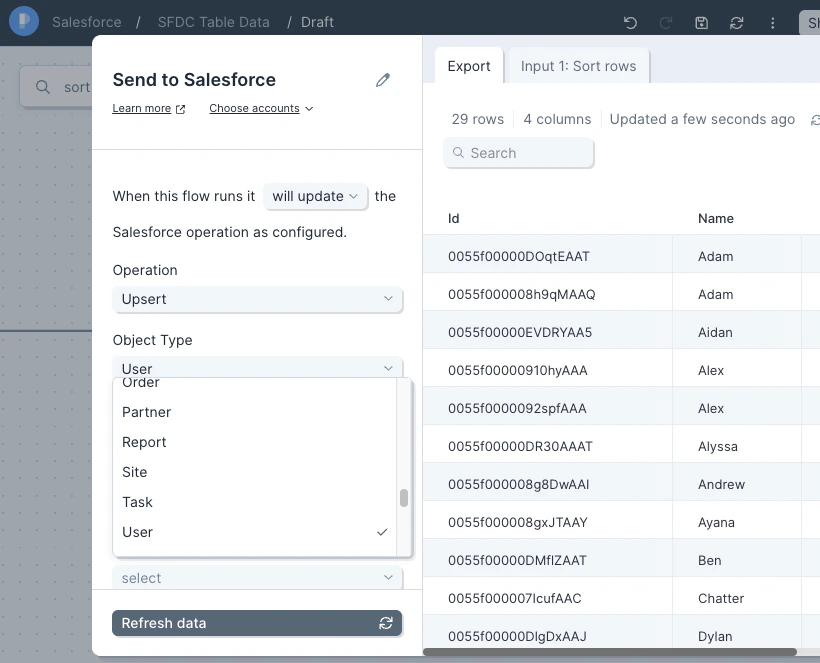
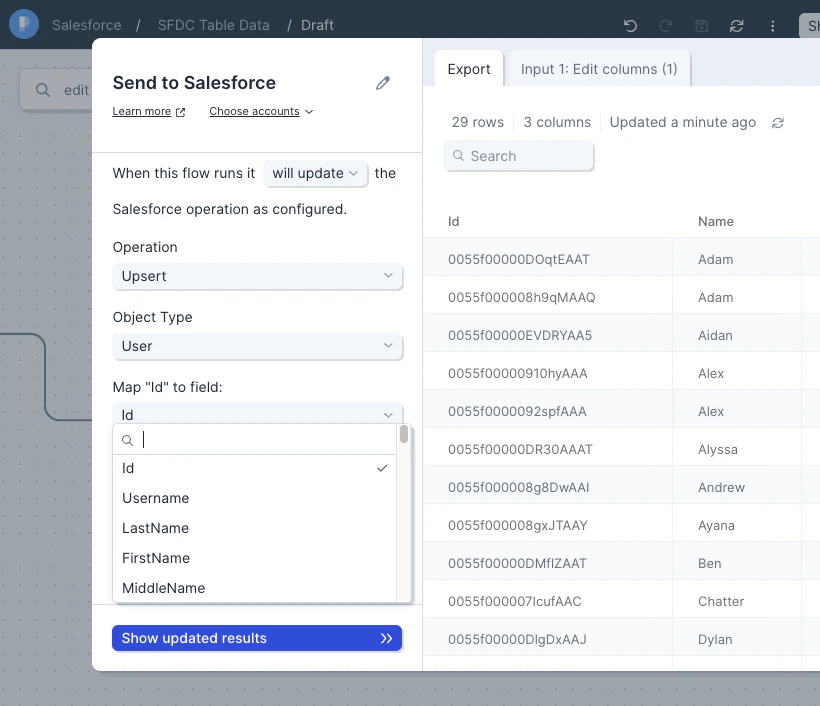
Pick an Operation. The default is Upsert, which maps your data to existing records by ID and creates new records when no match exists. Insert only creates new records and may produce duplicates if you’re not careful.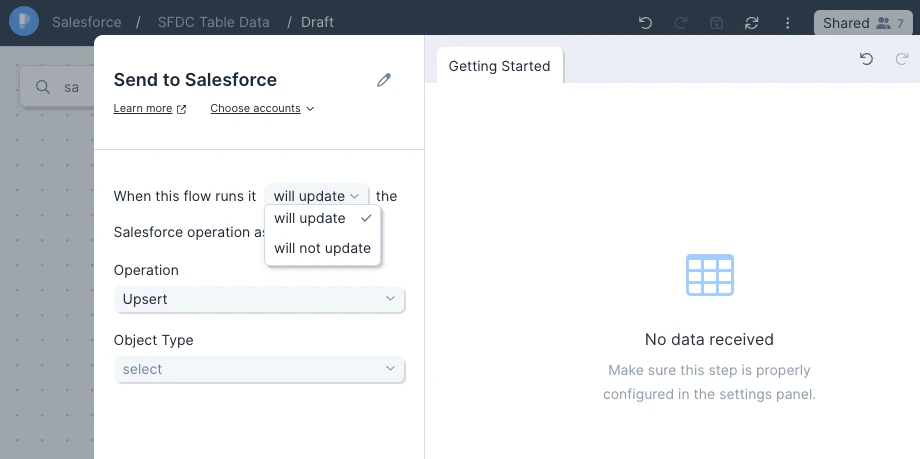
Common use cases
- Sync product activity into the CRM: Push usage and event data from Snowflake, BigQuery, or Redshift into Salesforce account or contact fields so AEs see signal before a call.
- Reconcile opportunities against billing: Join Salesforce Opportunities with Stripe charges and NetSuite or QuickBooks Online invoices to confirm closed-won amounts match what was actually billed and collected.
- Score and route leads automatically: Pull Salesforce Leads, score against signup, intent, and engagement data, and upsert the score plus owner assignment back into Salesforce on a schedule.
- Sync e-commerce customers as CRM accounts: Push high-LTV customers from Shopify, Magento, Recharge, or Square into Salesforce so account managers can run named-account plays.
- Run weekly CRM hygiene flows: Pull Accounts and Contacts, dedupe, fix casing, normalize country codes and phone numbers, and upsert the cleaned records back to Salesforce.
- Trigger pipeline alerts: When an Opportunity over a threshold flips to a target stage, post a Slack message to the AE and ops channel — or open a Jira ticket if engineering needs to support the deal.
Tips for using Parabola with Salesforce
- Don’t pull Reports — pull Objects. Salesforce’s Reports API is capped at 2,000 rows. Pull the underlying objects (Account, Opportunity, etc.) into Parabola and recreate the View’s filtering and sorting downstream.
- Use Upsert with an Id column. Insert without an Id column will create duplicates. For most ongoing syncs you want Upsert with the Id mapped from your data.
- Replace blanks with
#N/Ato clear values. Salesforce ignores empty values on update. To actively clear a field, replace empty cells with#N/Ausing a Find and replace step before sending. - Check Bulk Data Load Jobs after a Send. The Salesforce API can return a “success” response even when individual rows fail. In Salesforce, go to Setup → Bulk Data Load Jobs to see the result and per-row error messages from the last 7 days.
- Use Pull from an API for SOQL. For joins, aggregations, or custom WHERE clauses, use Pull from an API with a SOQL query against the Salesforce REST API.
- Match cadence to use case. Hourly for lead routing and product-activity sync, daily for CRM hygiene and pipeline reporting, weekly for forecast and territory analytics.
FAQ
Why won’t my Salesforce Essentials account connect?
The Pull from Salesforce and Send to Salesforce steps don’t support Salesforce Essentials. You’ll need a Professional, Enterprise, Unlimited, or Developer edition org with API access enabled.How do I get past the 2,000-row Reports limit?
Pull the underlying objects (Account, Contact, Opportunity, etc.) instead of pulling a Salesforce Report. You can recreate the Report’s filtering, grouping, and aggregation downstream in Parabola, where there’s no row cap.How do I clear a field in Salesforce instead of leaving it unchanged?
Salesforce ignores empty values when you upsert. Replace empty cells with#N/A (using a Find and replace step in Parabola) before the Send to Salesforce step. Salesforce treats #N/A as an explicit instruction to clear the field.
Where do I see why a Send to Salesforce row failed?
In Salesforce, go to Setup → Bulk Data Load Jobs. Find the job from your Parabola run (jobs from the last 7 days are visible) and inspect the per-row error messages. The Salesforce API may return a top-level success even when rows inside the batch failed.Does Parabola support Salesforce custom objects?
Yes. Custom objects appear in the Object Type dropdown on both Pull and Send steps. For custom objects with custom field types or relationships that the native step can’t handle, use Pull from an API or Send to an API with SOQL or the Salesforce REST API.Can I pull from multiple Salesforce orgs in one flow?
Yes. Add multiple Pull from Salesforce steps and authorize each one against a different Salesforce login, then union the results downstream.With Salesforce and Parabola connected, the manual exports and CSV imports your revenue team relies on — pipeline reconciliation, lead routing, CRM hygiene — run on a schedule, with clean data moving in and out of the CRM where your sales team actually works.