

SendGrid is an email delivery platform brands use to send transactional notifications, internal alerts, and bulk marketing emails at scale. Connecting SendGrid to Parabola lets ops, marketing, and finance teams send personalized emails directly from a flow — one row equals one email — without writing code or routing through a separate ESP.Documentation Index
Fetch the complete documentation index at: https://parabola.io/docs/llms.txt
Use this file to discover all available pages before exploring further.
Send to SendGrid
The Send to SendGrid step sends emails through your SendGrid account. Each row of input data sends one email, with column values merged into the subject and body using{column_name} syntax. It’s the fastest way to ship row-driven email use cases like price-change alerts, low-stock notifications, weekly client summaries, or vendor reminders.
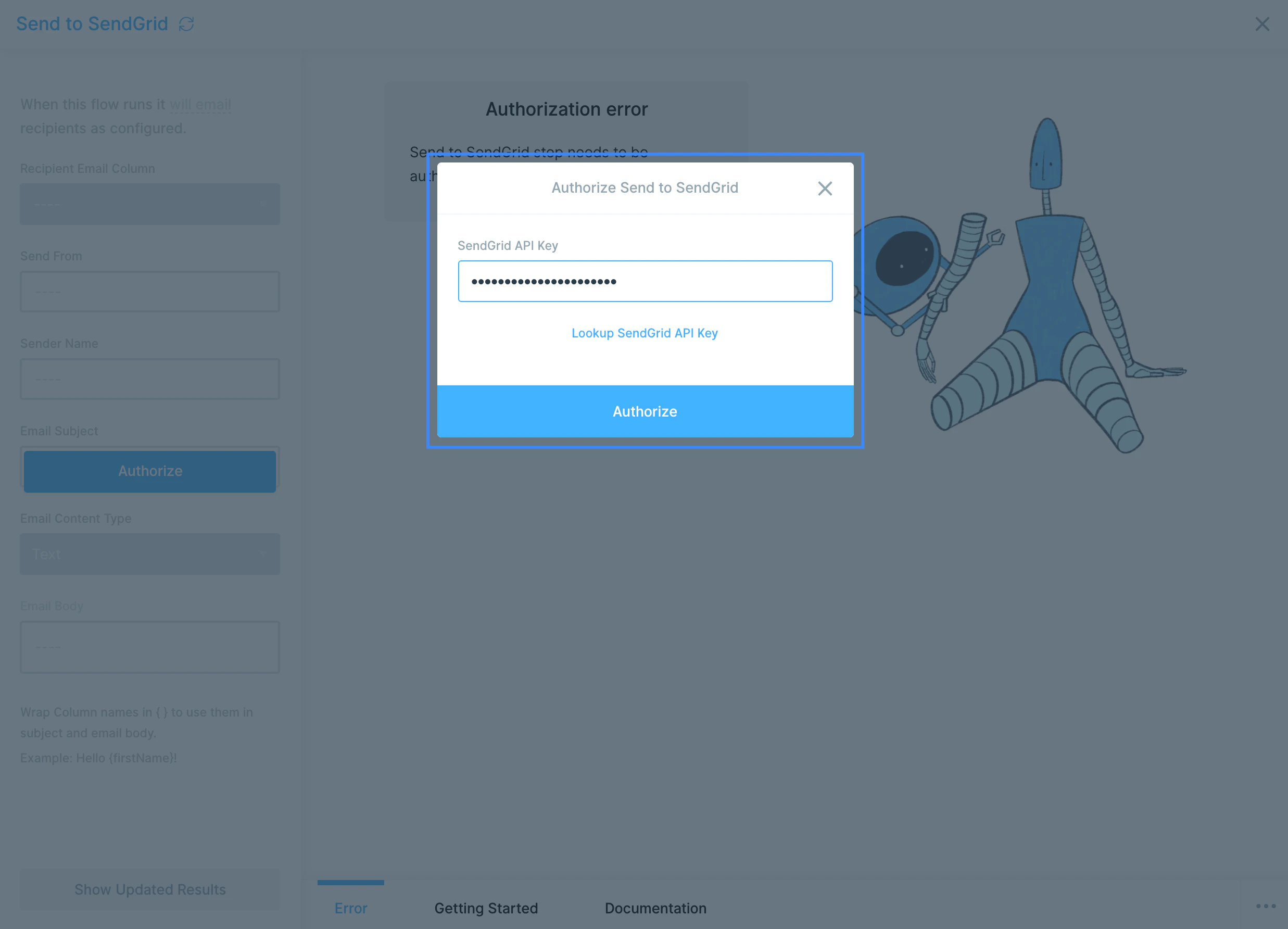
How to authenticate
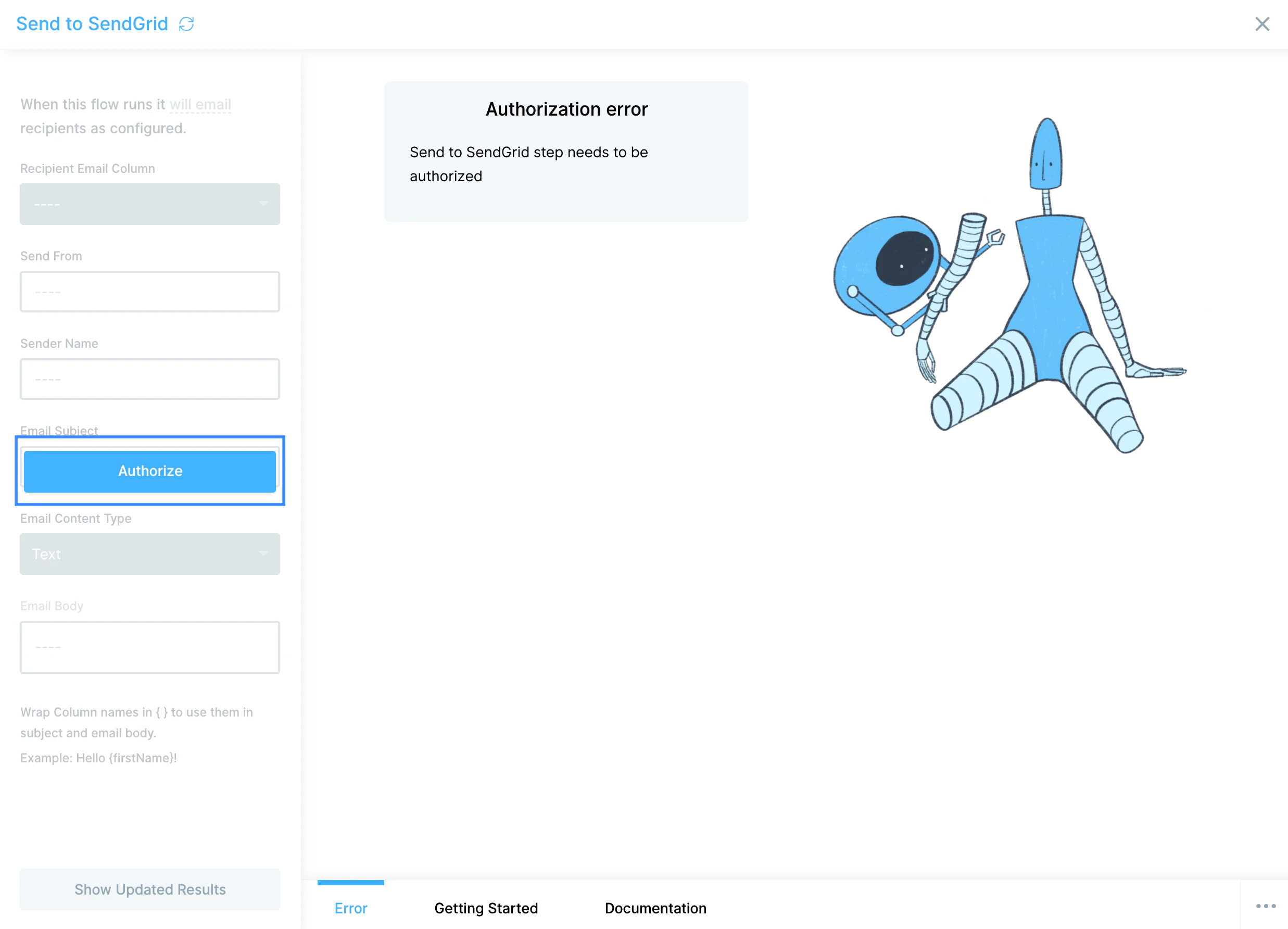
Generate an API key on your SendGrid Settings → API Keys page with Mail Send permission.
Configure your settings
Pick the recipient column. Each row will receive one email. If your data contains duplicate addresses, that recipient will receive multiple emails — use a Remove duplicate rows step upstream to dedupe first.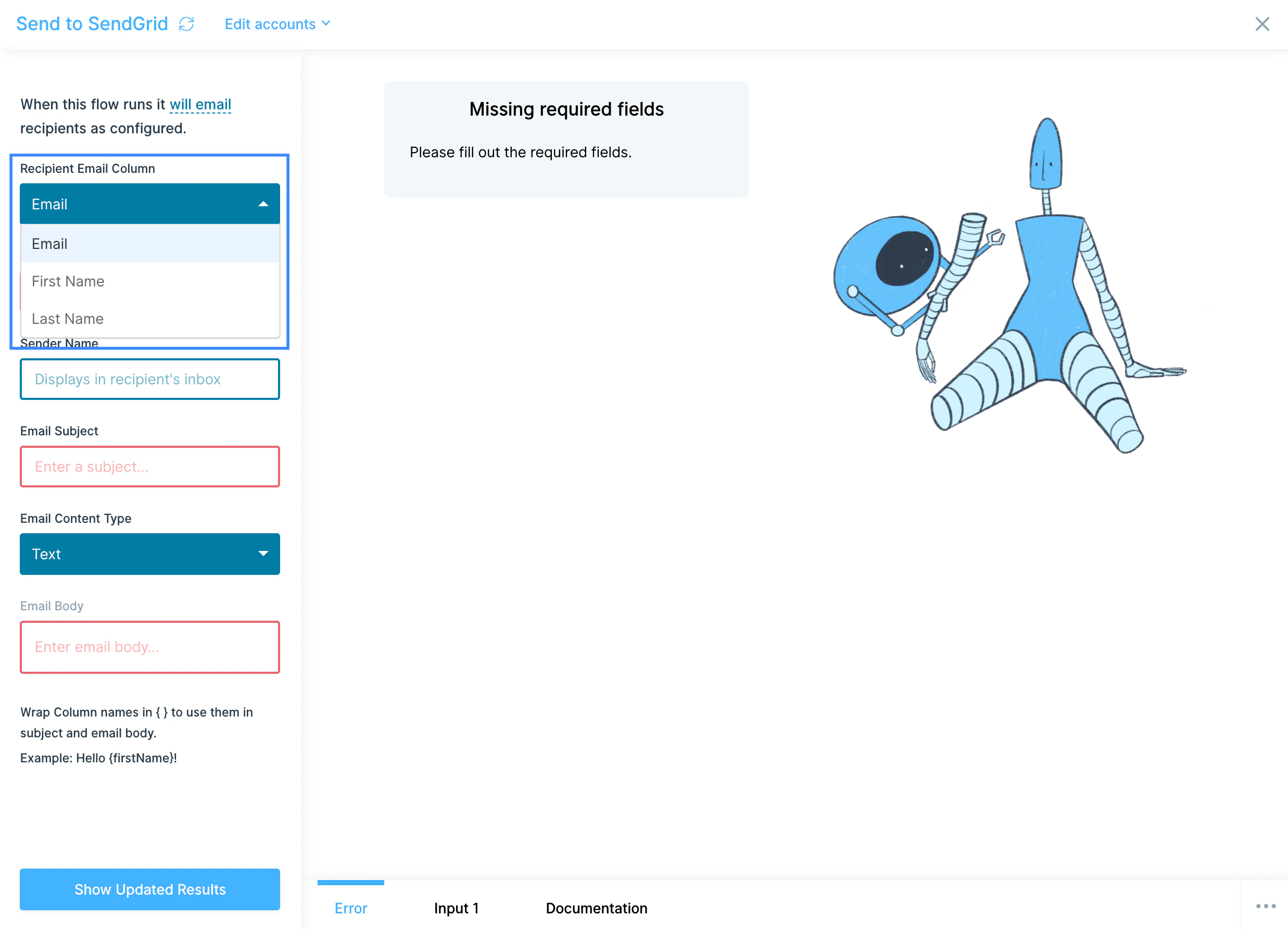
Set Send From. The address every email is sent from. The step can only send from a single address per run, so this can’t be column-driven.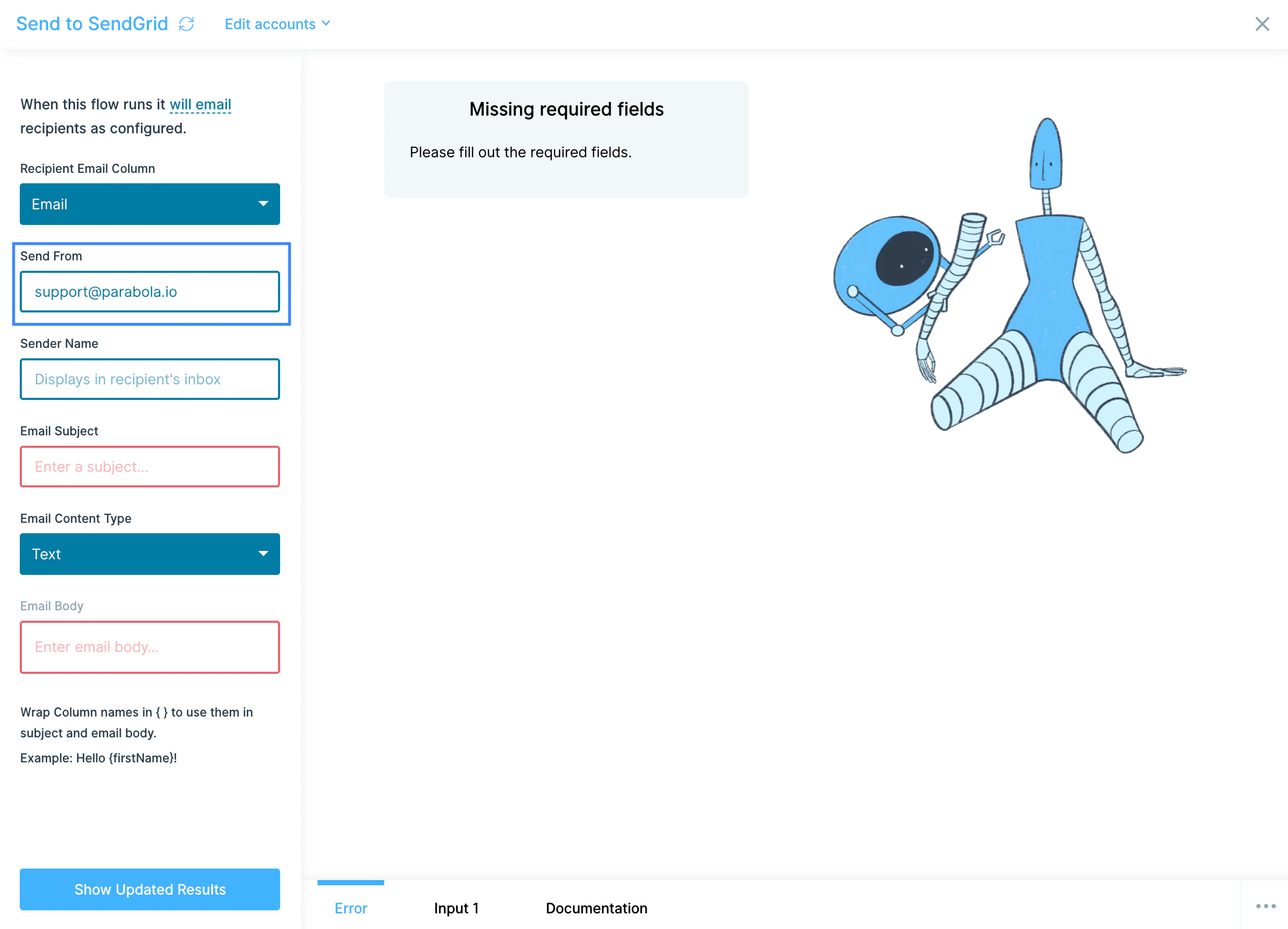
Set Sender Name and Email Subject. Both support mail merge — wrap a column name in curly braces (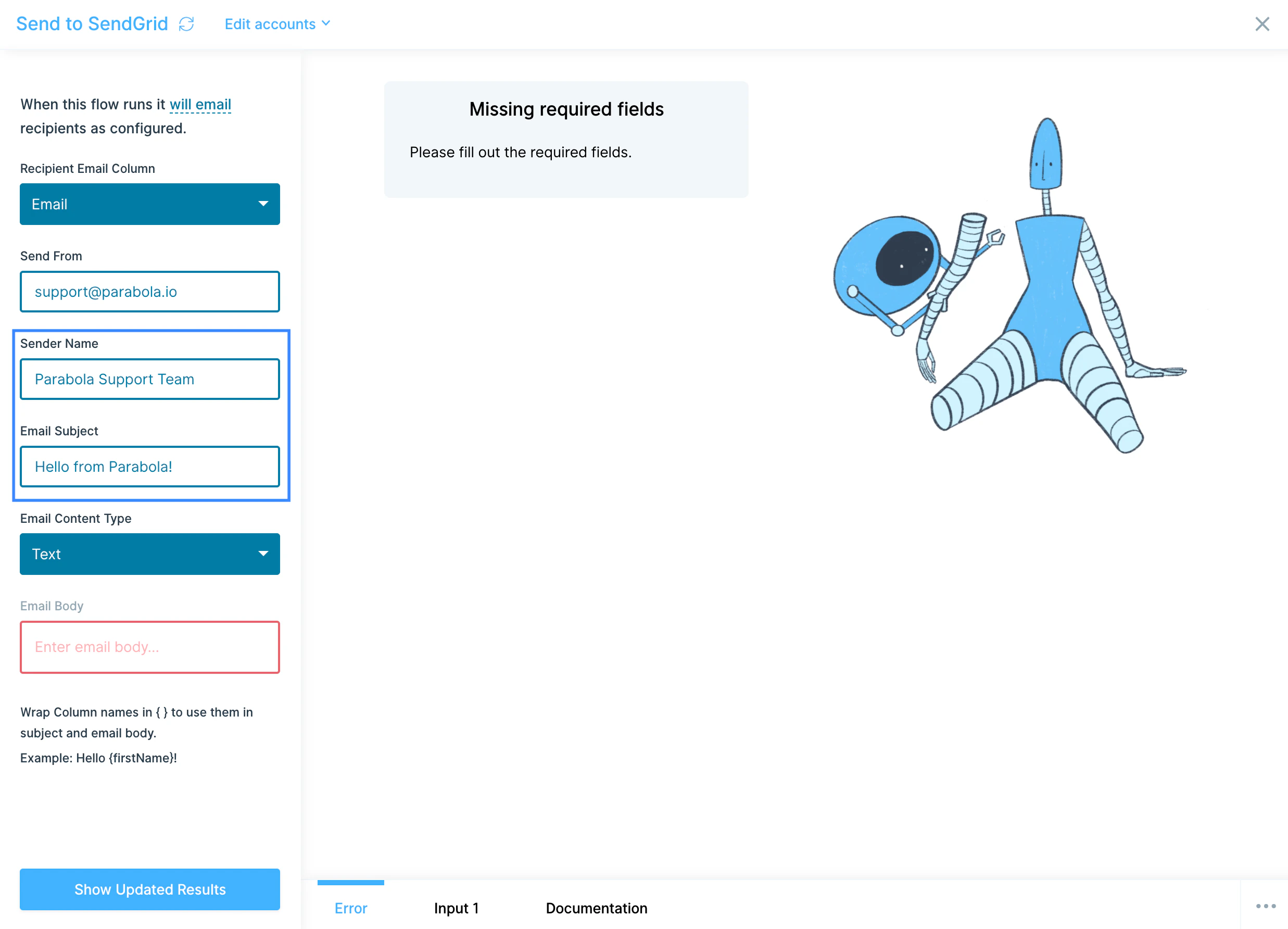
{First Name}) to insert that row’s value.Pick Email Content Type. Choose Text for plain-text emails or HTML for formatted markup. HTML lets you control layout, links, and styling.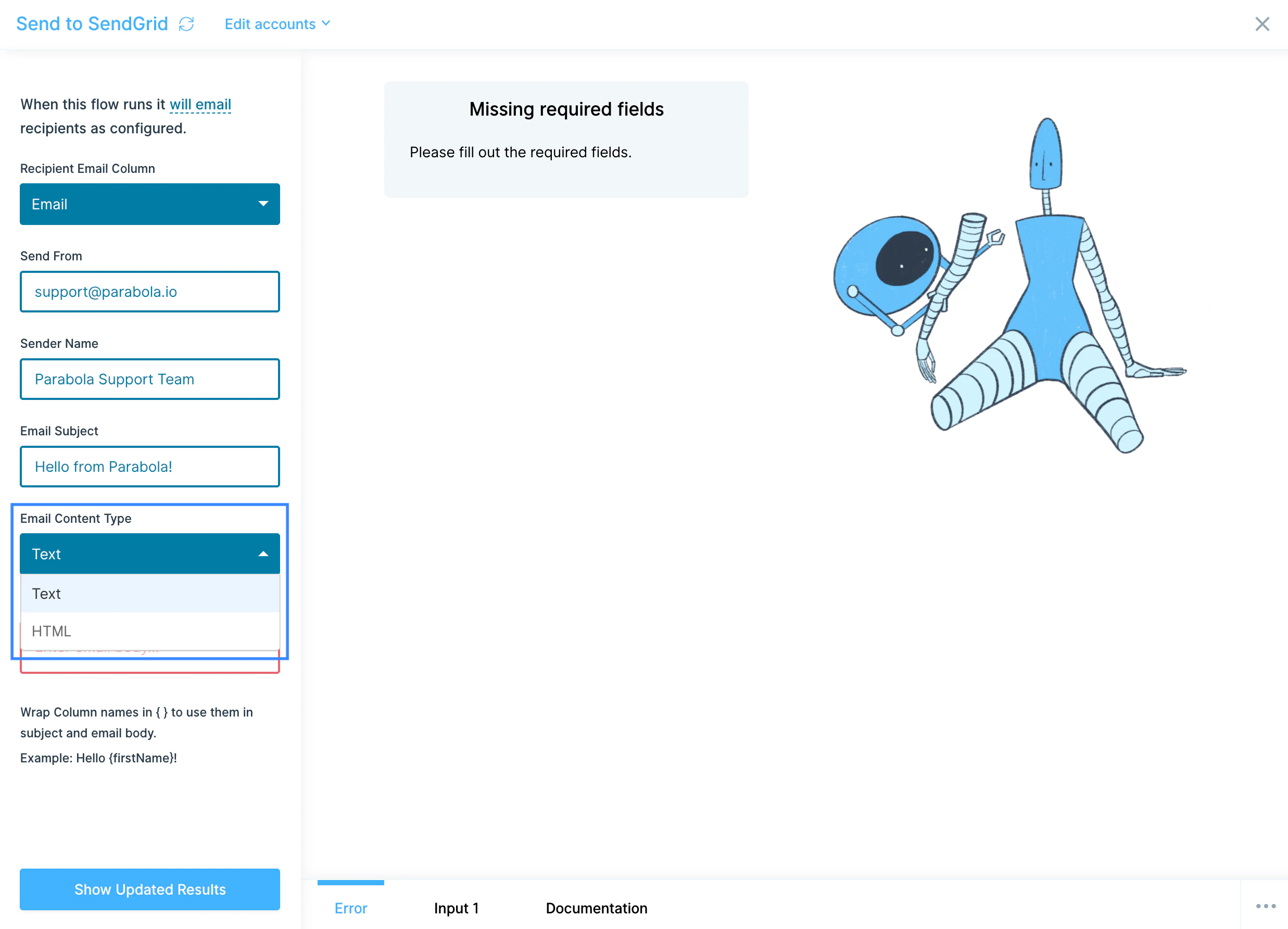
Write the Email Body. Use mail merge with 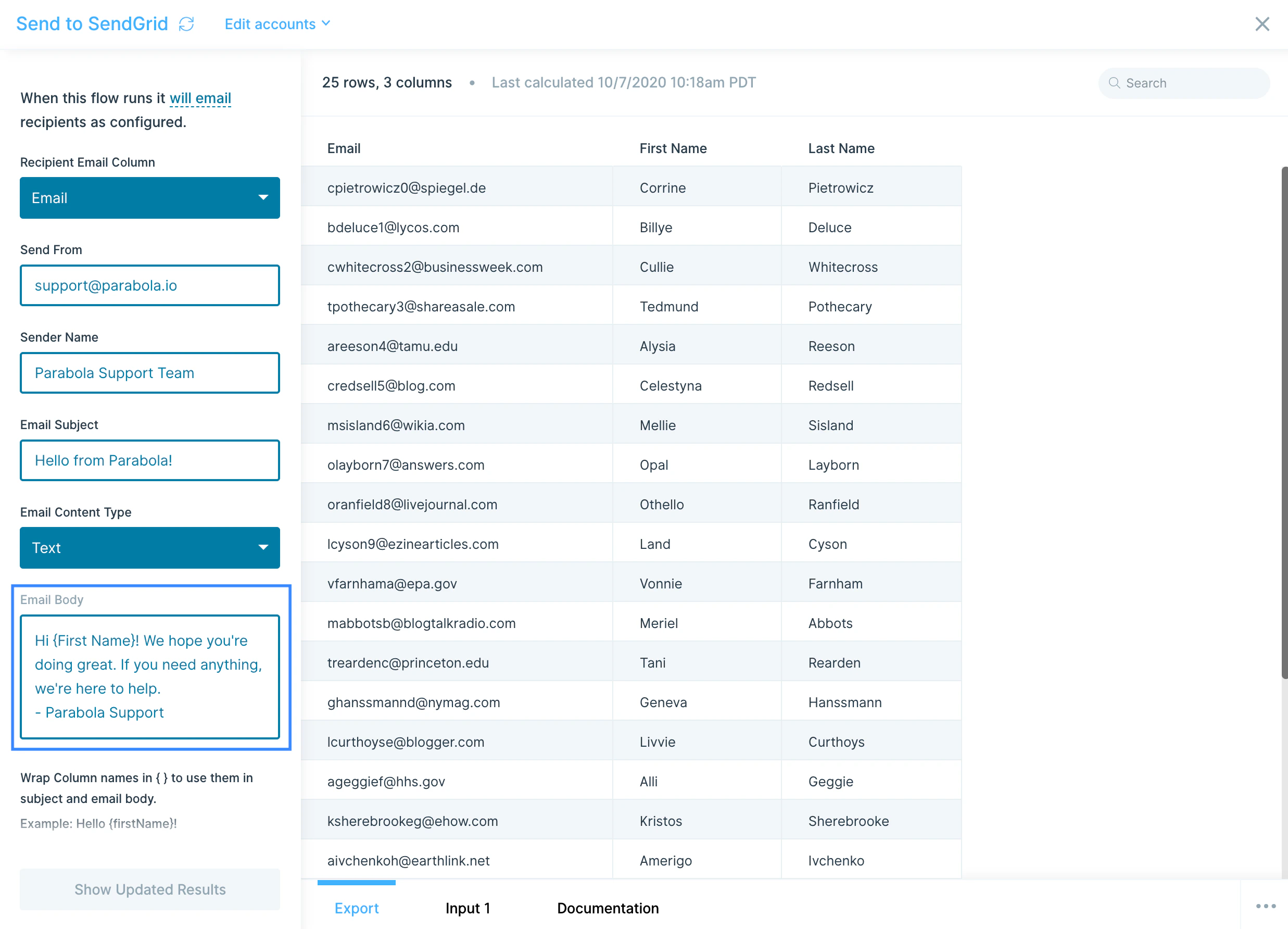
{column_name} to insert values from any column on the incoming row. If your body itself lives in a column, reference it directly (e.g. {Email Body}) — but note any merge fields inside that column must be merged in an upstream step before they hit Send to SendGrid.Available data
Send to SendGrid sends emails — it does not pull engagement data back into Parabola. Each row sent produces one email and one delivery attempt against your SendGrid account. Per-email outputs include:- Recipient email — the address the email was sent to.
- Send status — whether SendGrid accepted the request for delivery.
- Subject and body — the merged values used for that row.
Common use cases
- Send personalized vendor or client reminders: Pull outstanding invoices or open POs from NetSuite, QuickBooks Online, or Fulfil, then email each vendor a tailored summary with their line items merged in.
- Trigger price-change or low-stock alerts: Combine inventory from Shopify or Amazon Seller Central with thresholds, filter to the rows that need attention, and email the right buyer or merchandiser.
- Send weekly client or partner summaries: Roll up campaign performance from Facebook Ads, TikTok, or Google Analytics, filter to one row per client, and merge the metrics into a personalized email.
- Notify customers of shipment status changes: Pull tracking events from AfterShip, ShipStation, or your 3PL, filter to status changes, and email customers directly with their tracking number merged in.
- Send order- or refund-confirmation emails outside your storefront: For order channels not covered by your standard ESP (B2B portals, custom storefronts), trigger transactional emails from a Parabola flow.
- Internal alerts to ops or finance: Email the right operator (or a shared inbox) when a flow detects an anomaly — settlement variance, return spike, SLA miss — using their email address as the recipient column.
Tips for using Parabola with SendGrid
- Test with a column you control. Replace the recipient column with your own email upstream while building, then swap it back in once the merges look right.
- Verify your sender address. SendGrid requires sender domain or single-sender verification before any email goes out. Set this up in SendGrid Sender Authentication before scheduling the flow.
- Dedupe before sending. Use Remove duplicate rows on the recipient column to avoid sending the same person five copies of the same email when your upstream join fans out.
- Inspect the merged HTML before sending. Build a temporary Pull from CSV with a single test row, run the flow, and check the email in Gmail or Outlook before pointing the step at your real data.
- Use HTML mode for anything beyond text. Plain text is fine for one-line notifications, but HTML gives you headers, tables, and links — much better for client-facing summaries.
- Use the right SendGrid API key permissions. Send to SendGrid only needs Mail Send. A more permissive key works, but tighter scopes are safer if the key ever leaks.
FAQ
Can I pull SendGrid stats (opens, clicks, bounces) into Parabola?
Yes, but not through this step. Use a Pull from an API step pointed at SendGrid’s Stats API with the same API key, then join the results to your sends in Parabola.Can I send from multiple “from” addresses in one run?
No. Each Send to SendGrid step sends from a single address. If you need column-driven from addresses, branch your data into separate Send to SendGrid steps per sender or use a Send to an API step against SendGrid’s/mail/send endpoint.
Does SendGrid support attachments in this step?
The native step doesn’t support attachments. To send attachments, use a Send to an API step against SendGrid’s/mail/send endpoint with the attachment encoded inline.
Which SendGrid plan do I need?
Any plan with API access works, including the free tier (100 emails/day). For high-volume sends, check SendGrid pricing to make sure your plan covers your daily volume.With SendGrid and Parabola connected, the row-by-row emails your team would otherwise mail-merge by hand — vendor reminders, low-stock alerts, weekly client recaps — go out automatically every time the flow runs.