Documentation Index
Fetch the complete documentation index at: https://parabola.io/docs/llms.txt
Use this file to discover all available pages before exploring further.
Input/output
This step takes two tables as its input and shows you how they overlap. It will help you answer a question like, “Which rows from Table 1 do or do not exist in Table 2?”Input 1
Table 1 shows products in our first store with three columns: ‘Variant ID’, ‘Name’, and ‘Sales Price’.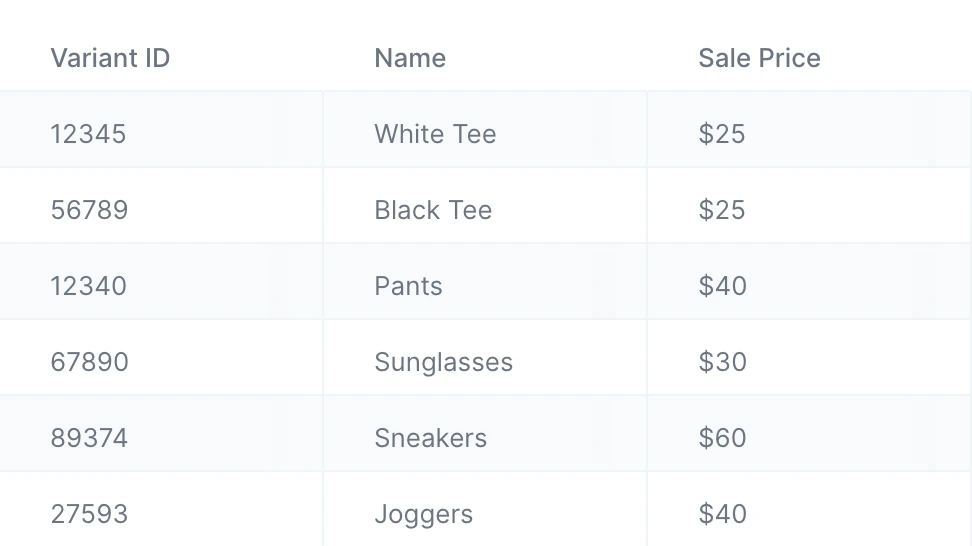
Input 2
Table 2 shows products in our second store with two columns: ‘Variant ID’ and ‘Name’.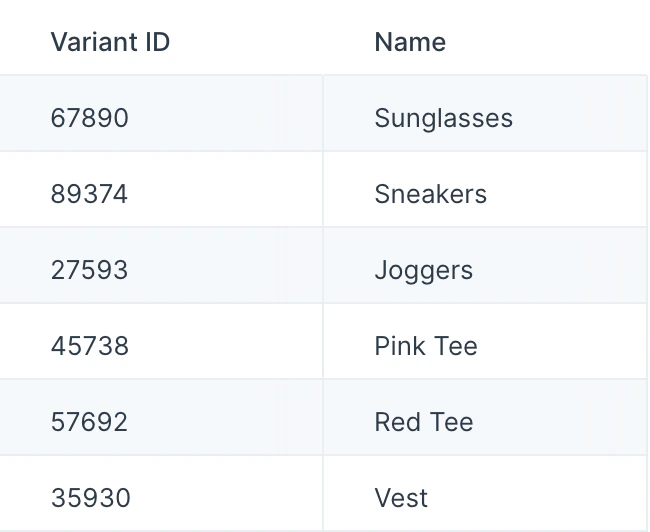
Output
Let’s say we want to find which products from Store 1 are also sold in Store 2. The step will immediately tell us this as its output. Below we can see that there are three products sold in both stores. Since ‘Store 1’ was our primary table in the step, it’s showing us the complete rows from that table.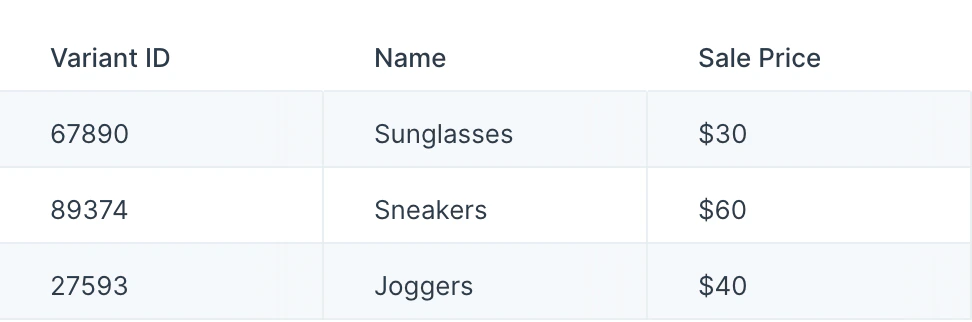
Default settings
When you first connect your two inputs into this step, you’ll see that your first input is treated as the primary table, and that rows have been matched by the lead column. By default, the step will keep rows where any of the rules are true.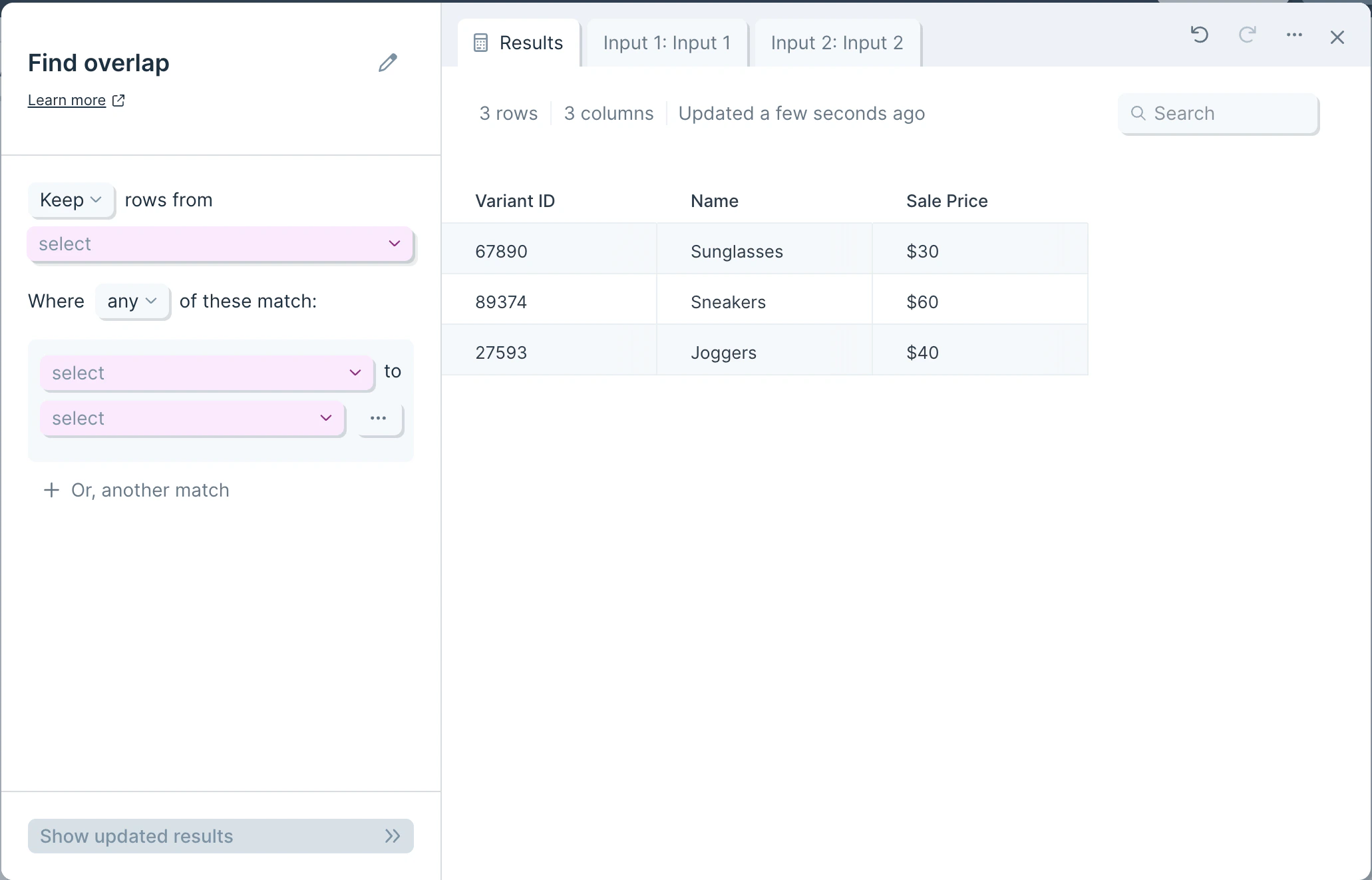
Custom settings
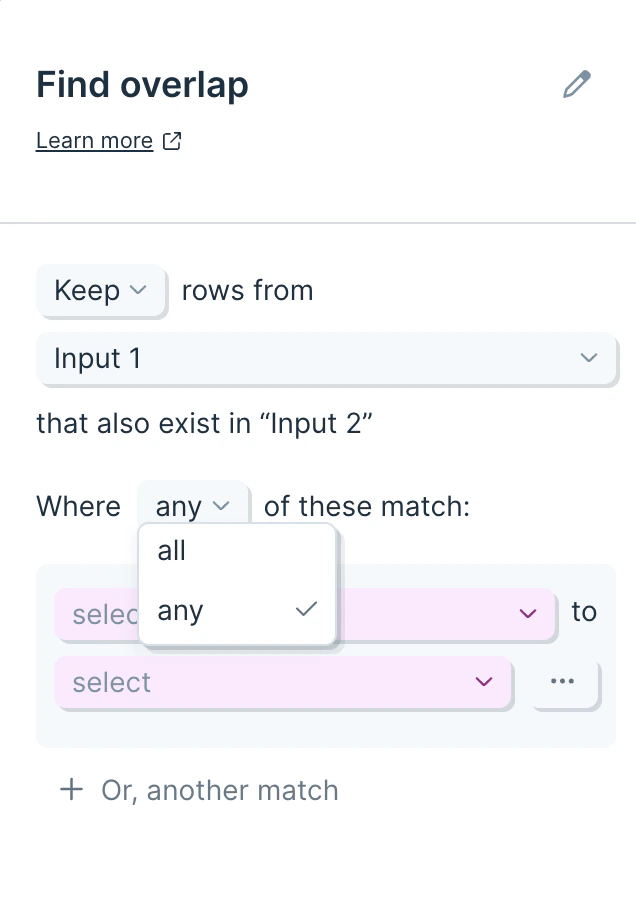
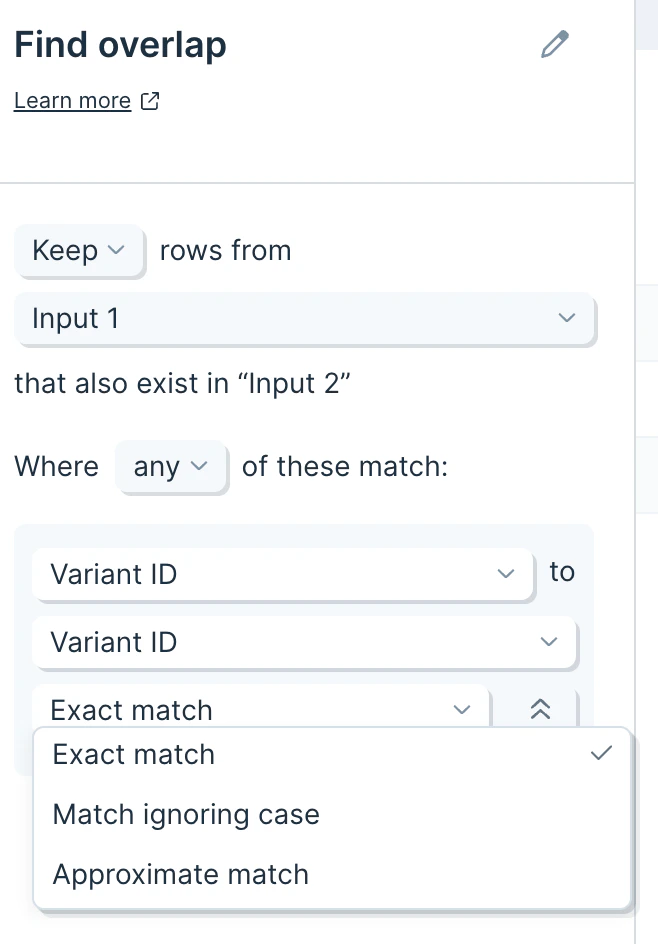
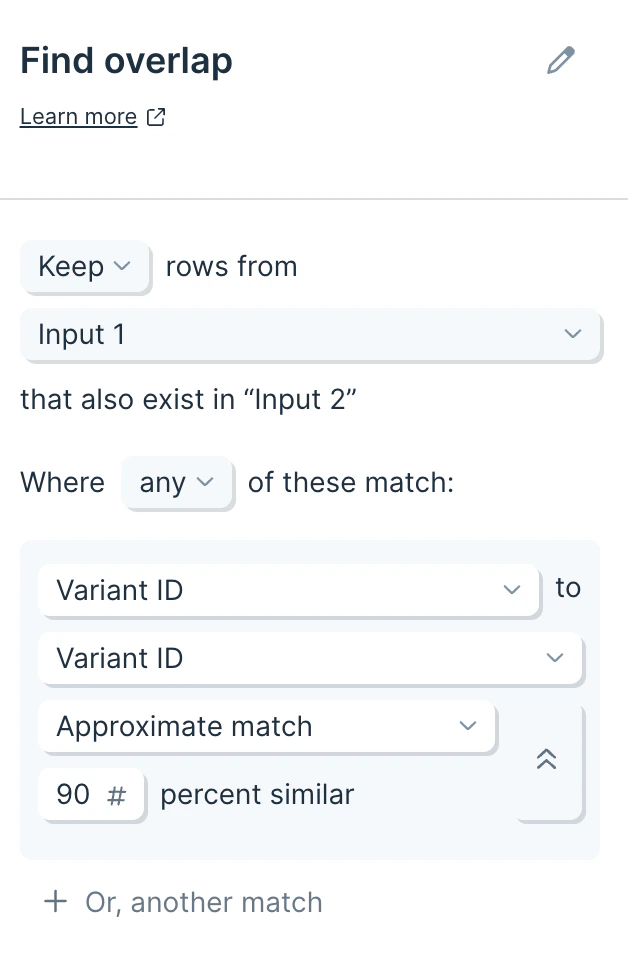
First, make sure the step is configured to use the correct primary table, in this case, ‘Input 1’. Then, determine how the rules should be honored. If you are setting multiple rules, the step can be structured so that ‘any’ rule counts as a match or ‘all’ rules must be met to be considered a match.