
Documentation Index

Fetch the complete documentation index at: https://parabola.io/docs/llms.txt

Use this file to discover all available pages before exploring further.

Watch this Parabola University video to see the Remove duplicates step in action.

Input/output

Our input data has 100 rows with these 4 columns: “Webinar ID”, “Registrant name”, “Registration date” and “Registration time”.
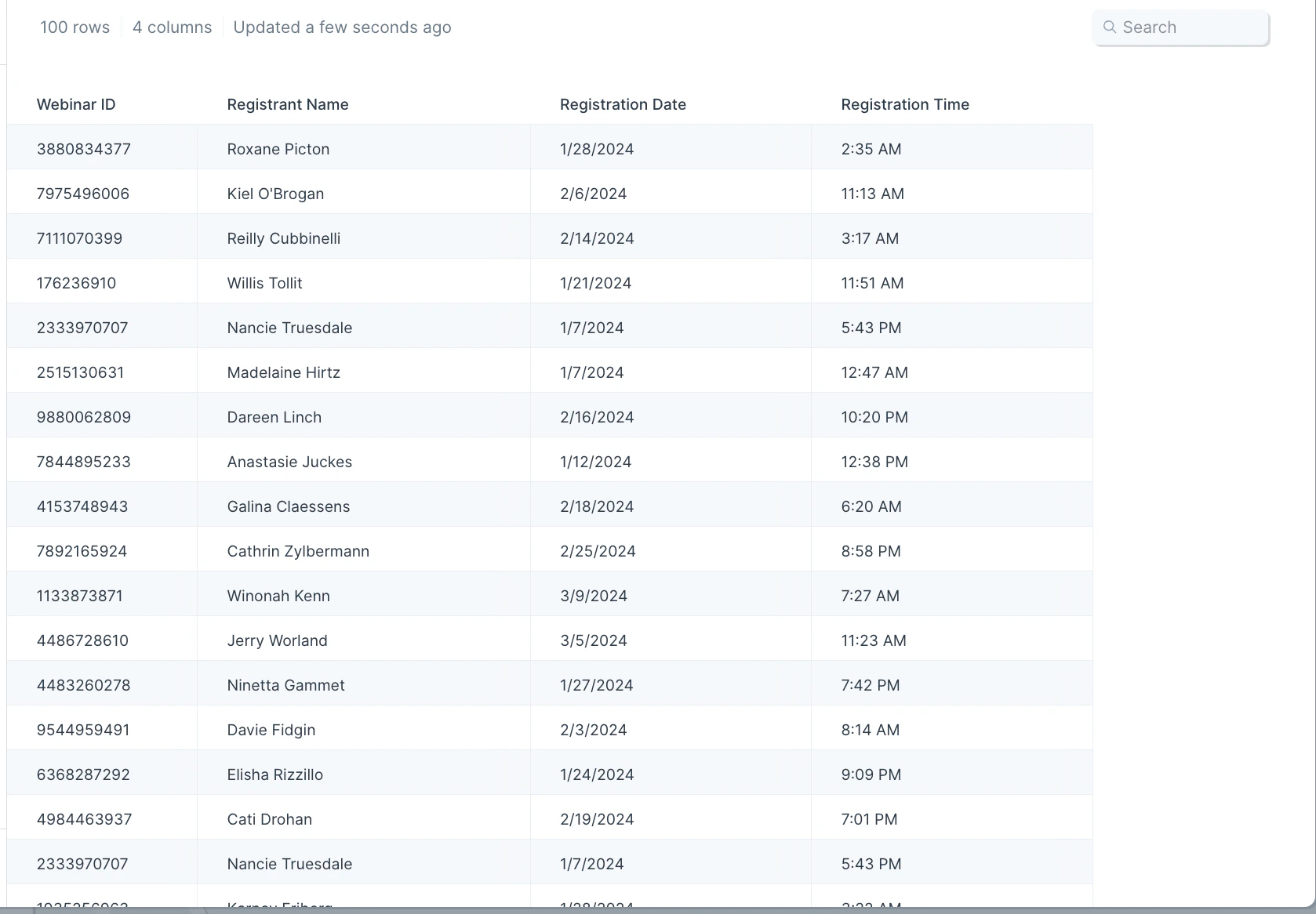
Input table with 100 webinar registrant rows including ID, name, date, and time columns
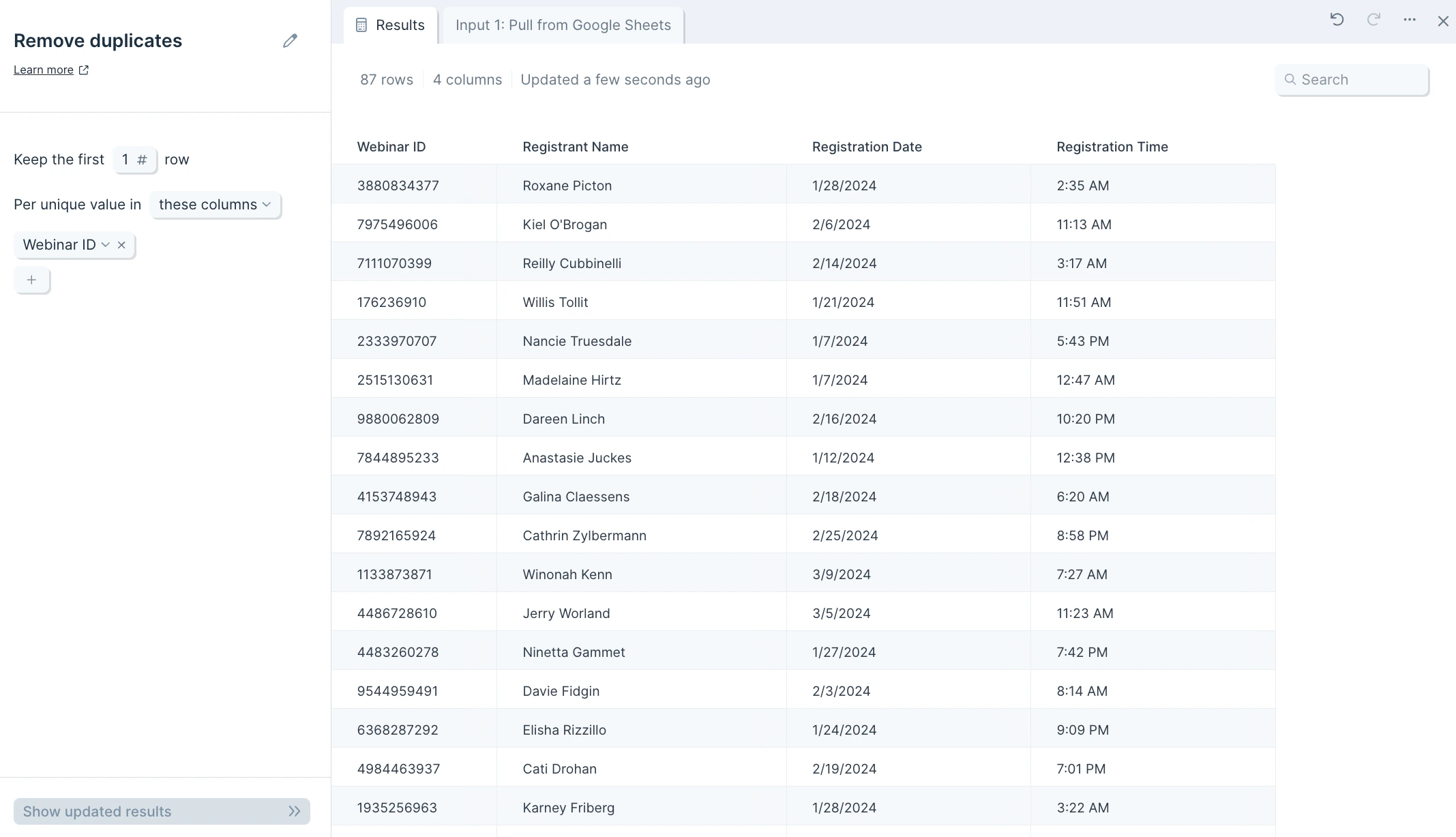
After using the Remove duplicates step to remove duplicate rows in the “Webinar ID” column, we went from 100 rows to 87. This tells us that we have 41 distinct Webinar IDs in our table. You can see from the screenshot above that some Webinar IDs like 532444816-8, 061561006-4, 966924489-7, 905788038-5 are repeated at least twice. It’s those duplicates that this step helps remove instantly.
Output table reduced to 87 rows after removing duplicate Webinar IDs

Custom settings

When you connect data into the Remove duplicates step, you’ll see a notification at the top of the step configuration that says, Per unique value in these columns: select from menu. First, select which column to look for duplicates. Clicking into the select from menu dropdown will expand a columns list to choose from.
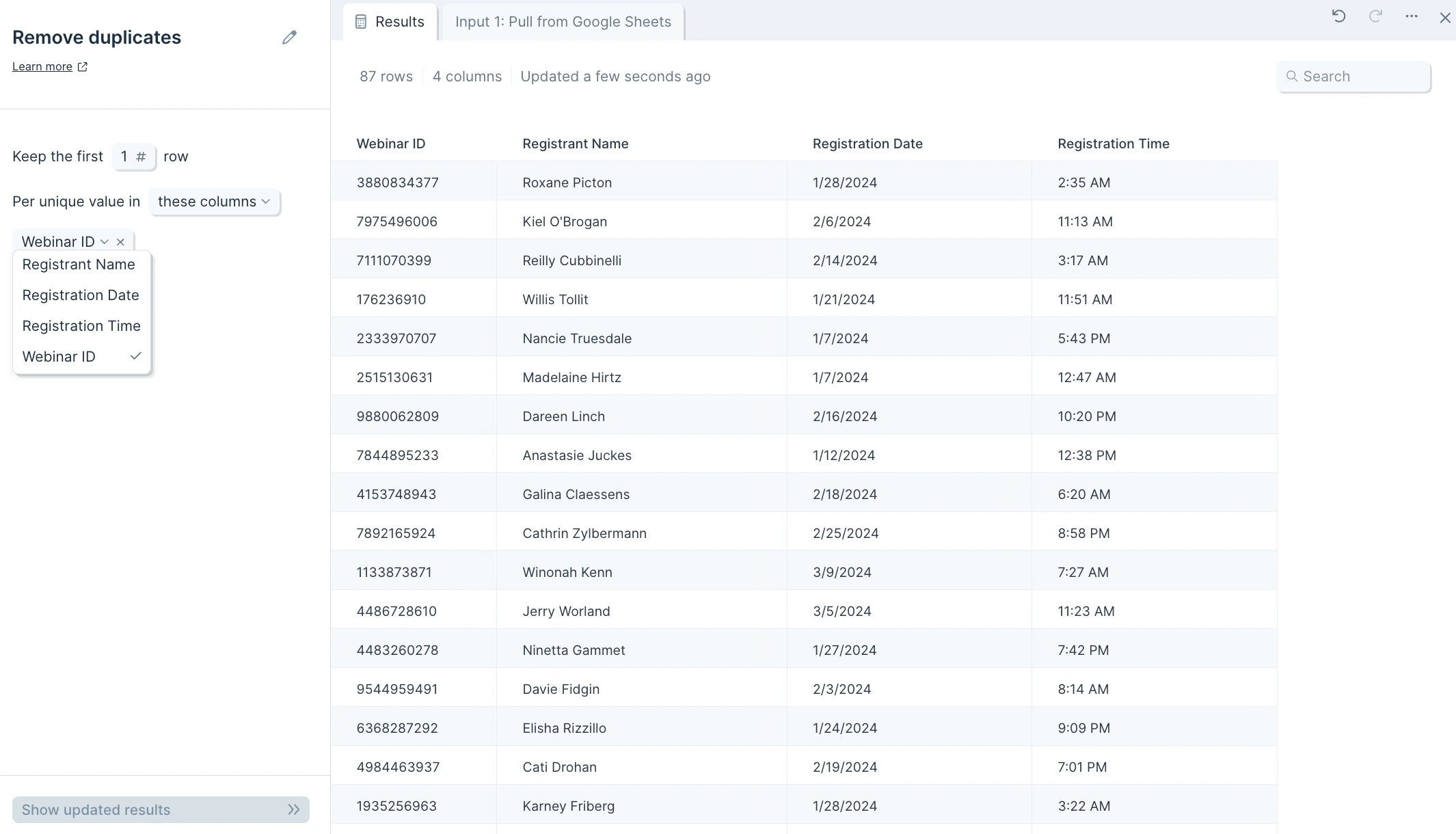
Remove duplicates step settings with the column selector dropdown for choosing the dedup key
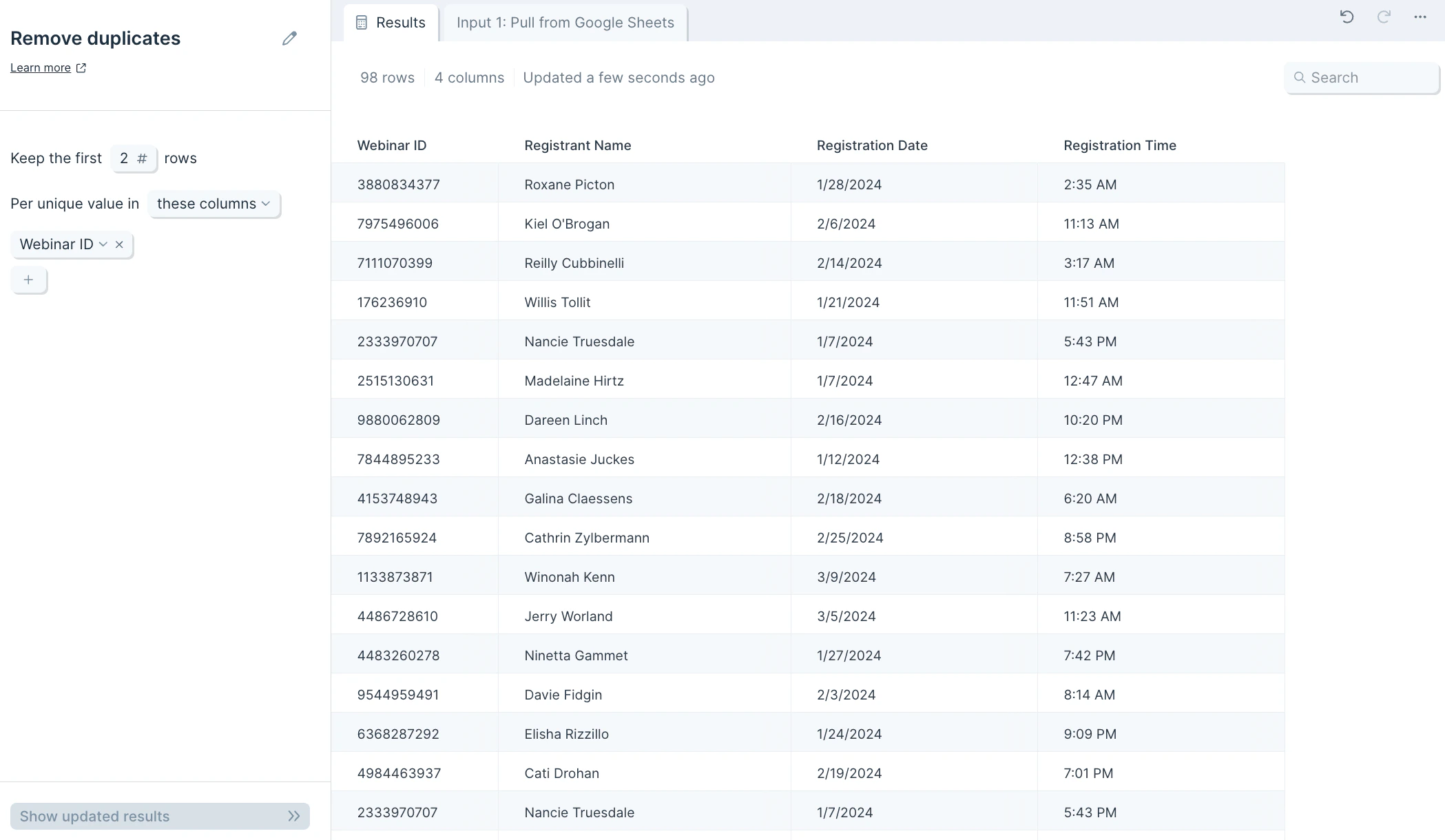
You can also adjust the number of duplicates you’d like this step to keep. By default, this step will only keep 1 row per unique value, though can be changed to whichever number you’d like. A common task is to take a list of data and keep the first 1, 2, 3 or N number of entries depending on a certain order. For example, say we wanted to take our list of webinar registrants and keep the first 2 registrants per webinar to recognize the customers who registered early. First, we’ll make sure that the input data is sorted by “Registration time” where the oldest times display at the top. We would then update the Keep the first _ to 2 and you’ll see, as opposed to the example above, it keeps 2 rows per Webinar ID.
Remove duplicates configured to keep the first 2 rows per unique Webinar ID

Helpful tips

  • If you want to dedupe based on data existing across two or more columns, use a Combine columns step before the Remove duplicates step. This creates a column that has the values across your columns. You can then select that newly created column in your Remove duplicates step.
  • Merge duplicate — combine duplicate row values instead of dropping them.
  • Combine columns — build a composite key when deduping on multiple fields.
  • Sort rows — control which duplicate gets kept by sorting first.
  • Filter rows — apply additional rules after duplicates are removed.
  • Find overlap — compare two datasets for shared or unique rows.
Last modified on May 18, 2026