Documentation Index

Fetch the complete documentation index at: https://parabola.io/docs/llms.txt

Use this file to discover all available pages before exploring further.

Input/output

The data we’ll input into this step has an identifier type to deduplicate and its corresponding columns of data.
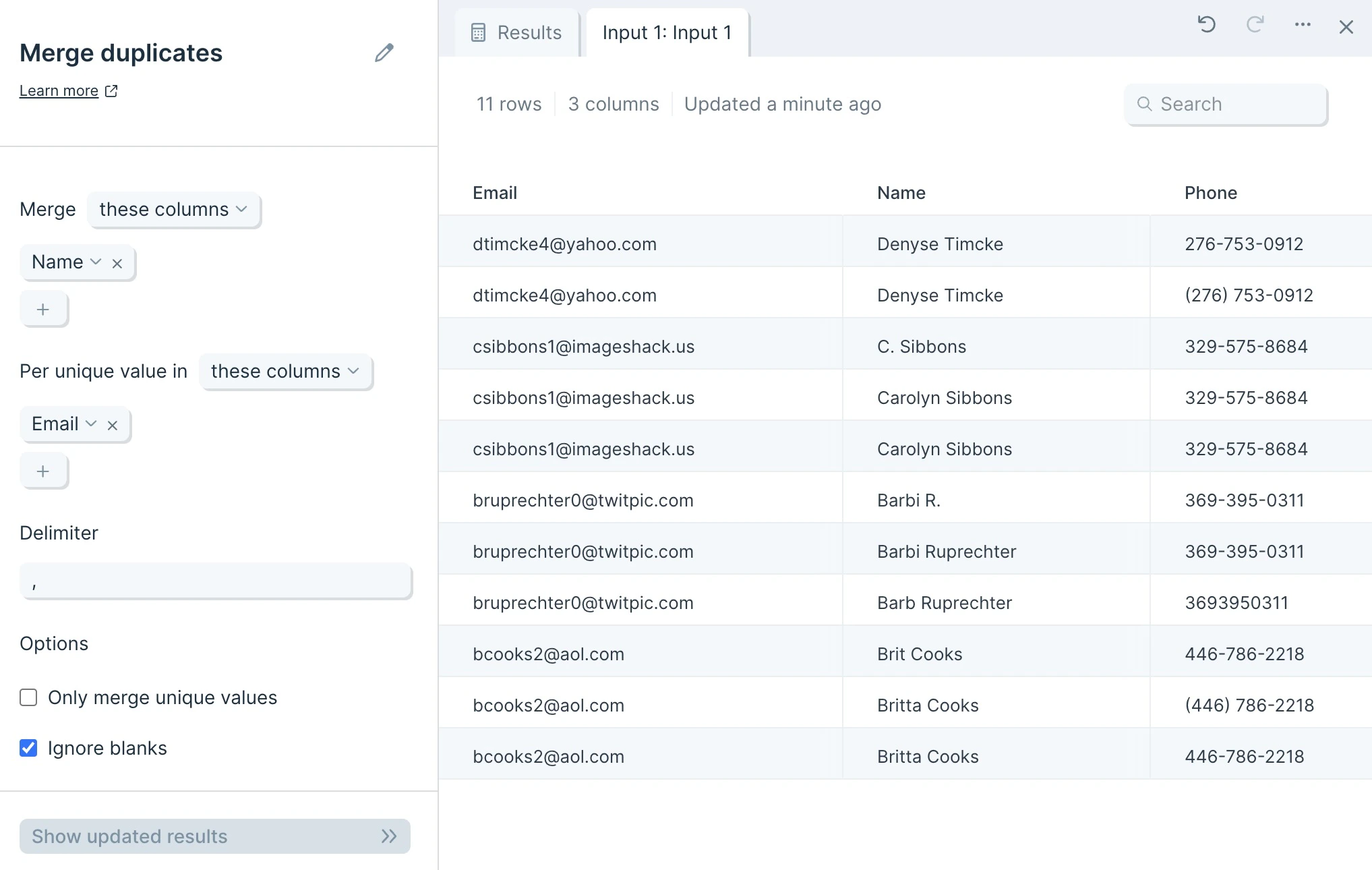
Input table with multiple rows sharing the same identifier value
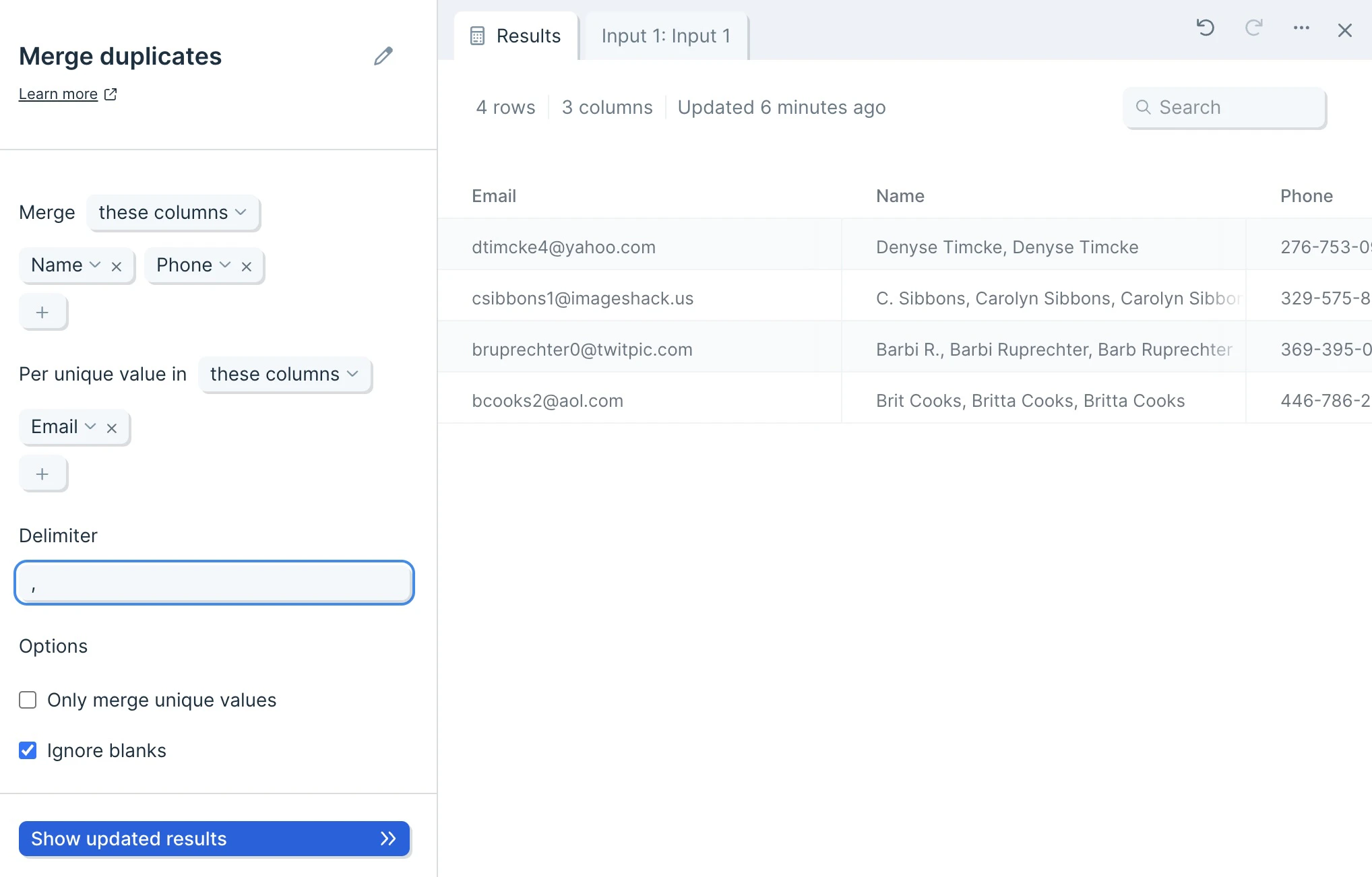
The step provides us with output of deduplicated data (based on a unique identifier value) with the merged values separated by a Delimiter in their corresponding columns.
Output table deduplicated by identifier with merged values separated by a delimiter

Default settings

By default, Parabola will map your first column to the unique value selector, and your second column to your Merge selector.
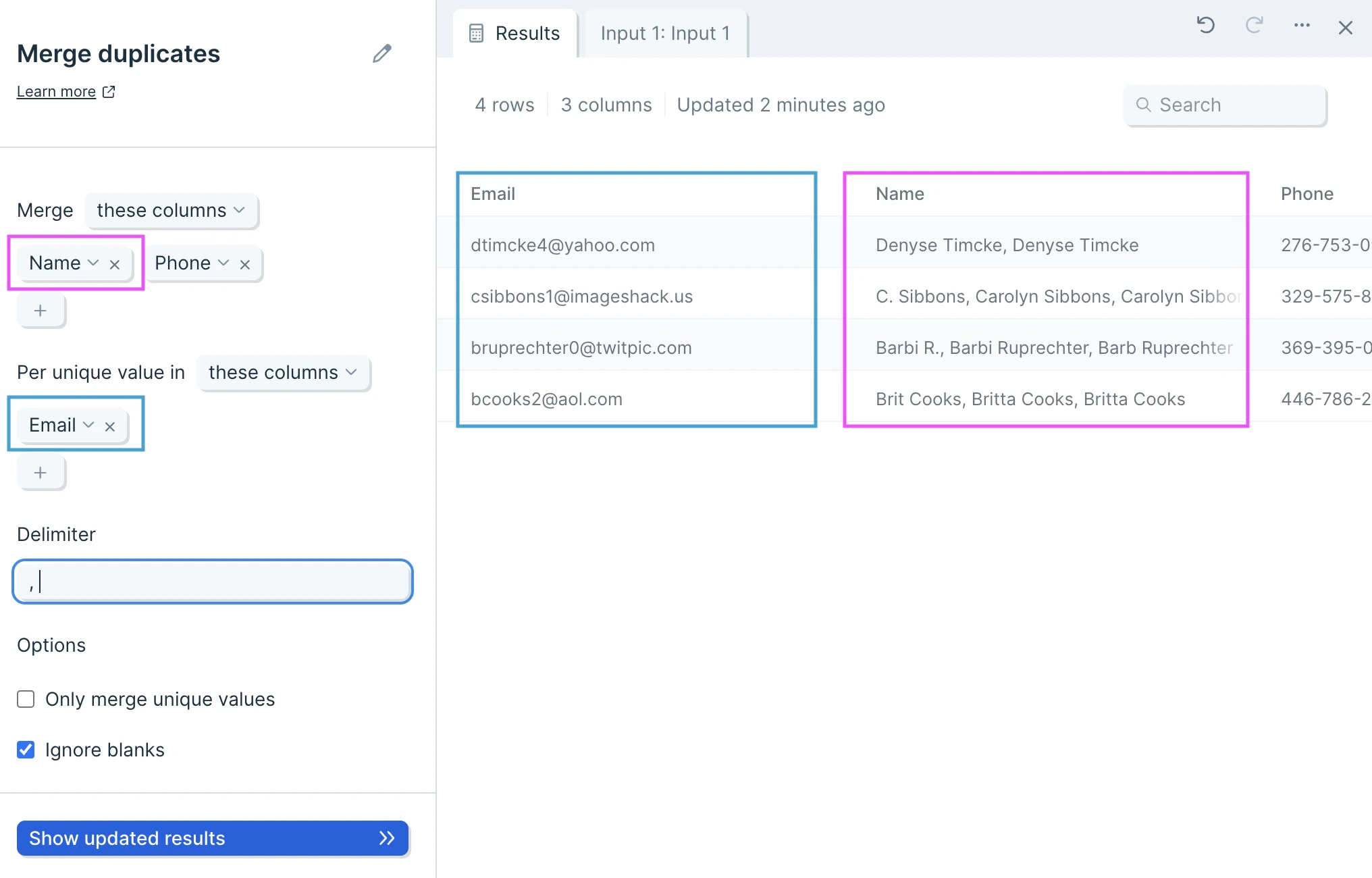

Default Merge duplicates settings with the first column mapped as the unique identifier
The Delimiter will be automatically set to a comma (,).
Delimiter field set to a comma by default
Lastly, the option to Ignore blanks will be auto-selected on.

Custom settings

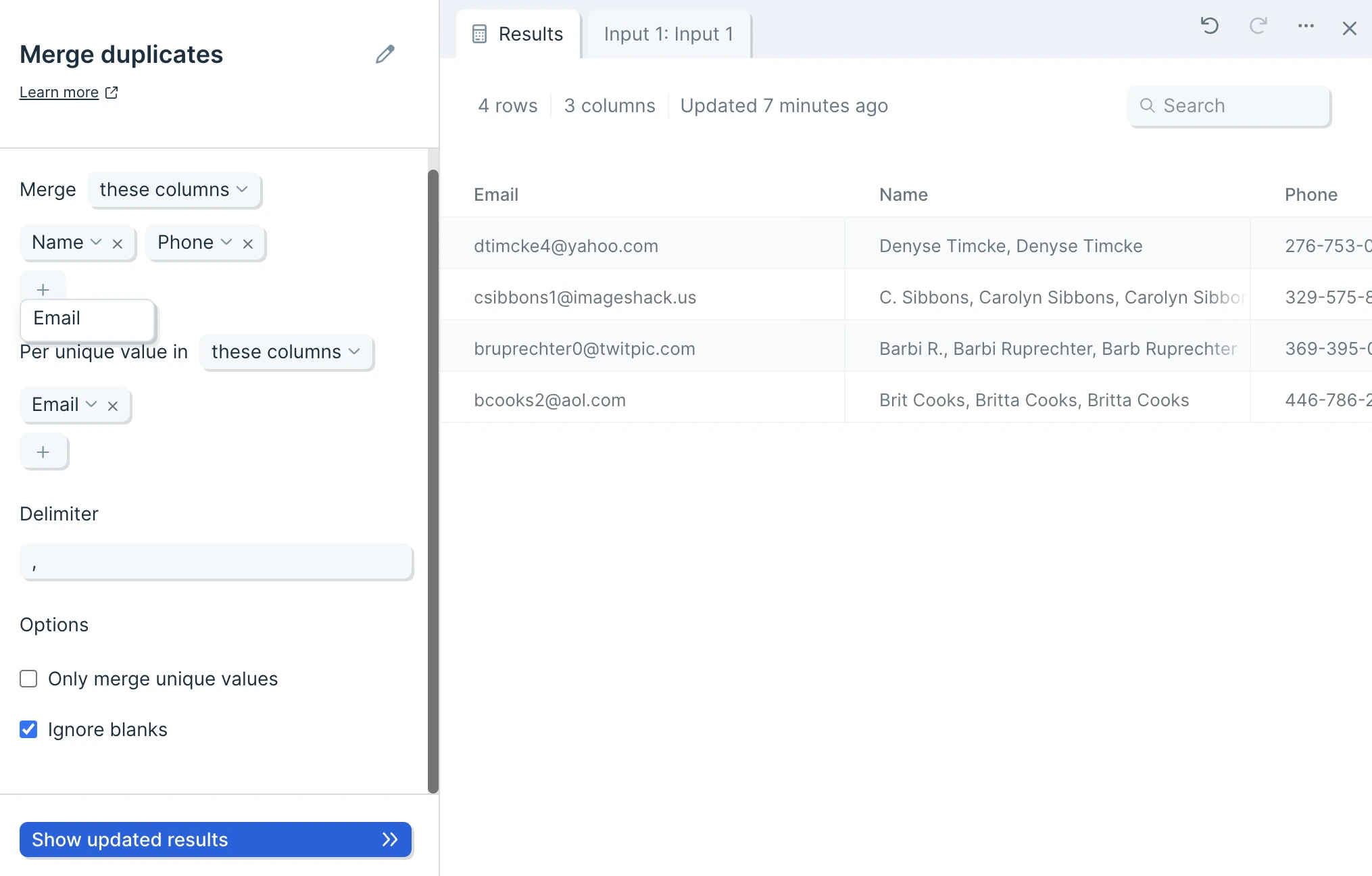
First, decide whether you want to include or exclude columns, by selecting these columns or all columns except.


Setting to include or exclude columns from the merge using these columns or all columns except
Next, click the plus sign to select the columns you would like to merge.
Adding columns to merge by clicking the plus icon and selecting from the column list
Then, use the Per unique value in selector to set the column which will act as your unique identifier.
Per unique value in selector specifying which column acts as the unique identifier
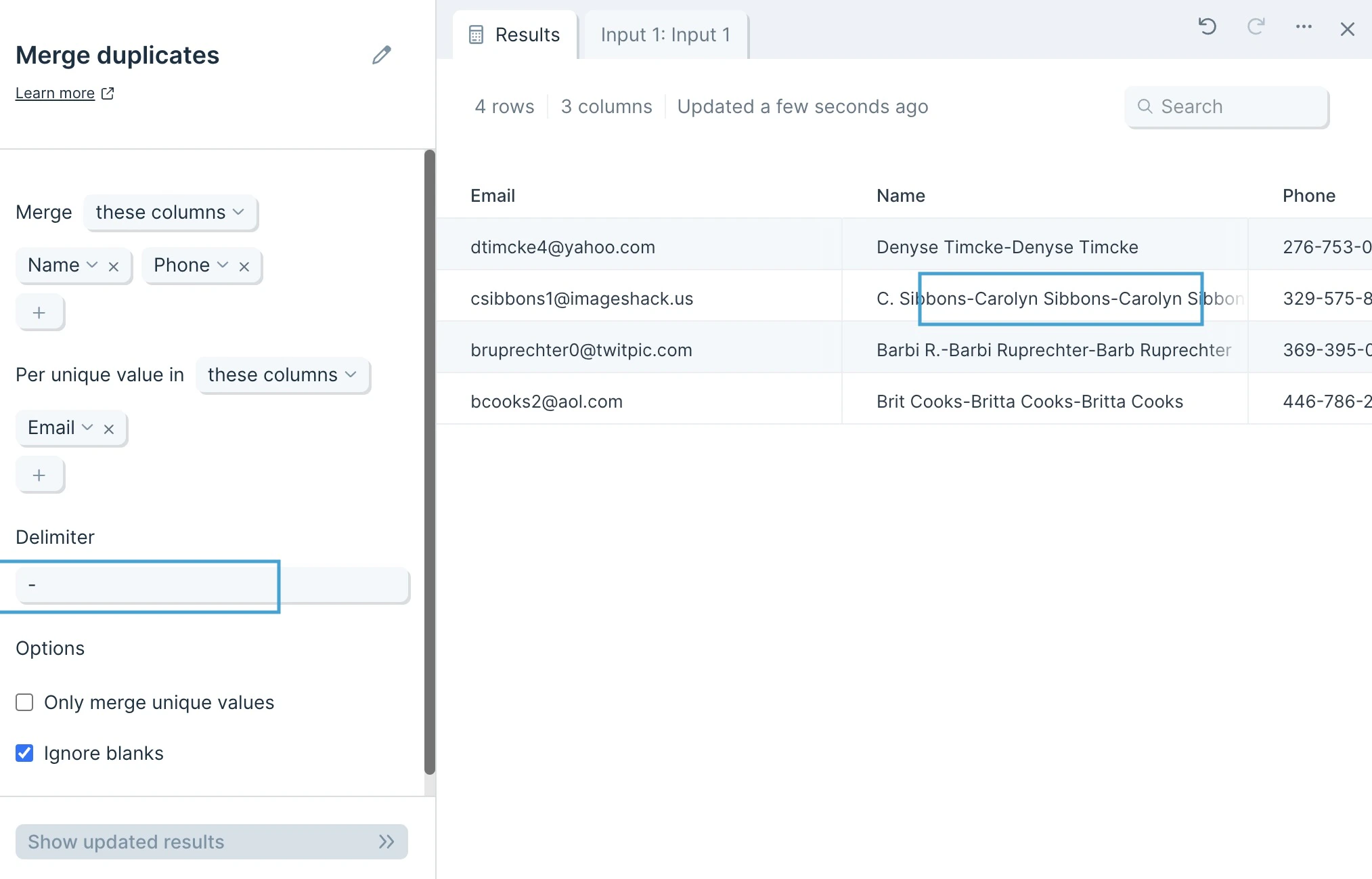
You can choose whatever Delimiter you want. By default, it is a comma (,) but you can choose whatever works best with your data, such as a space ( ), a dash (-), or more.
Custom delimiter field accepting comma, space, dash, or other characters
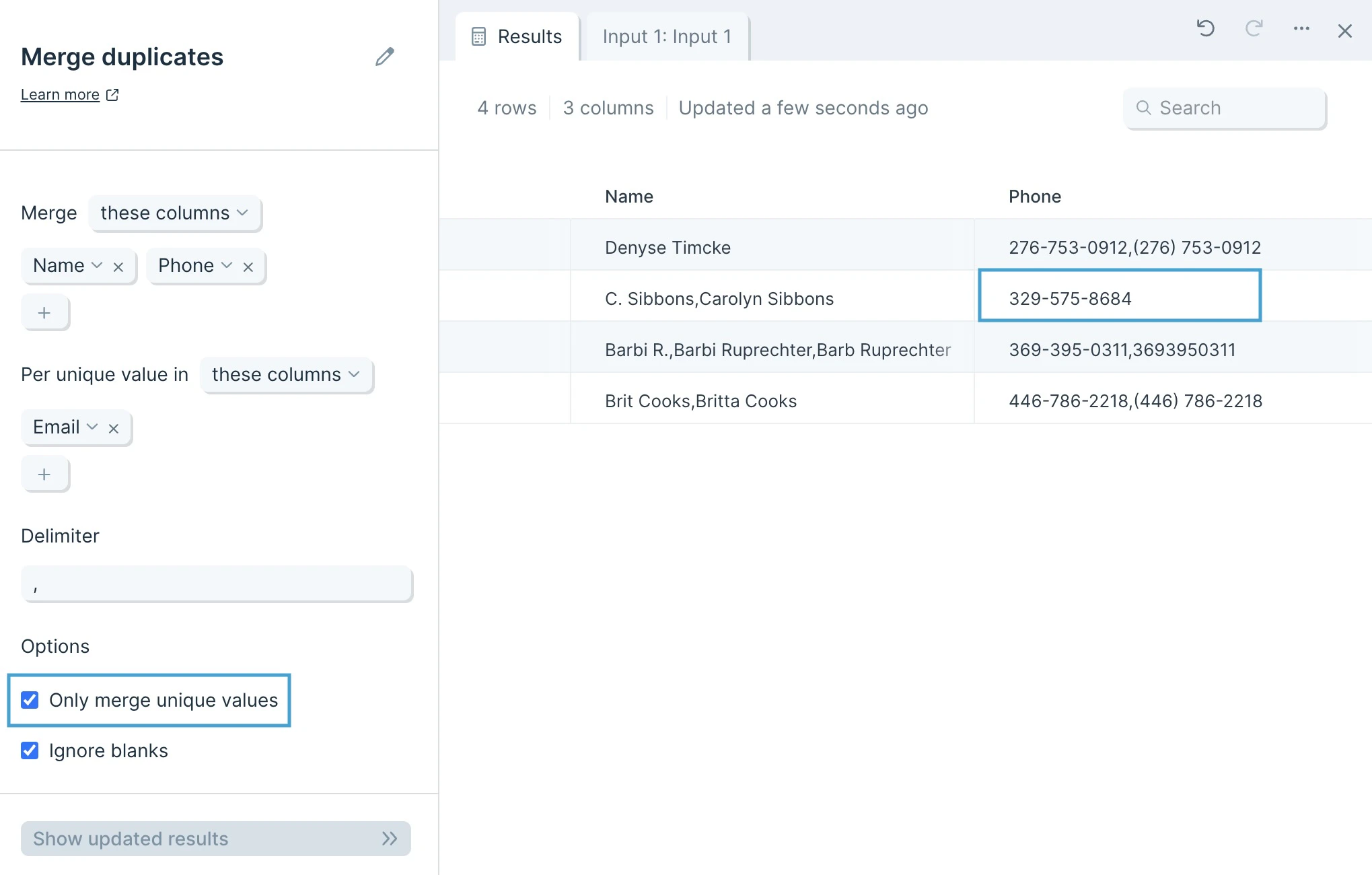
Selecting the option to Only merge unique values keeps all values unique. For example, differently formatted phone numbers will not roll up into one merged number.
Only merge unique values option enabled to keep distinct values from being collapsed
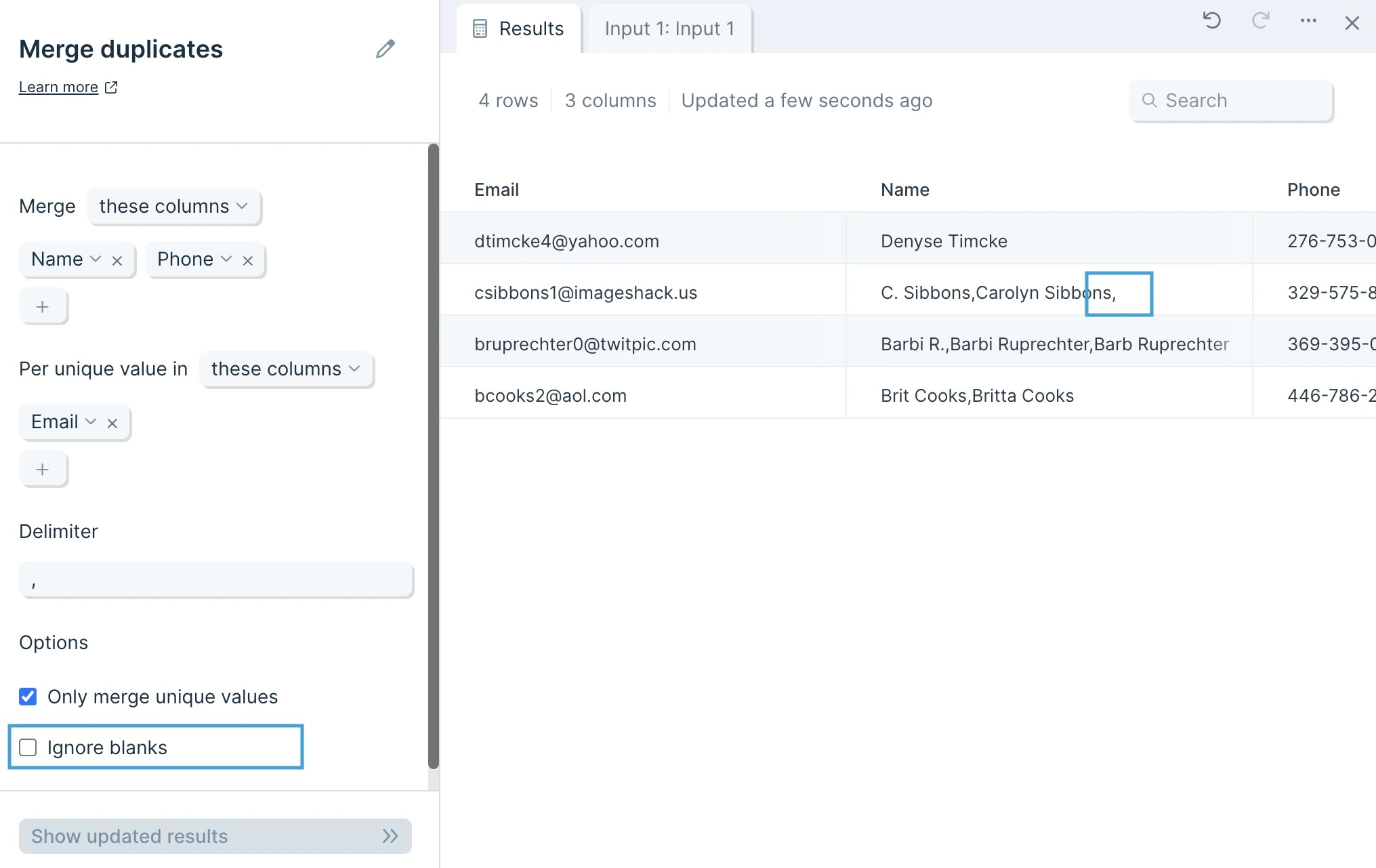
Ignore blanks is selected by default and treats blank cells as if they are not data points. Unchecking this option includes blank cells into your merged values, separated by your Delimiter.
Ignore blanks checkbox controlling whether blank cells are included in merged values
  • Remove duplicate — drop duplicate rows entirely instead of merging their values.
  • Sum by group — total numeric columns by a grouping key.
  • Combine columns — concatenate columns within a single row.
  • Split column — reverse a merge by splitting delimited values back apart.
  • Pivot columns — pivot duplicate row values into columns instead.
Last modified on May 18, 2026