Documentation Index

Fetch the complete documentation index at: https://parabola.io/docs/llms.txt

Use this file to discover all available pages before exploring further.

Input/output

Data connected to this step works best when it is in the shape of a column filled with place names. Think of your data as Google Maps search strings. In our example below, we have a table with a single column called ‘Landmarks,’ containing names of a few global destinations.
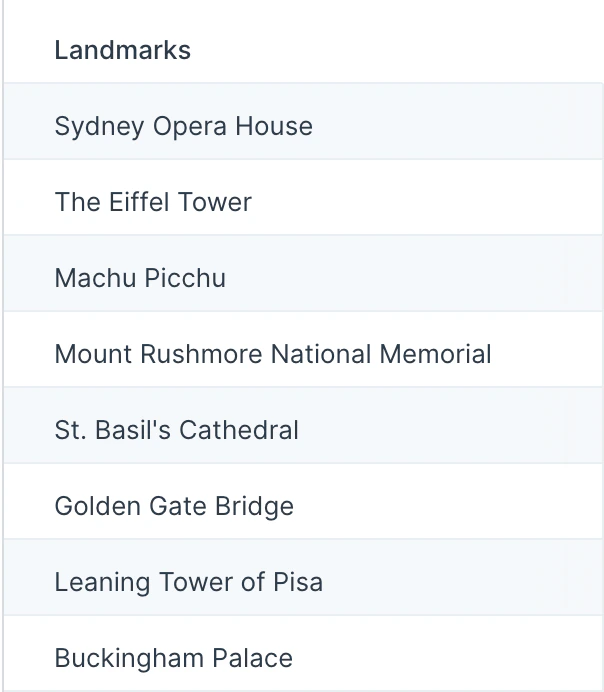
Input table with a single Landmarks column listing global destination names
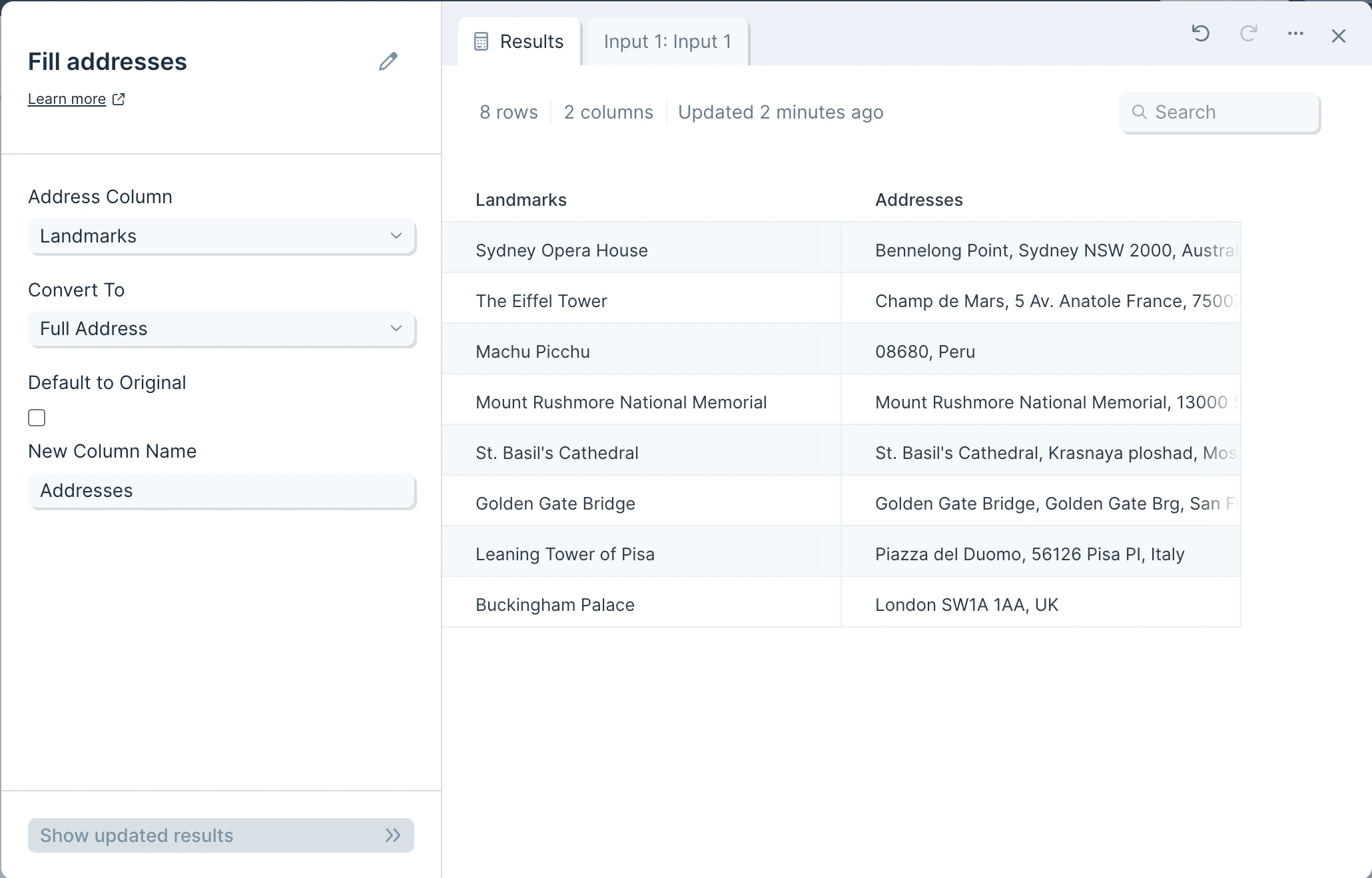
The resulting output, after using this Fill addresses step, is a new column autofilled with location information from Google Maps.
Output table with a new column populated with full addresses returned from Google Maps

Custom settings

In the ‘Address Column’ dropdown, select the column that has the location data you’d like Google Maps to search.
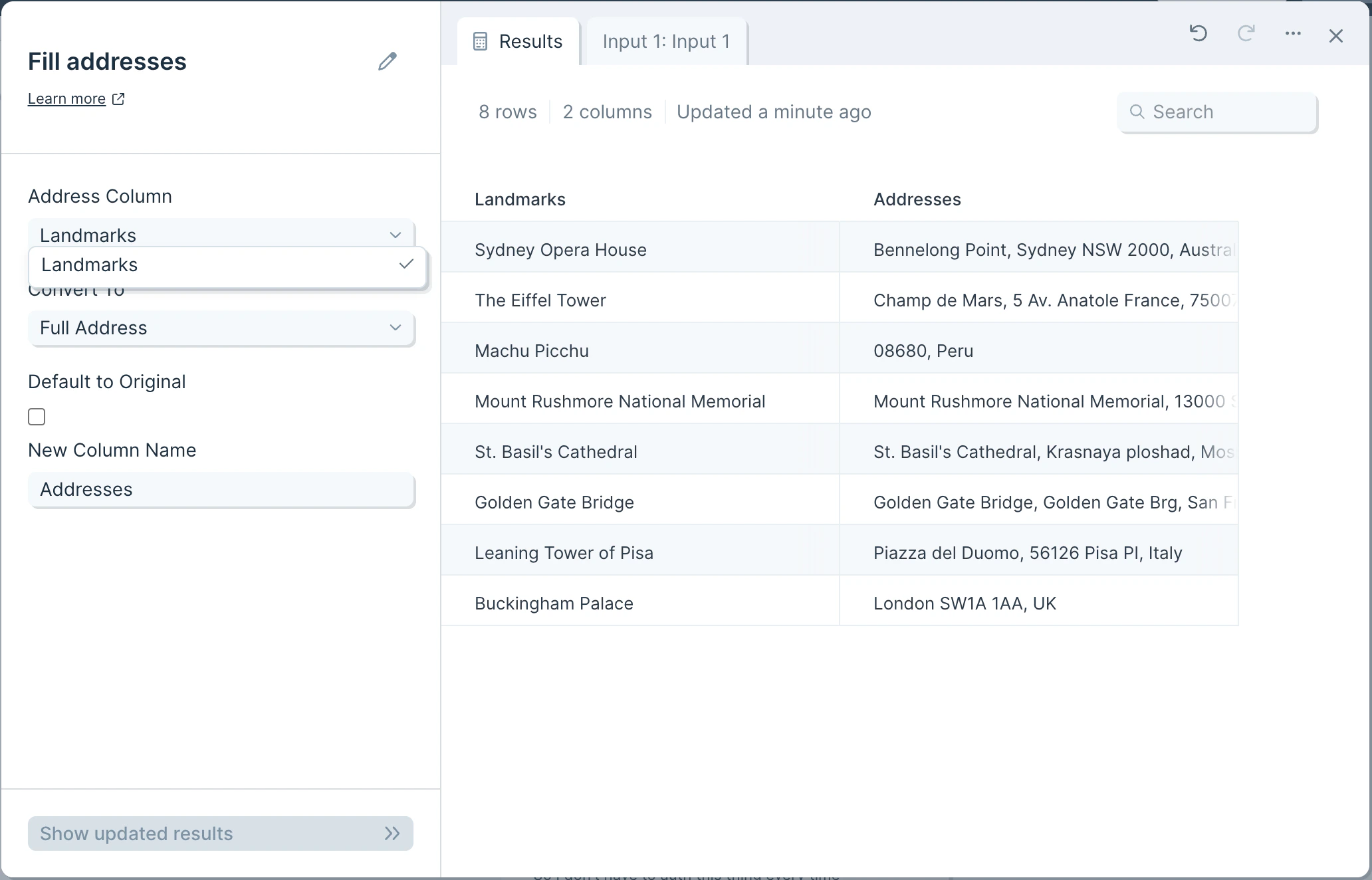
Custom settings panel showing the Address Column dropdown for selecting which column to send to Google Maps
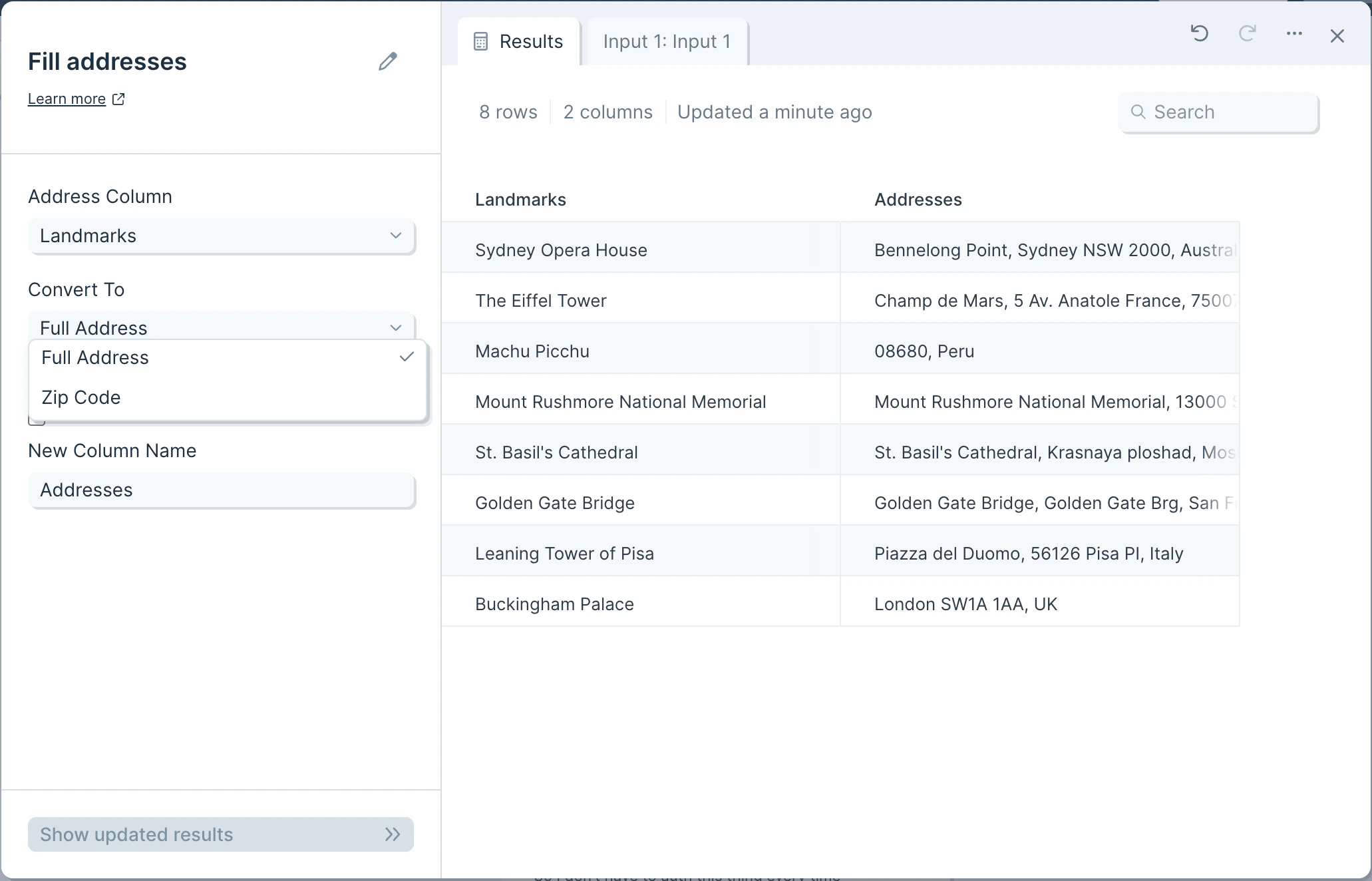
Next, in the ‘Convert To’ dropdown, select how you’d like Google Maps to return the data. You can choose between the full address (if applicable) or simply the zip code.
Custom settings panel showing the Convert To dropdown with full address or zip code options
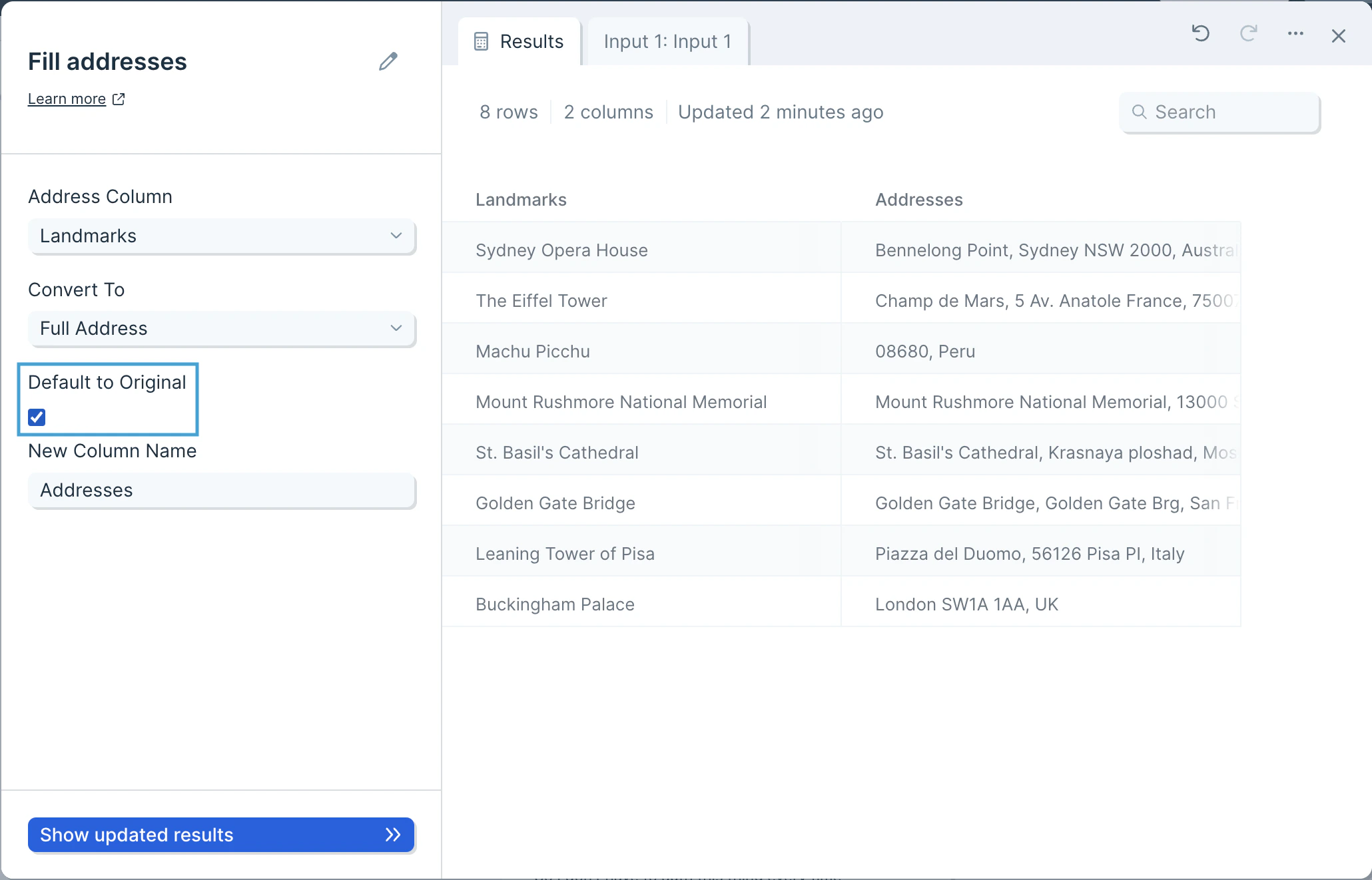
If you check the ‘Default to Original’ box and there are no address details found in Google Maps, your new column will return the data from your selected ‘Address Column’. If you’d rather leave the result blank where no address is found, then you may keep the box unchecked.
Custom settings panel showing the 'Default to Original' checkbox option for unmatched addresses
Lastly, give your new column a name in the ‘New Column Name’ field.

Helpful tips

  • This step is only available on our Advanced plan.
  • This step will only run a maximum of 1,000 rows per step.
Last modified on May 18, 2026