

Documentation Index
Fetch the complete documentation index at: https://parabola.io/docs/llms.txt
Use this file to discover all available pages before exploring further.
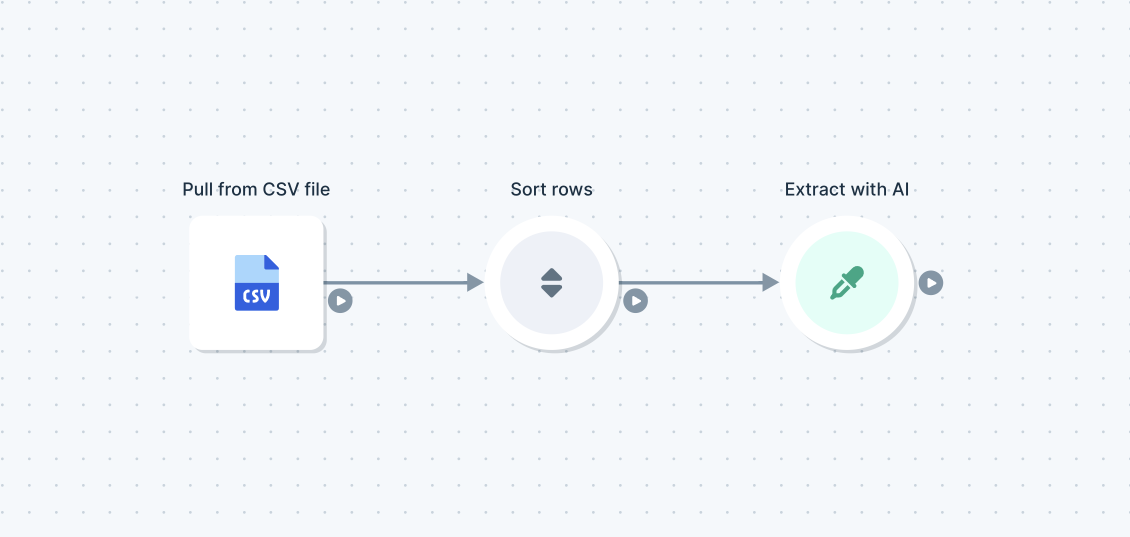
Examples of extracting data with AI
- Processing a list of invoices and extracting the invoice amount, due date, sender, and more
- Taking a list of email addresses and extracting the domain (e.g., gmail.com)
- Taking inbound emails and extracting the sender, company, and request type
How to use this step
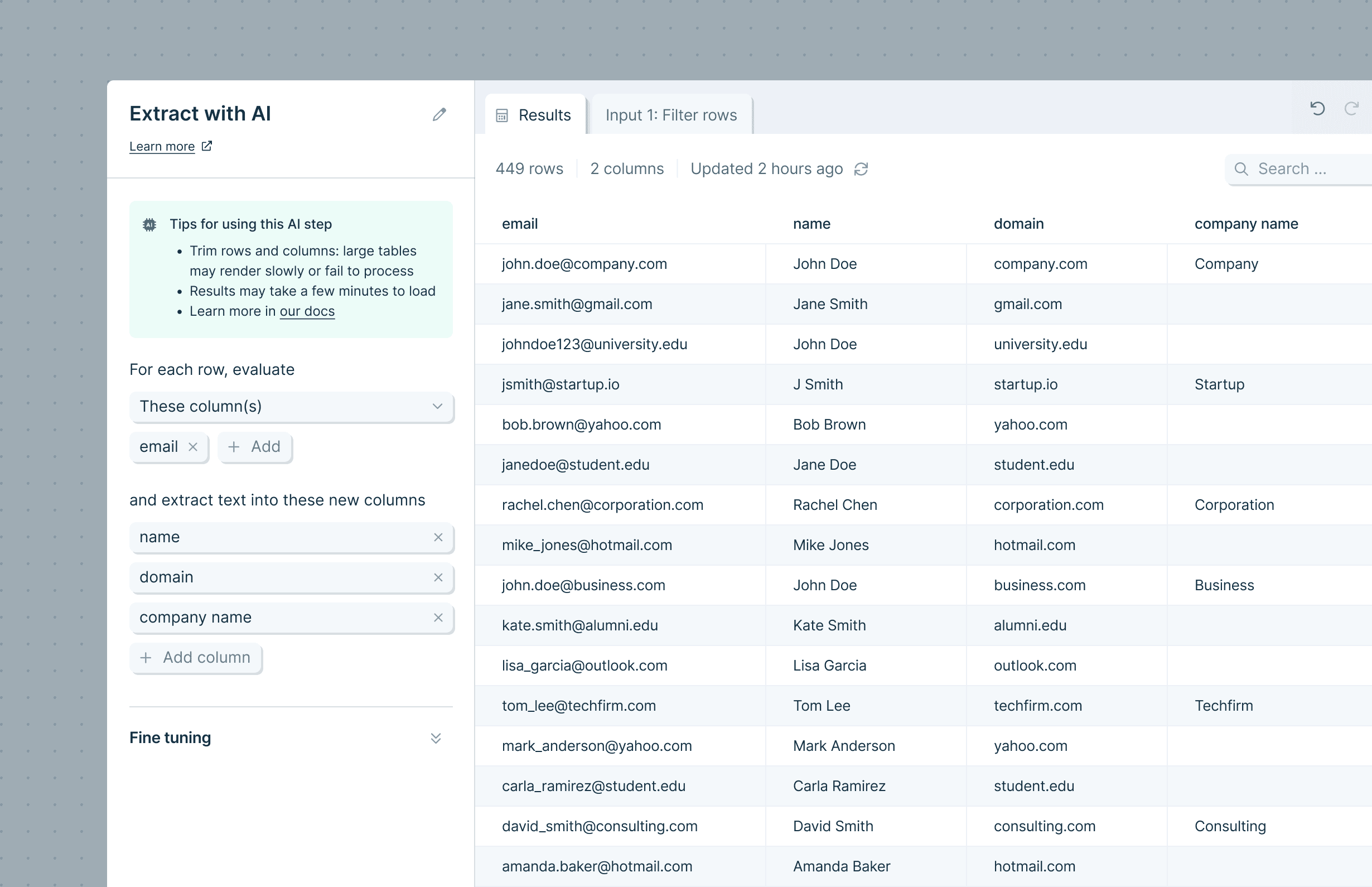
Selecting what to evaluate
You start by selecting which columns you want the AI to evaluate to produce a result.- All columns: the AI looks at every data column to find and extract the item it’s looking for
- These columns: choose which column(s) the AI should try to extract data from
- All columns except: the AI looks at all columns except the ones you define
Identifying what to extract
The next part of this step serves two purposes simultaneously:
The step starts out with three blank fields; you can fill those and even add additional columns to extract data to. Don’t need three? The step will automatically remove any blank ones, or you can remove them yourself.
(You can always rename or trim these columns later using other Parabola steps.)
Fine tuning
Open the ‘Fine tuning’ drawer to see extra configuration options. Using this field, you can provide additional context or explanation to help the AI deliver the result you want.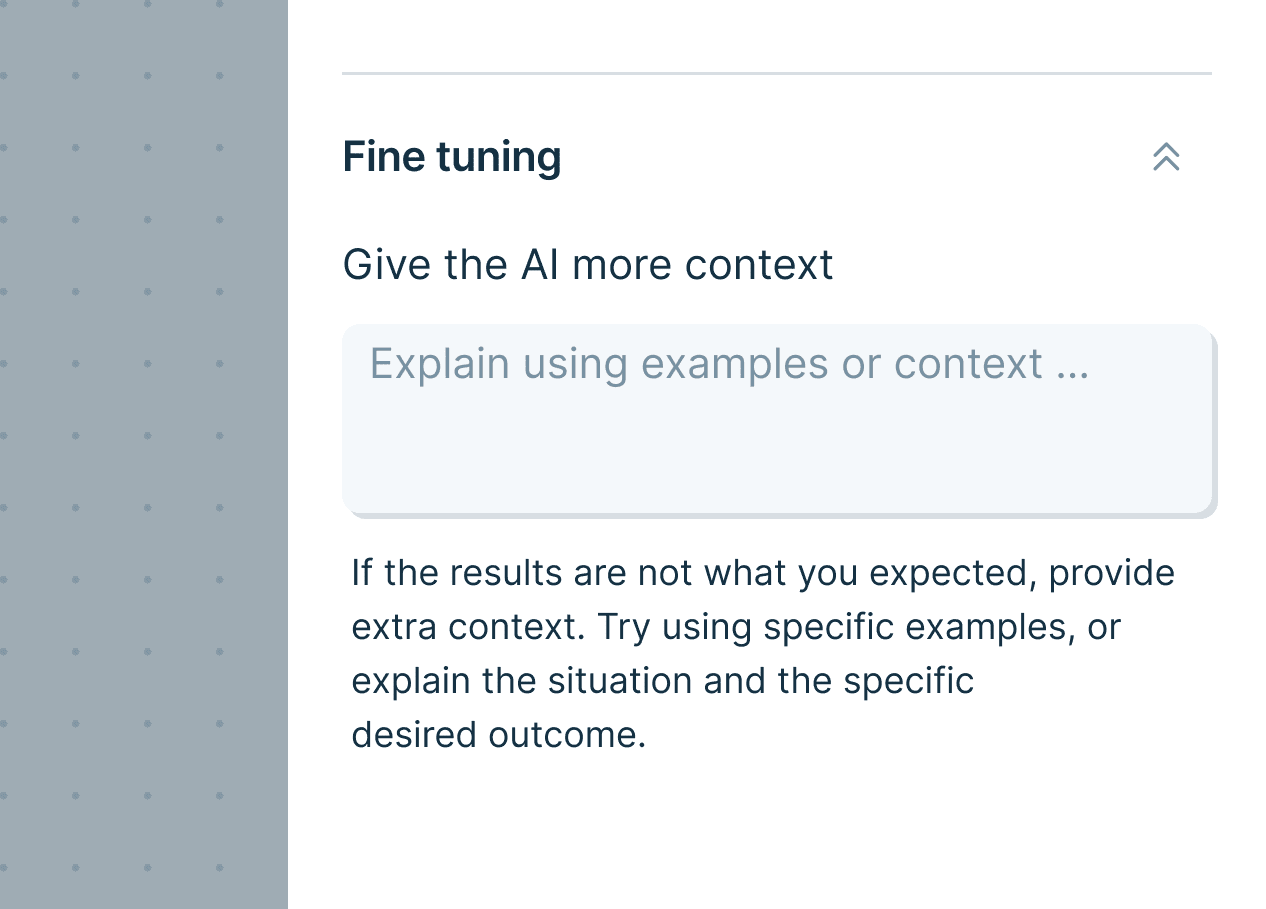
Helpful tips
- Row limits for AI steps: AI steps can only reliably run a few thousand rows at once. Extract with AI has an upper limit of 100k rows, though runs above ~70k rows often fail. If you need to process more than 100k rows, use Filter rows to split your dataset and run smaller batches in parallel.
- Sometimes you’ll see a response or error back instead of a result. Those responses are often generated by the AI, and can help you modify the prompt to get what you need.
- Still having trouble getting the response you expect? Often, adding more context in the ‘Fine tuning’ section fixes the problem.
What is Prowork?
How Parabola’s AI builder works — and how AI steps fit into full workflows.
Build a Flow with Prowork
Describe what you need and Prowork constructs the steps, including AI steps.
FAQ
What types of input does Extract with AI work best on?
What types of input does Extract with AI work best on?
This step works on any tabular data — including text columns that hold full email bodies, document text, transcripts, or other unstructured content. The AI looks at the columns you specify and pulls out a value per row for each field you define.
Why is the extracted value blank for some rows?
Why is the extracted value blank for some rows?
The AI returns a blank when it cannot confidently find the requested value in the source columns. Add more context in the ‘Fine tuning’ drawer (e.g., describe the format or location of the value) and re-run the step.
When should I use Extract with AI versus Extract text from column or Use regex?
When should I use Extract with AI versus Extract text from column or Use regex?
If the value you want sits at a predictable position (e.g., always after the @ in an email), Extract text from column or Use regex are faster and deterministic. Use Extract with AI when the value’s location varies row to row or requires interpretation.