

You can sort the numbers in ascending or descending order. You can add row numbers down the whole table, add numbers that repeat after a certain number of rows, repeat each number a set amount of times before advancing to the next number, and number based on another column. Numbering based on another column is a powerful way to add numbers to things like line items that share an order ID, or to rank your data.Documentation Index
Fetch the complete documentation index at: https://parabola.io/docs/llms.txt
Use this file to discover all available pages before exploring further.
Input/output
The input data we’ll use with this step is a table of 15 rows with the 4 columns from a sales report.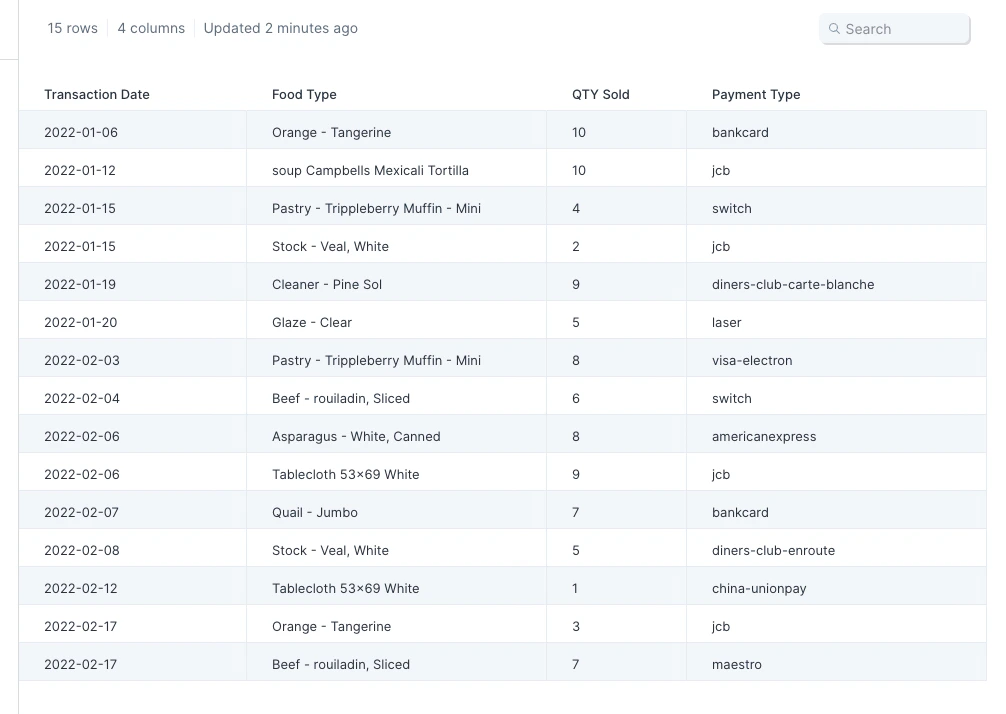
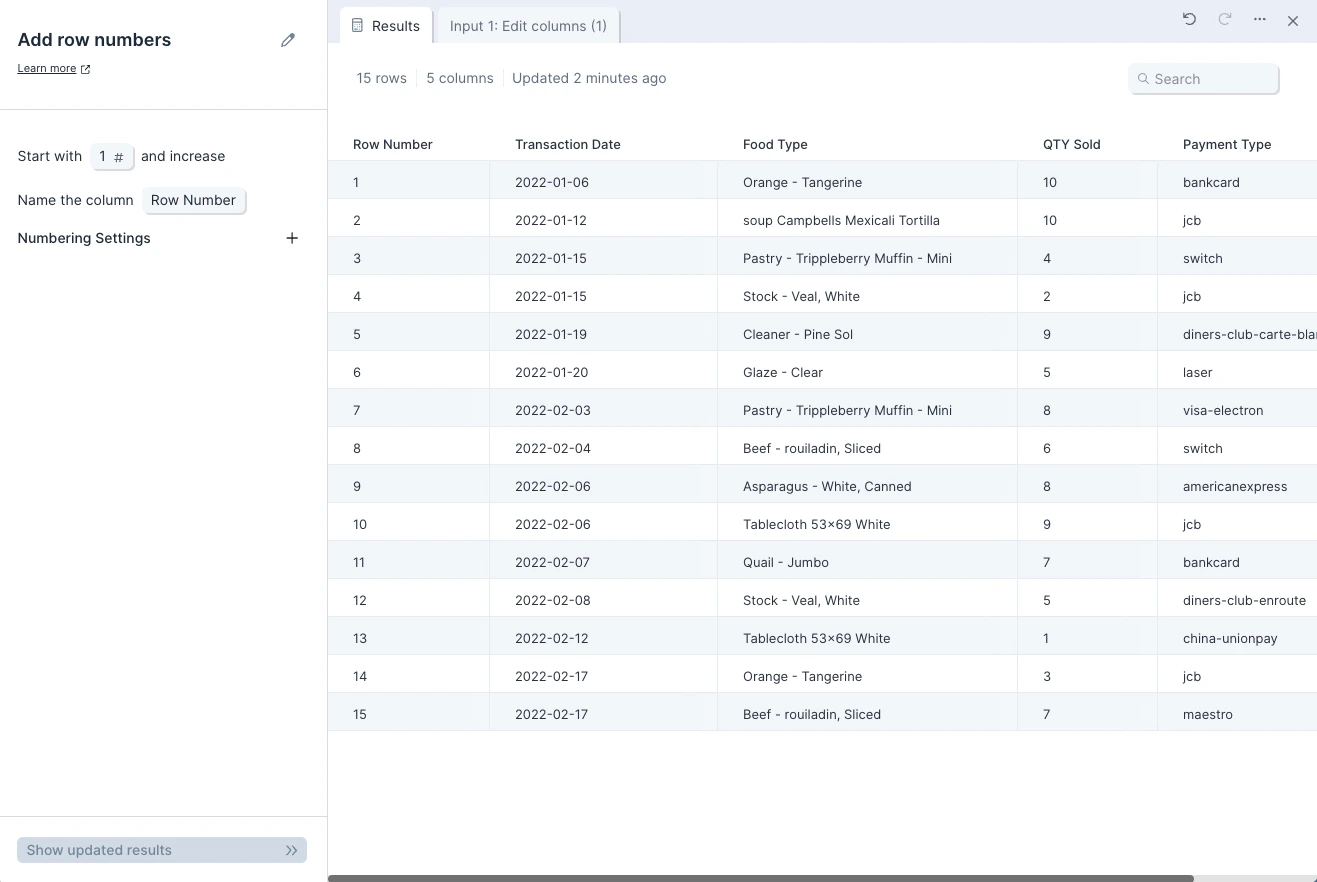
Default settings
By default, the ‘Column Name’ will be set to ‘Row Number’, ‘Start with’ will be set to ‘1’, and the rows will be numbered in ascending order.Custom settings
To sort the numbers in descending order, click ’+’ to expand the ‘Numbering Settings’ section and change the default setting from ‘the top’ to ‘the bottom’. The numbers will now be sorted from highest to lowest.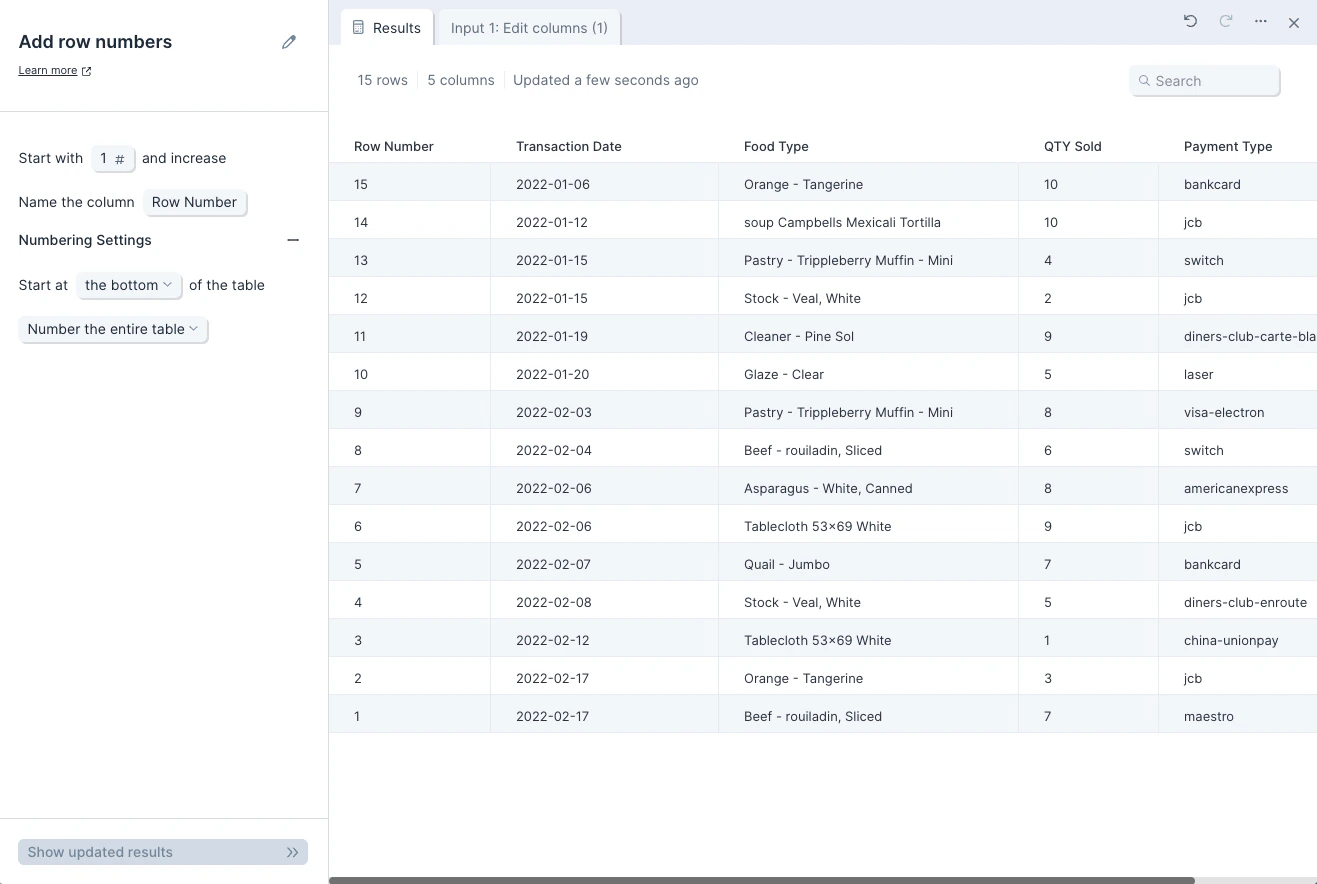
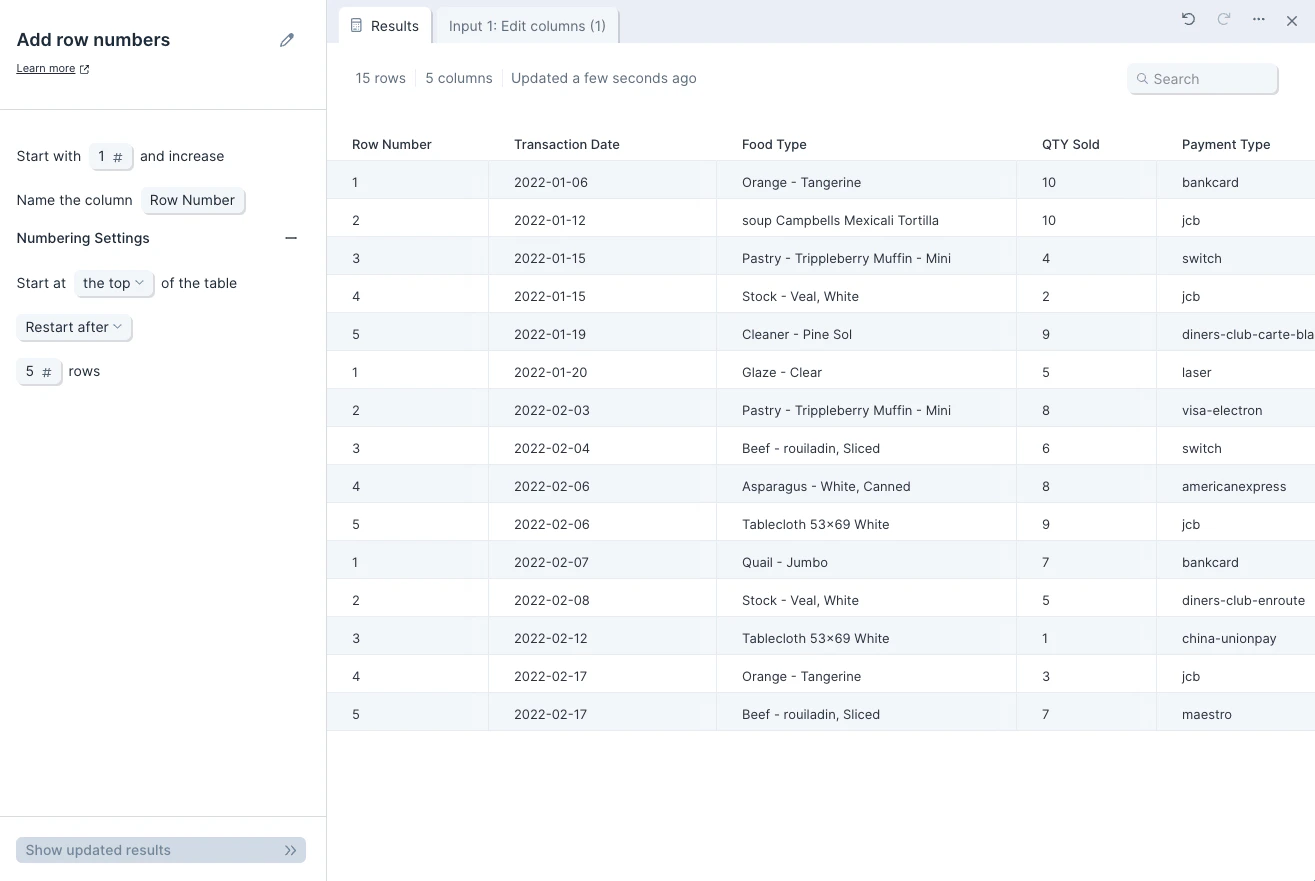
Helpful tips
- If two tables have the same number of rows but do not share a matching column, use this step and then the Combine tables step to create a new column that you can use to combine the tables.
Related steps
- Combine tables — pair row numbers across two tables to join data without a shared key.
- Sort rows — order rows before assigning row numbers.
- Add running total — track cumulative totals using row positions.
- Limit rows — keep only the first or last N rows after numbering.